
Domotz implements support for Power Distribution Units (PDUs) and IP-controlled power outlets (smart plugs).
When one of these devices is discovered and recognized as supported by Domotz, a new tab Outlets is automatically created in the Device Details screen, with an entry for each port of the device, like in the example below:
Power Distribution Unit (PDU) Control Dashboard 1. The top-left displays the PDU name "PDU81001" and its status as "online," along with its IP address and uptime. 2. Tabs available for navigation include Info, Connect, Alerts, History, Eyes, and Outlets. 3. The focus is on the Outlets tab showing a list of plug slots labeled from Outlet1 to Outlet6. 4. For each outlet, you can add a custom name by clicking the "Add a custom name" field. 5. Each outlet has a toggle switch to control power, set to green indicating it's currently on. 6. Circular icons next to the toggles allow for additional options or actions for each outlet.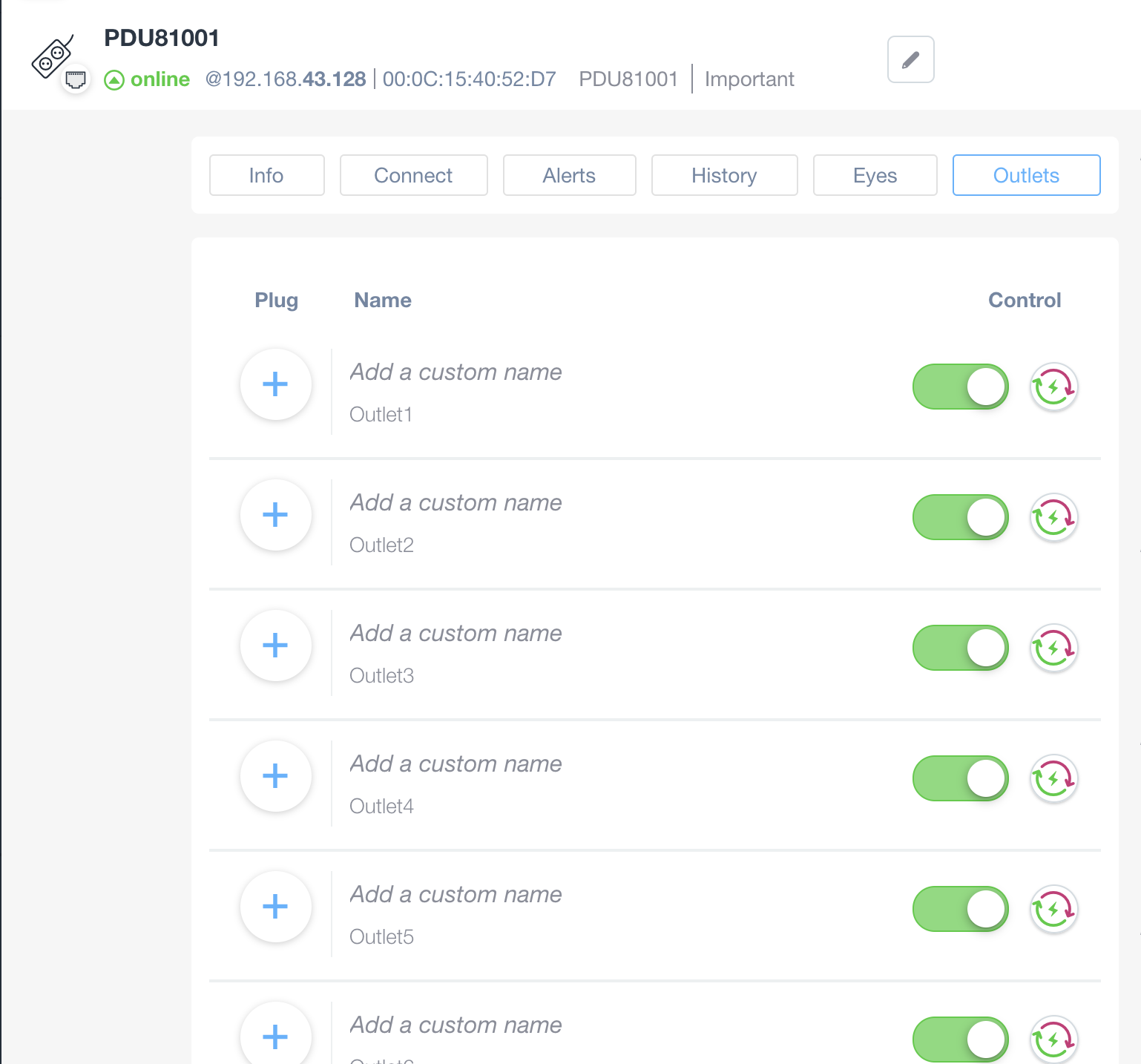
Here you have basic on/off control of the switch as well as a power-cycle button (if natively supported by the PDU itself). You’ll be prompted to confirm that you want to change the power state of the switch each time.
Domotz has an extremely useful feature where you can “Connect a Device/Connect additional devices” to the plug. What this does is that it creates a symbolic link between the outlet and the devices you selected. As a result, you can easily keep track of what is plugged in where.
To Connect a Device simply start by tapping on the symbol to the right of the devices name.
Add New Item Button A circular button with a blue plus sign inside. Click this button to add a new item or entry to the current list or section within the application.
You should see a screen similar to the one below. Create the connected device by tapping on the plug symbol in front of the device that is plugged in to the smart plug.
Connect a Device Interface 1. At the top, there is a search bar for finding devices by name or identifier.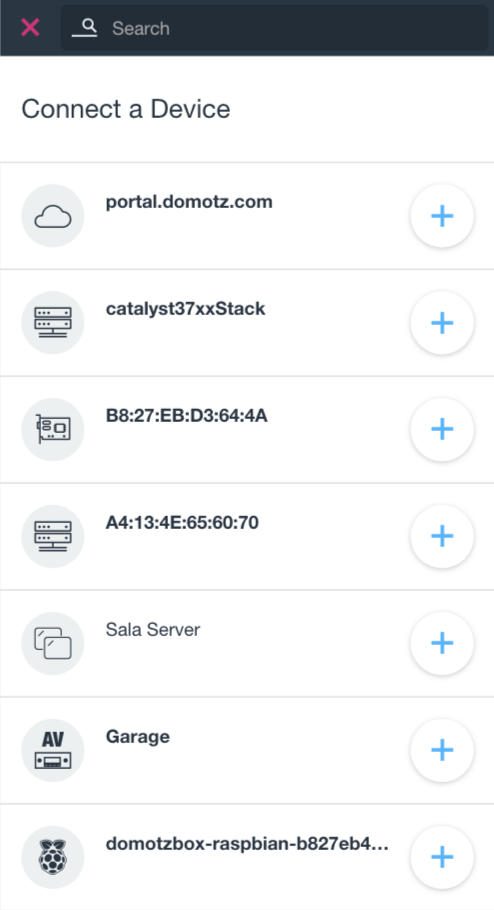
2. Below the search bar, a list titled "Connect a Device" displays available devices.
3. Each device is listed with an icon and a label, such as "portal.domotz.com," "catalyst37xxStack," and more.
4. To the right of each device is a plus button, which can be clicked to initiate the connection process for that device.
When the devices have been linked, you will be able to switch them on/off from the smart plug or PDU Config tab. In addition, you’ll be able to do it also from the linked device page. In the picture below you can see a AppleTV connected to a PDU outlet. The on/off and reboot buttons also appear in the Info section of the Apple TV.
Power Management Interface for PDU81001 1. View the device name "PDU81001" and its online status indicated by a green "online" label and IP address “192.168.43.128”. 2. Access options like Info, Connect, Alerts, History, Eyes, and Outlets in the menu bar. 3. Under "Outlets", see a list of connected devices. For the entry labeled "AppleTV" on "Outlet1", you can toggle power using the green switch located in the Control column. 4. Add new devices using the "Add a custom name" option below the current entries.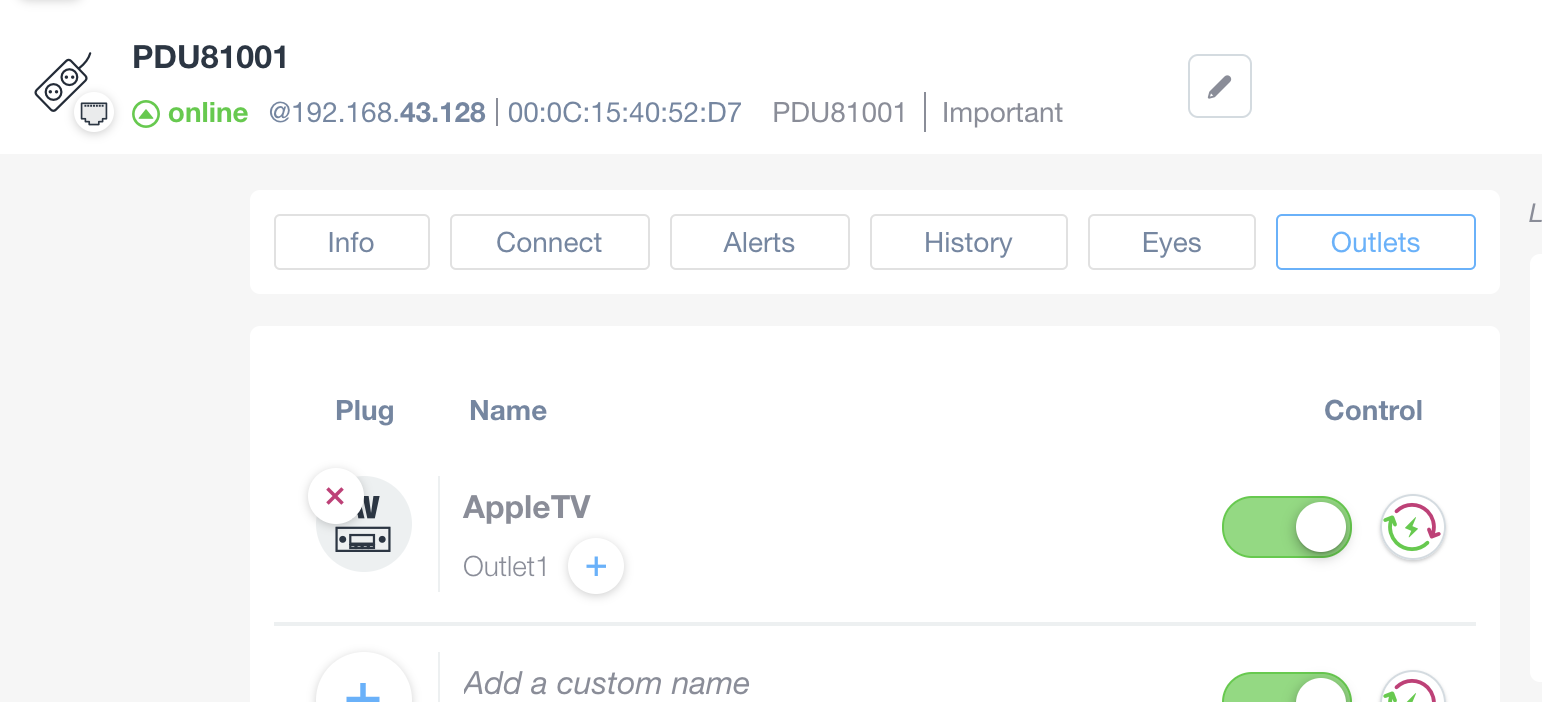
Network Status and Power Management Overview 1. The device shown is identified as "AppleTV" and is currently online, indicated by a green status. It has the IP address 169.254.2.187 and hardware identifier 34:1B:22:80:1F:13. The device is located in the "Living Room" on the "Second Floor" and is marked as important. 2. Under "Network Mapping & Power Management," details for the network are displayed. The MAC address A4:13:4E:1A:C1:D8 is linked to the IP 192.168.43.6, with a data transfer rate of 1 Gb/s downloading and 31.1 Kb/s uploading. 3. The power management section shows a device labeled "PDU81001" with "Outlet1." The outlet is actively supplying power with a consumption of 6 Watts, as indicated in a green circle with a lightning bolt symbol. A toggle switch is present, showing the power status as on, alongside a power reset button.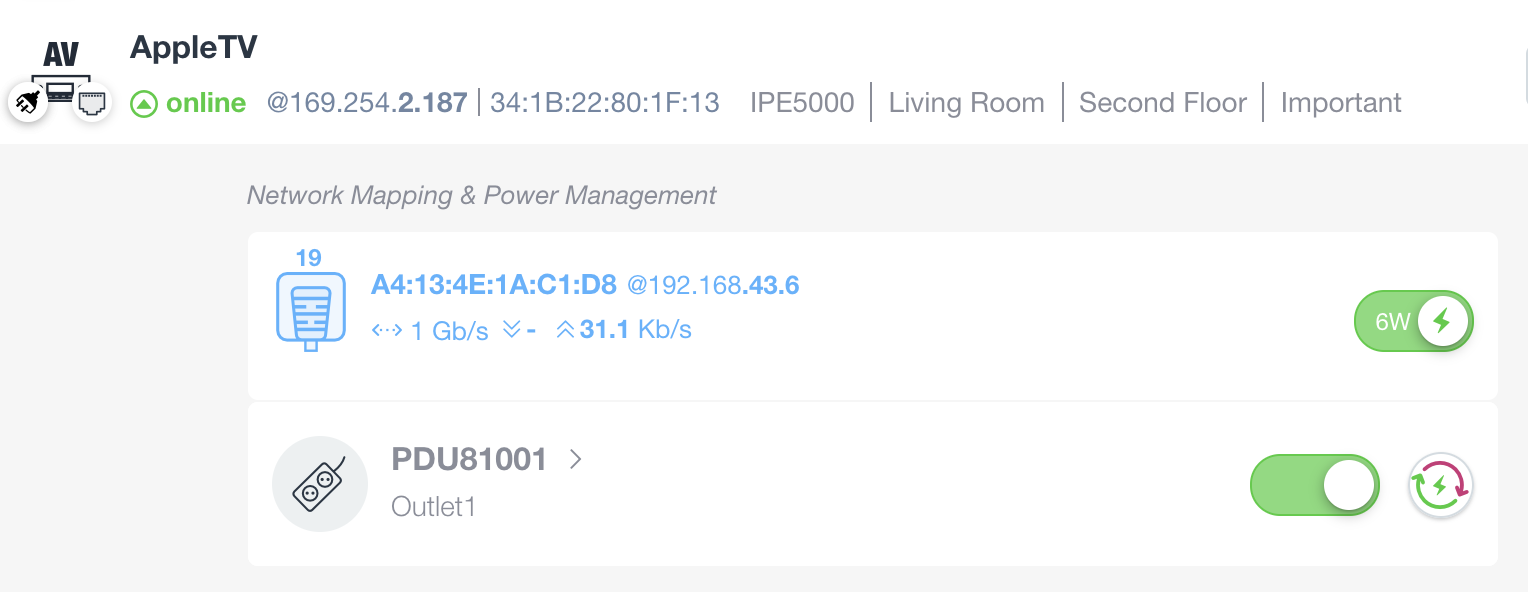
Username and password
Our implementation of smart plugs and PDUs typically use the default username and password of the supported devices. This is normally tested by our Agent at discovery time. If default user and password are used, you are not asked to provide credentials. If default credentials do not work, you will see the Outlets section of that device locked.
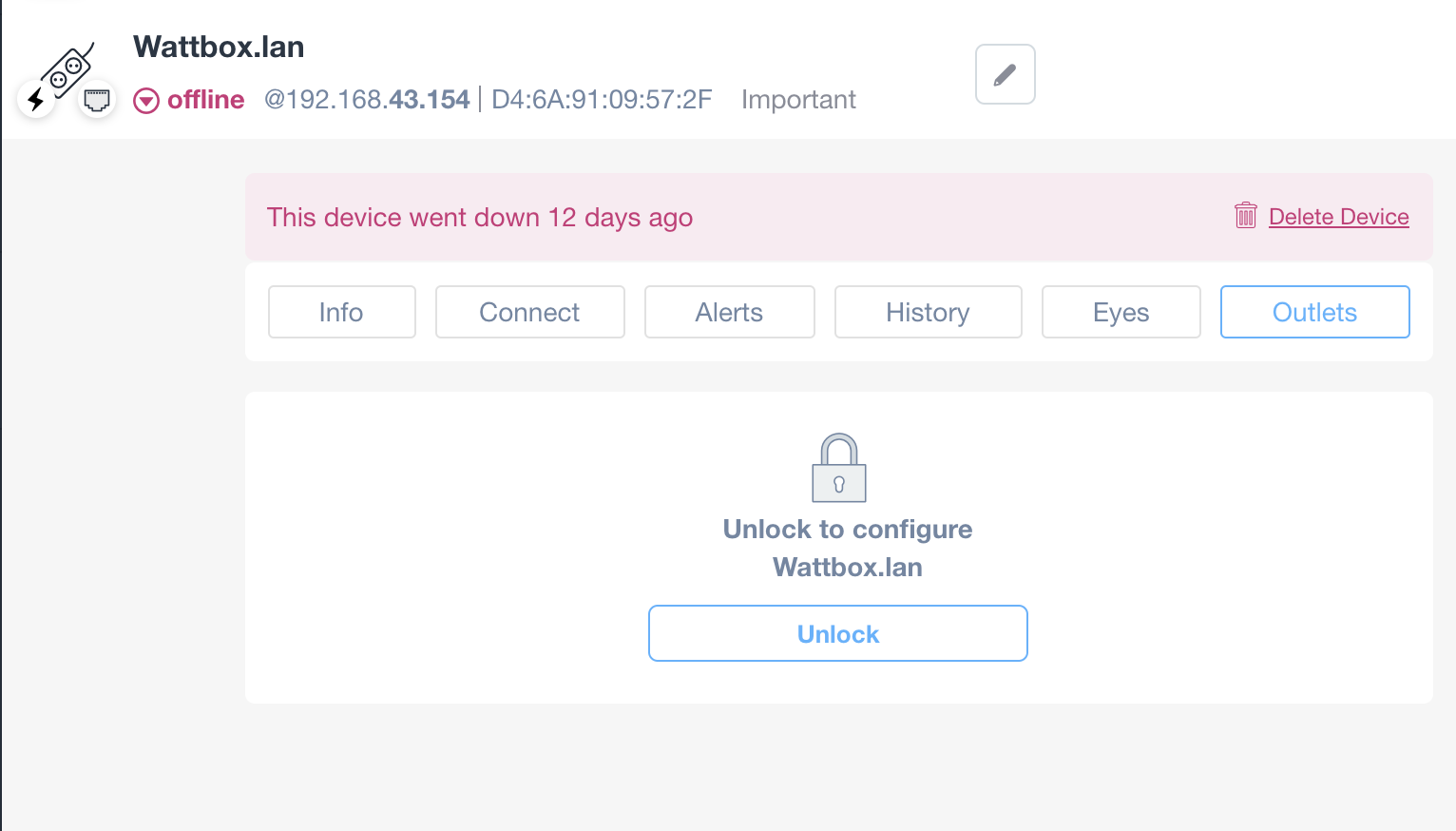
Device Status and Configuration in Wattbox Interface
1. The device "Wattbox.lan" is displayed as offline with the IP address 192.168.43.154 and a specific MAC address. The status indicates it went down 12 days ago.
2. A red alert mentions "This device went down 12 days ago" and provides an option to delete the device.
3. A navigation menu includes buttons for Info, Connect, Alerts, History, Eyes, and Outlets. The Outlets button is selected.
4. Below the menu, there is a section prompting to "Unlock to configure Wattbox.lan," along with an Unlock button for device configuration.
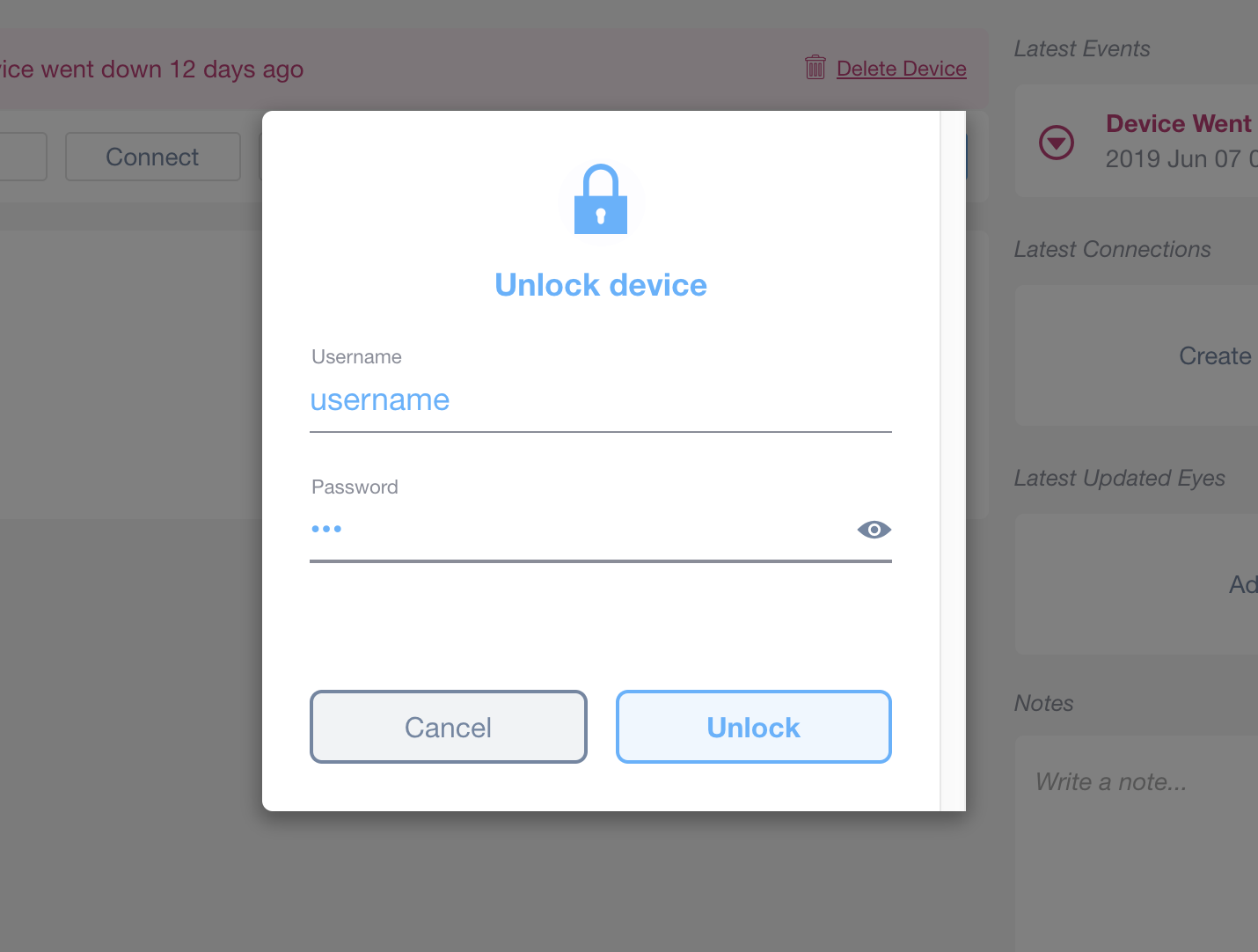
Unlocking a device dialog box.
1. Enter your username in the "Username" field.
2. Enter your password in the "Password" field. An eye icon is available to show or hide the password.
3. Click "Unlock" to proceed.
4. If needed, click "Cancel" to exit the dialog without making changes.
The section can be unlocked by entering the correct device access credentials.
Supported models
Domotz supports most popular Smart Plugs and Power Distribution Units (PDUs) for simple remote power management. This list include: APC, Aten, Belkin, Bryant, CyberPower, Digital Loggers, GUDE, Luxul, Middle Atlantic, Pakedge, Panamax / Bluebolt, SnapAV, SurgeX, TP-Link, Tripp-Lite, NETIO, and more.
For the latest list of supported PDUs and smart plugs/outlets, visit: Domotz Supported PDUs. If you have any questions or would like to request support for a new device, contact support@domotz.com.