
In this article, we’ll cover how to configure custom SNMP versions and credentials in Domotz.
There are four ways to set SNMP credentials:
- Globally for the collector – using the collector Settings Default Credentials section.
- Per device – using the Device Details view, where you can set custom SNMP credentials for a single device.
- In bulk – using the Inventory view, which allows you to select multiple devices from multiple collectors and update their SNMP credentials in just a few clicks.
- Using Device Profiles – using reusable configuration templates that bundle SNMP credentials with other device settings, ideal for standardized deployments across multiple devices and sites.
1. From the Collector Menu
To set SNMP credentials globally for all devices on a collector (new discovered devices and current), navigate to Webapp > Explorer > Select the Collector > Collector menu > Default Credentials click on the pen icon to edit the default site SNMP settings.
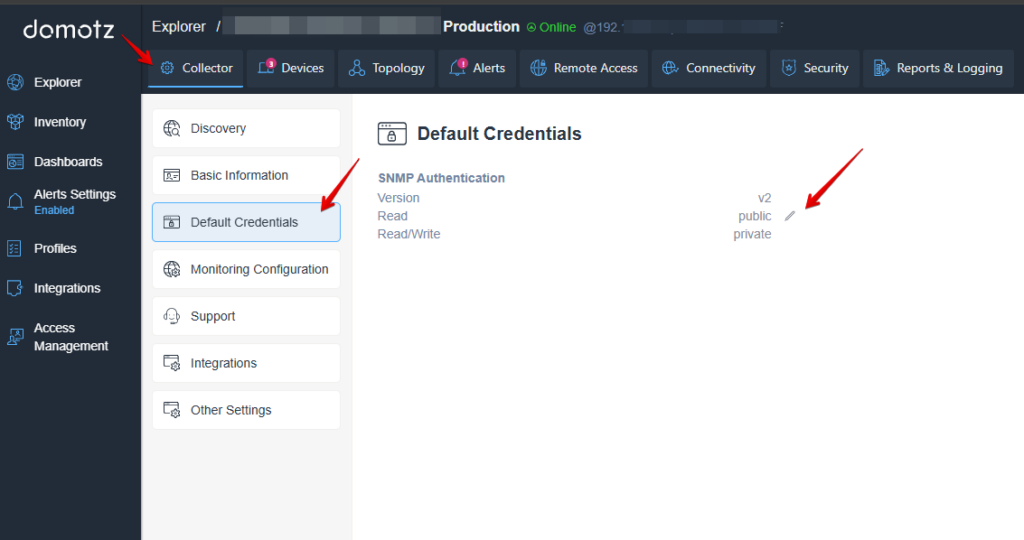
Accessing and Configuring Default Credentials in Domotz
1. Navigate to the main menu on the left and select "Collector" under the "Explorer" section. This opens the configuration options for your network collector.
2. In the side menu, choose "Default Credentials" from the available options. This section allows you to manage authentication settings.
3. Within the "Default Credentials" panel, you can configure SNMP (Simple Network Management Protocol) authentication settings. Options include setting the version and specifying read and write permissions.
4. To edit credentials, click the pencil icon next to the SNMP authentication settings. This lets you specify or change the public and private community strings for SNMP.
Once clicked, select the SNMP version and enter the appropriate credentials. For SNMPv1/v2, enter the Community Read and Community Read/Write strings. For SNMPv3, enter the User and Password along with the desired Authentication Type and Data Encryption settings.
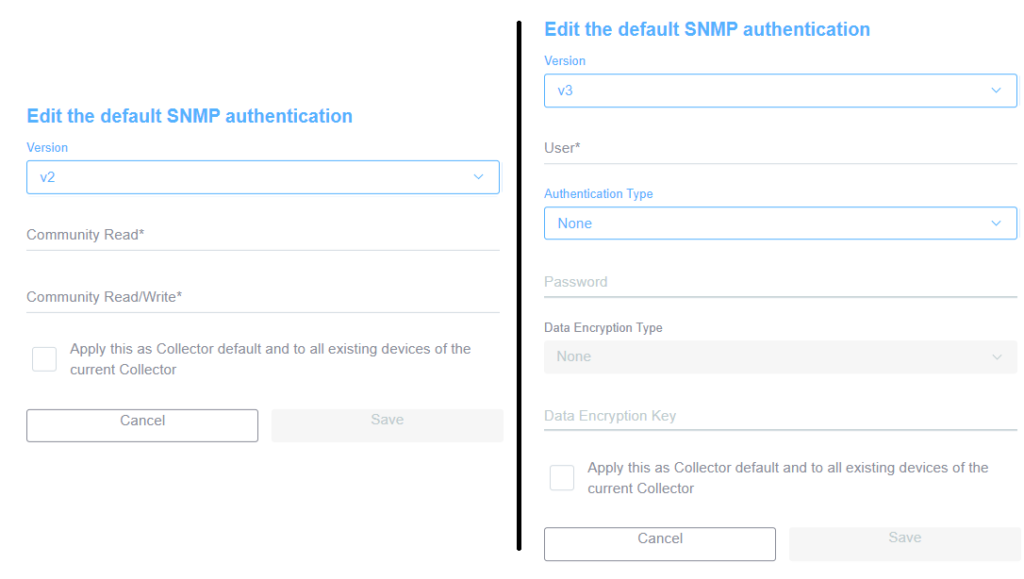
Editing SNMP Authentication Settings
1. To edit SNMP authentication, choose the SNMP version. For version 2, select the version from the dropdown, then enter values for "Community Read" and "Community Read/Write".
2. For version 3, select the version from the dropdown, then provide a "User", select the "Authentication Type" from the dropdown, and enter the "Password". Choose the "Data Encryption Type" from the dropdown and enter the "Data Encryption Key" if applicable.
3. For both versions, you can check the box to apply these settings as the default for the current Collector and all its devices.
4. Click "Save" to save your changes, or "Cancel" to discard them.
Domotz supports the following SNMPv3 Authentication Types: None, MD5, SHA, SHA-224, SHA-256, SHA-384, and SHA-512.
The supported Data Encryption Types are: None, DES, AES, AES-256B, and AES-256R.
2. From Device Details view
From the Collector Devices section, select one of your devices (such as a switch) and select the Access Manager button.
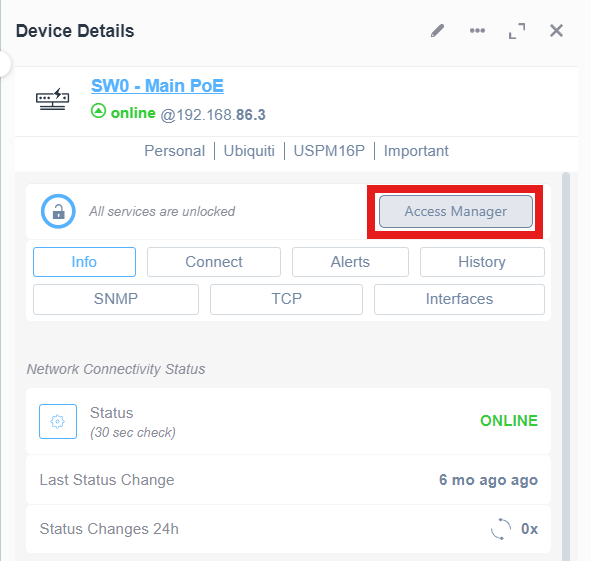
Accessing the Manager in Device Details
1. Locate the "Device Details" section.
2. Check the device status next to "SW0 - Main PoE" to ensure it is online, indicated by green text.
3. Below the status, find and click the "Access Manager" button.
4. Observe the tabs: Info, Connect, Alerts, History, SNMP, TCP, Interfaces. Switch between these tabs for more information.
5. Under "Network Connectivity Status," verify the "Status" is shown as "ONLINE" and note the time since the last status change.
This will open the Credentials Manager. At the SNMP section, click on the lock icon to edit the SNMP version and credentials.
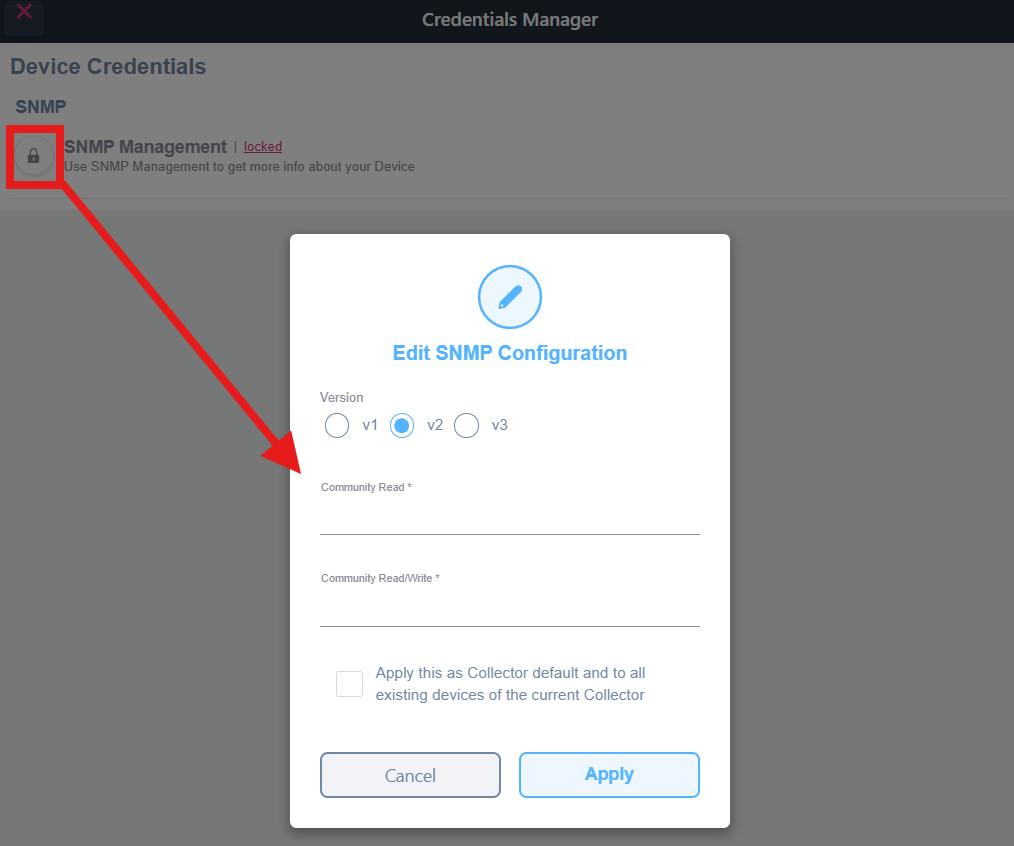
Edit SNMP Configuration in Credentials Manager
1. In the Credentials Manager, locate the "SNMP Management" section, which is currently locked.
2. Click on the "SNMP Management" label to open the SNMP Configuration dialog.
3. In the dialog, select the SNMP version you want to use: either v1, v2, or v3.
4. Enter the required information in the "Community Read" and "Community Read/Write" fields.
5. If needed, check the option to "Apply this as Collector default and to all existing devices of the current Collector."
6. Click "Apply" to save the configuration or "Cancel" to exit without saving.
This change will only affect the selected device. To apply the changes globally to all devices under the same collector, make sure to check the box “Apply this as Collector default and to all existing devices of the current Collector”.
3. From the Inventory view
The Inventory view lets you select multiple devices across multiple collectors and update their credentials at once.
Navigate to Webapp > Inventory, select the devices you want to update, and apply the appropriate SNMP version and credentials.
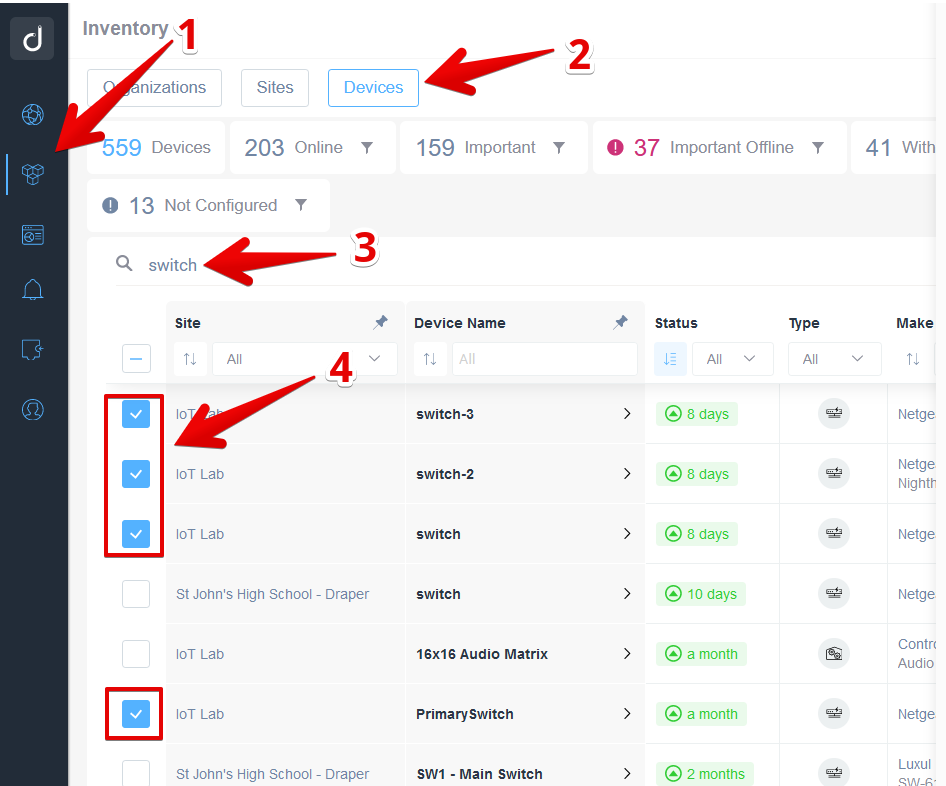
Managing Devices in Inventory
1. Begin by selecting the “Inventory” section from the side menu.
2. Click on the “Devices” tab to view all devices.
3. Use the search bar to type "switch" and filter the list of devices.
4. Select the checkboxes next to the listed devices under the "Site" column with the name “IoT Lab” to perform actions on these devices.
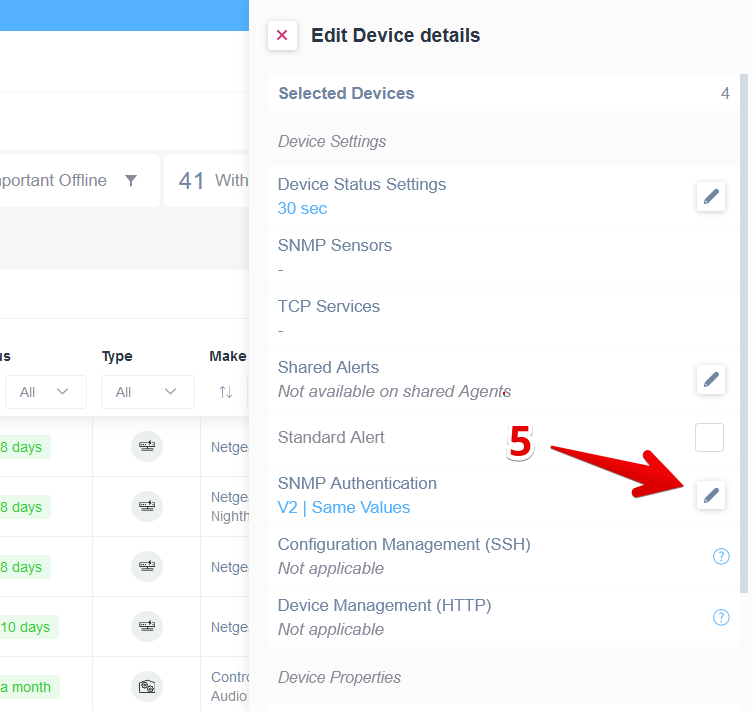
Edit Device Details Interface in Device Management Software
1. In the "Edit Device details" section, view the "Selected Devices" and "Device Settings" categories.
2. For "Device Status Settings," the current setting is "30 sec." To modify, click the pencil icon next to it.
3. "SNMP Sensors" and "TCP Services" show no configuration.
4. "Shared Alerts" indicates it is not available on shared agents, with an option to edit.
5. Under "SNMP Authentication," the current configuration displays "V2 | Same Values." To change, select the pencil icon.
4. Using Device Profiles
For larger environments or standardized deployments, you can use Device Profiles to define SNMP credentials as part of a reusable configuration template. Profiles allow you to bundle SNMP credentials alongside other device settings (such as device info, shared alerts, SNMP sensors, and TCP sensors) into a single profile that can be applied to multiple devices at once.
This approach is especially useful for MSPs or IT teams managing many sites, as it ensures consistent SNMP configurations across all devices without needing to set credentials individually.
To learn more about creating, configuring, and applying Device Profiles, see the full guide: Device Profiles.
Related resources
Want to learn more about the differences between SNMP versions? Check out our SNMPv2 vs SNMPv3 article for a detailed comparison.
Already familiar with SNMP? Learn how our Pre-Configured SNMP Sensors feature can help you work faster and simplify your monitoring setup.