
Domotz Agent Installation on NETGEAR ReadyNAS
This section contains a few tips and tricks on how to get started with the Domotz Agent on your NETGEAR ReadyNAS.
Installing the Domotz Agent
Step 1: Download Domotz Pro
The latest version of the Domotz Pro Agent for ReadyNAS can be downloaded from the Domotz Portal at https://portal.domotz.com/login
Step 2: Installation
- Log in to the ReadyNAS admin page.
- Click on Apps, followed by Upload.
Uploading Applications in the NETGEAR ReadyNAS Admin Page. 1. Navigate to the top menu and select "Apps" to access the applications section.
2. Locate the "Upload" button on the right side of the page. Click it to begin uploading new applications.
3. Use the "Installed Apps" and "Available Apps" sections to manage and view your app installations.
- Remove previous Domotz Agent installed if any.
- Click on Browse, locate the Domotz Agent on your hard drive, click on open, followed by Upload.
Uploading an Application to NETGEAR ReadyNAS 1. Navigate to the "Apps" section from the top menu on the NETGEAR ReadyNAS Admin Page.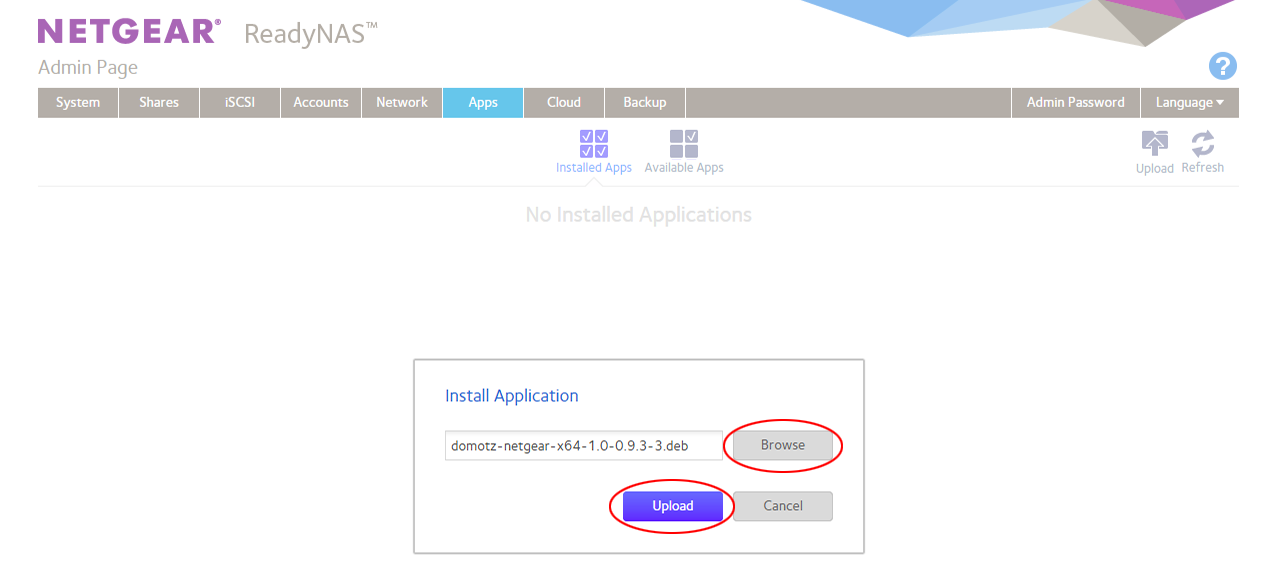
2. In the "Install Application" window, click the "Browse" button to select the application file you want to upload from your computer.
3. Once the file is selected and its name appears in the text field, click the "Upload" button to begin the installation process.
4. If you change your mind, click "Cancel" to exit without uploading.
- Wait for the Domotz Agent to install, this will take a few minutes.
- Toggle the switch next to the Domotz icon to On, followed by clicking on the Launch button to start the Domotz Agent.
Step 3: Setup
Please follow the on-screen instruction to complete the setup of your Domotz Agent.
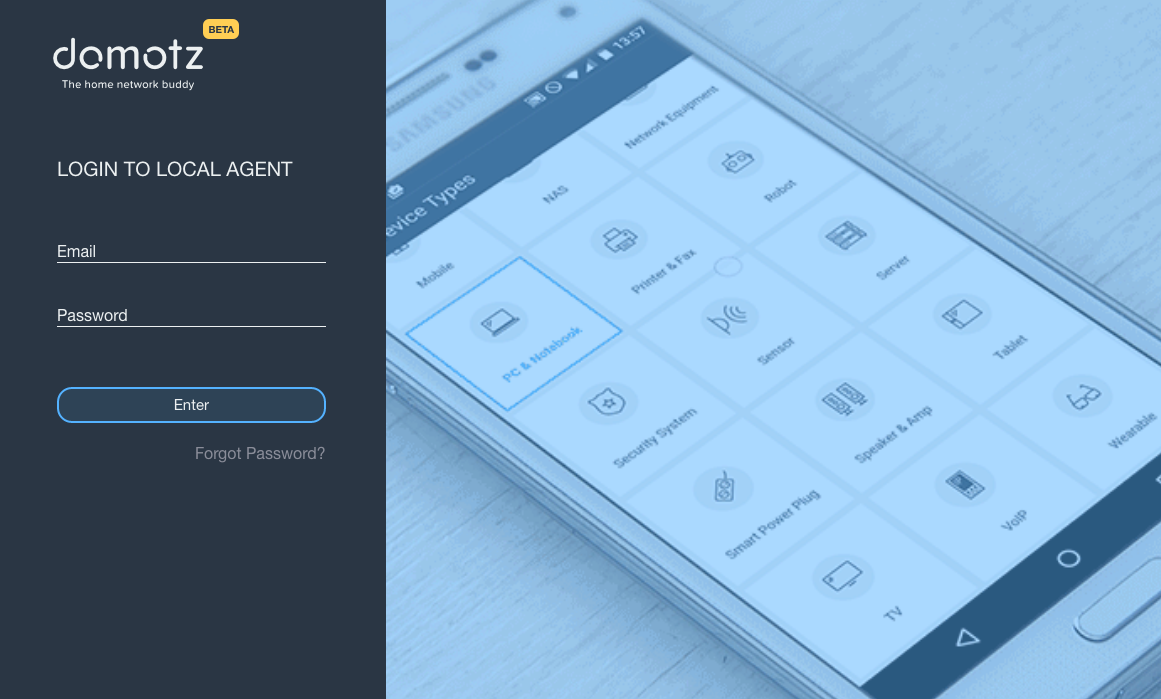
Login and Device Type Selection on Domotz App
1. Enter your email and password in the respective fields on the left panel to log in to the local agent of the Domotz app.
2. Click the "Enter" button to continue.
3. If you forget your password, click "Forgot Password?" for recovery options.
4. On the mobile device screen, select "PC & Notebook" from the list of device types to proceed with that option.