
The March 2025 update brings powerful new integration scripts, enhanced SNMP support, and key improvements across the Domotz platform. From real-time monitoring of Huawei switches to extended support for platforms like Cisco Meraki and Innovolt UPS, this release is focused on expanding visibility, automation, and performance.
We’ve also rolled out updates to Network Collectors and addressed several usability and integration issues to keep your network monitoring and management experience running smoothly.
As always, your feedback fuels our progress. If you have questions or suggestions, reach out to us at support@domotz.com. Now, let’s dive into what’s new!
New features and integrations
SNMP MIB Updates
Support for new and updated SNMP MIBs enhances Domotz’s ability to monitor and interpret data from a broader range of networked devices.
- CLASVISTER MIB – Added new MIB support for CLASVISTER devices
- Ivanti Secure Connect MIB – New support for Ivanti Secure Connect
- CLASVISTER (Fix) – Includes a correction to the initial CLASVISTER MIB integration
New Integration Scripts
Domotz introduces new integration scripts that expand support for device monitoring and automation. These additions make it easier to gain insights, manage configurations, and streamline network operations across a wider range of platforms.
New Huawei Switch Scripts
New integration scripts for Huawei switches enhance visibility and automation, enabling status monitoring for key protocols and secure configuration backups.
- Huawei Switch Monitoring – Gain real-time visibility into RADIUS authentication and Spanning Tree Protocol (STP) status using secure SSH access. Tested and validated on the Huawei S5731-H 48 switch.
- Huawei Switch Configuration Backup – Automate secure config backups over HTTPS. Fully tested on Huawei S5731-H 48 switches.
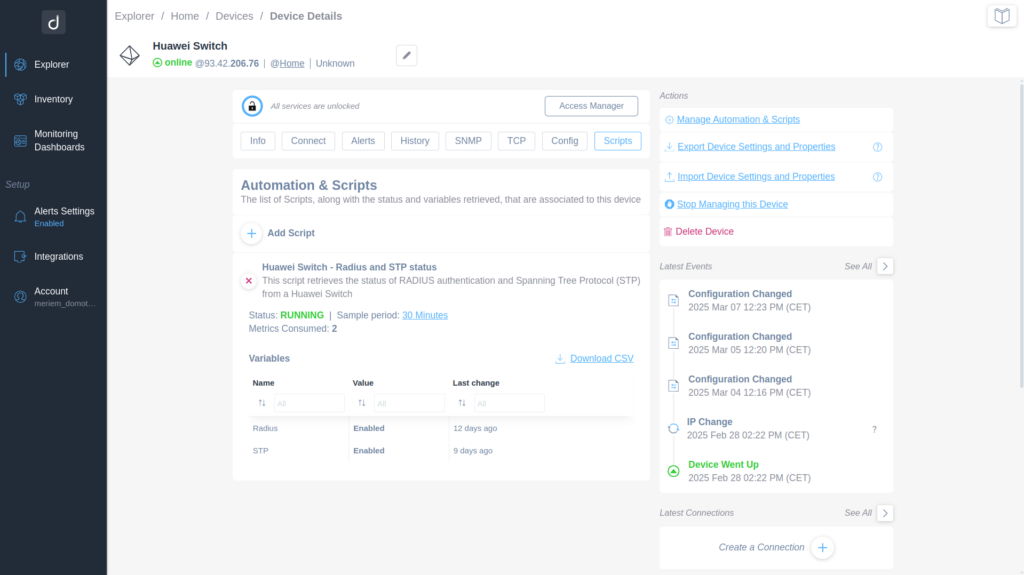
Device Details and Automation on Huawei Switch
1. The top section indicates the device is a Huawei Switch, currently online, with an IP address displayed. There are options to view device details such as Access Manager and Scripts.
2. Under "Automation & Scripts," a list of scripts associated with the device is shown. The "Add Script" option allows adding new scripts.
3. A script named "Huawei Switch - Radius and STP status" is running, retrieving RADIUS and STP status. Status is indicated as "RUNNING," with a sample period of 30 minutes and 2 metrics consumed.
4. The "Variables" section lists the variables "Radius" and "STP," both enabled, with last changes recorded 12 and 9 days ago, respectively.
5. The right sidebar shows "Actions" with options to manage automation and scripts, export/import device settings, stop managing the device, or delete it.
6. The "Latest Events" section displays recent actions like configuration changes and a device status update, noting when the device went up.
7. There's an option to create a connection in the "Latest Connections" section.
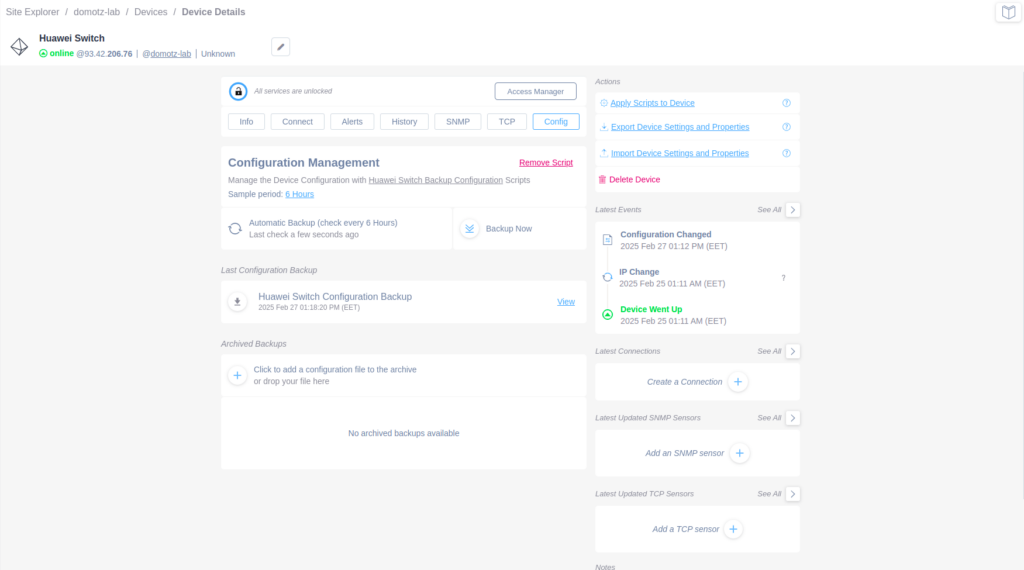
Huawei Switch Configuration Management Dashboard
1. The dashboard displays the name "Huawei Switch" with its online status and IP address.
2. Access various tabs like Info, Connect, Alerts, History, SNMP, and TCP for detailed device management.
3. Under Configuration Management, initiate or schedule automatic backups every 6 hours. Click "Backup Now" to manually trigger a backup.
4. Review the latest configuration backup from February 7, 2025, with an option to view it.
5. Add a configuration file to the archive, if needed.
6. On the right, perform actions like applying scripts, exporting, and importing device settings, or deleting the device.
7. Keep track of latest events such as configuration changes and IP changes. The device went up on February 25, 2025, at 1:11 AM EET.
8. Create new connections or add SNMP and TCP sensors as needed.
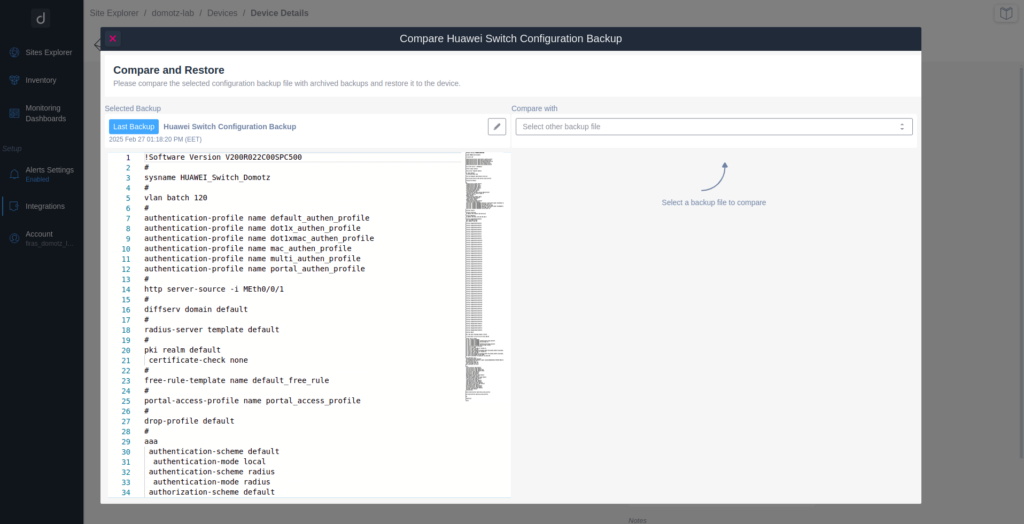
Comparing Huawei Switch Configuration Backups
1. In the "Compare and Restore" section, the "Last Backup" tab displays the configuration details of the Huawei switch.
2. The left panel shows the configuration text, including software version, system name, VLAN batch, and various authentication profiles.
3. To compare a backup, use the "Compare with" dropdown menu on the right to select another backup file.
4. A prompt suggests selecting a backup file to initiate the comparison process.
Cisco Meraki – Adds visibility into the status of Meraki-controlled devices
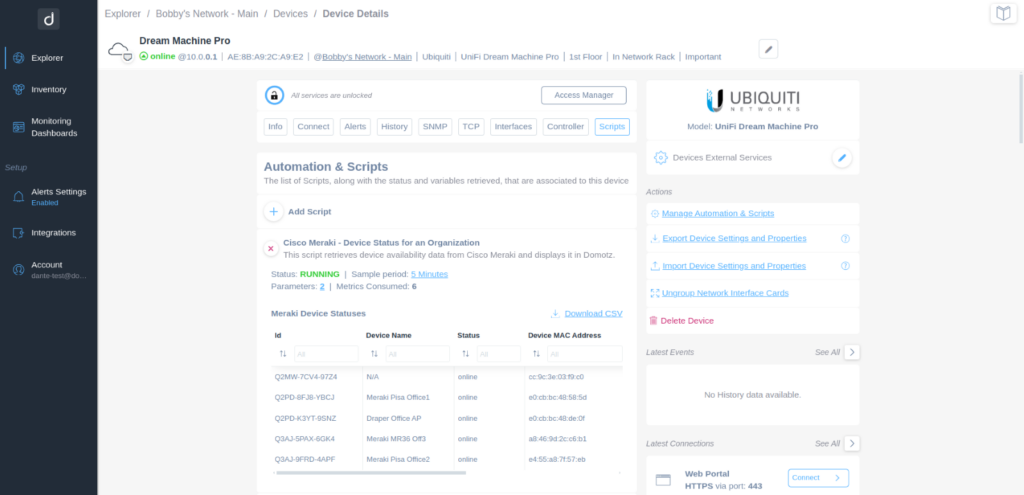
Device Details and Automation Scripts Overview
1. The page displays the device details for "Dream Machine Pro," which is currently online. It shows the device's IP address and MAC address.
2. The main menu features various tabs including Info, Connect, Alerts, History, SNMP, TCP, Interfaces, Controller, and Scripts.
3. In the "Automation & Scripts" section, there is an option to add a script. A sample script titled "Cisco Meraki - Device Status for an Organization" is shown, with its status as "RUNNING," a sample period of 5 minutes, along with parameters and metrics consumed.
4. Below the script, a table displays Meraki device statuses including ID, Device Name, Status, and Device MAC Address. An option to download the data as a CSV file is available.
5. The right-hand side contains options to manage scripts, export and import device settings, ungroup network cards, and delete the device.
6. The section labeled "Latest Events" shows no history data available, while "Latest Connections" provides an option to connect via a web portal using HTTPS on port 443.
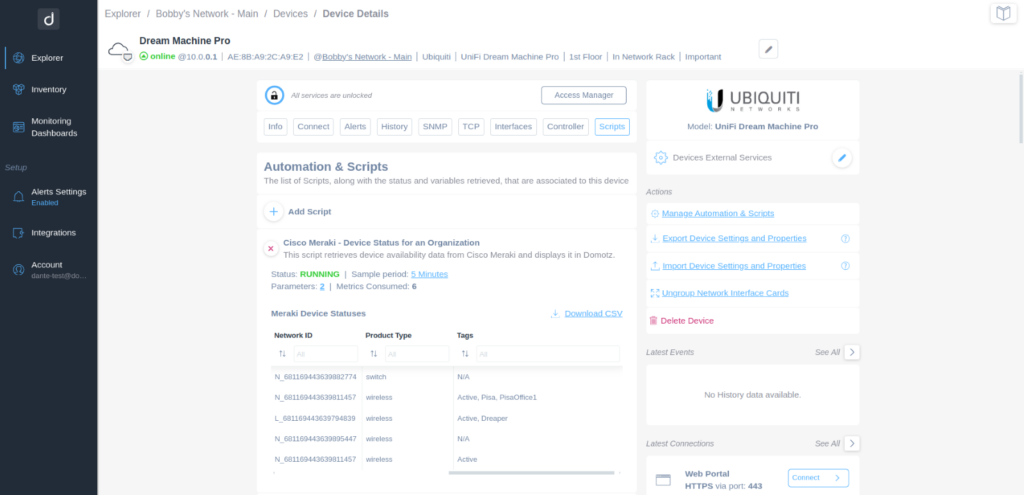
Device Details Page Overview
1. The top of the page displays the device name "Dream Machine Pro," its status as "online," and an IP address.
2. Below the device status, several tabs are listed, including Info, Connect, Alerts, Inventory, and others, like Scripts, which is selected.
3. The center of the screen features an "Automation & Scripts" section with an option to add a new script.
4. A script named "Cisco Meraki - Device Status for an Organization" is active, showing a status of "RUNNING" with a sample period of 5 minutes. It includes parameters and metrics count.
5. Below the script, a table shows Meraki Device Statuses with columns for Network ID, Product Type, and Tags.
6. The right panel offers action links such as "Manage Automation & Scripts" and "Delete Device."
7. Recent connections, including access to a "Web Portal," are visible, with an option to connect.
SNMP Pre-Configured Templates
New templates offer instant visibility into Innovolt UPS devices, eliminating the need for manual setup.
- Innovolt UPS-2000 and UPS-1000
General Information
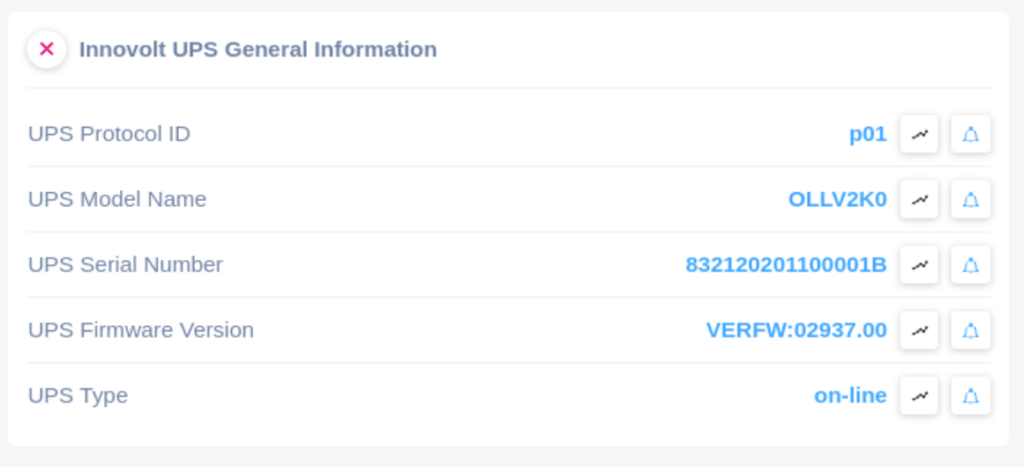
Innovolt UPS General Information Overview
1. The "UPS Protocol ID" is listed as "p01."
2. The "UPS Model Name" is specified as "OLLV2K0."
3. The "UPS Serial Number" is indicated as "832120201100001B."
4. The "UPS Firmware Version" is shown as "VERFW:02937.00."
5. The "UPS Type" is marked as "on-line."
Each attribute is paired with its respective value, providing essential details for identifying and managing the UPS system.
Battery Metrics
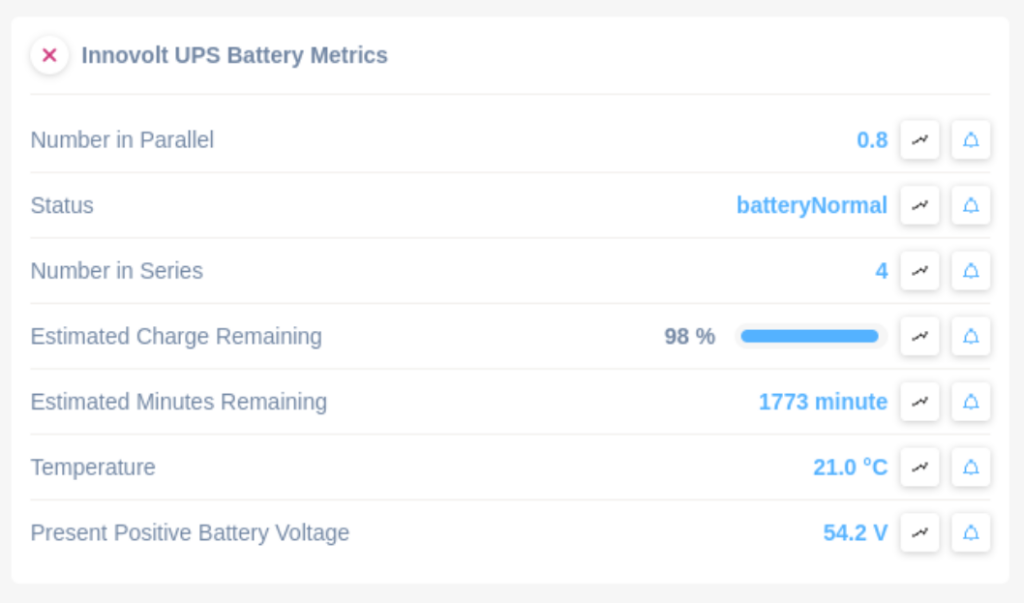
Innovolt UPS Battery Metrics Overview
1. The "Number in Parallel" is displayed as 0.8.
2. The "Status" shows as "batteryNormal."
3. The "Number in Series" is listed as 4.
4. "Estimated Charge Remaining" is 98%, with a visual bar indicating fullness.
5. "Estimated Minutes Remaining" is 1773 minutes.
6. The "Temperature" reads 21.0°C.
7. "Present Positive Battery Voltage" is 54.2 V.
All metrics have options for graph analysis and alerts, providing further insights and notifications as needed.
UPS Rating Data
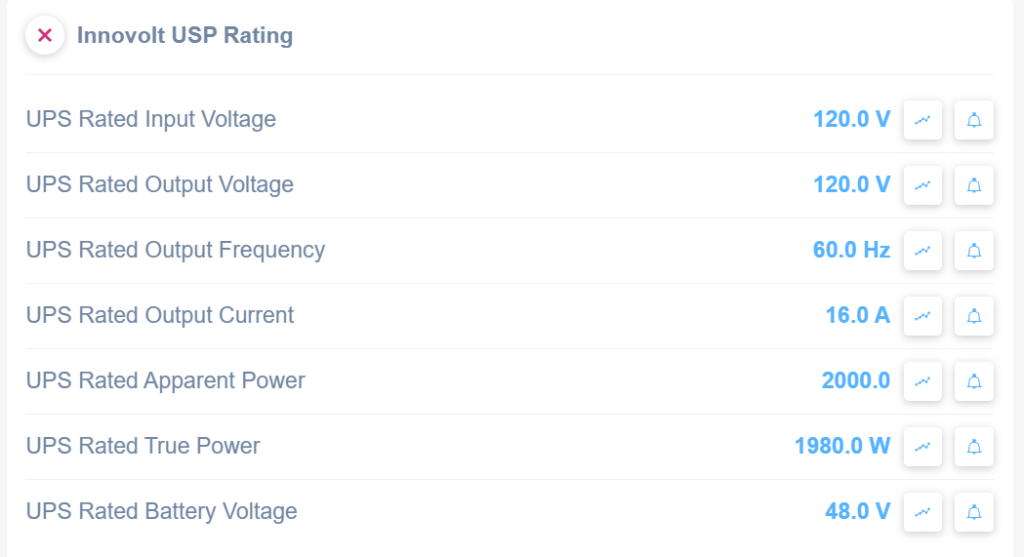
UPS System Rating Overview
1. UPS Rated Input Voltage: Displays as 120.0 V.
2. UPS Rated Output Voltage: Displays as 120.0 V.
3. UPS Rated Output Frequency: Displays as 60.0 Hz.
4. UPS Rated Output Current: Displays as 16.0 A.
5. UPS Rated Apparent Power: Displays as 2000.0 units.
6. UPS Rated True Power: Displays as 1980.0 W.
7. UPS Rated Battery Voltage: Displays as 48.0 V.
Each value is followed by icons indicating options for further actions or settings.
Input Readings
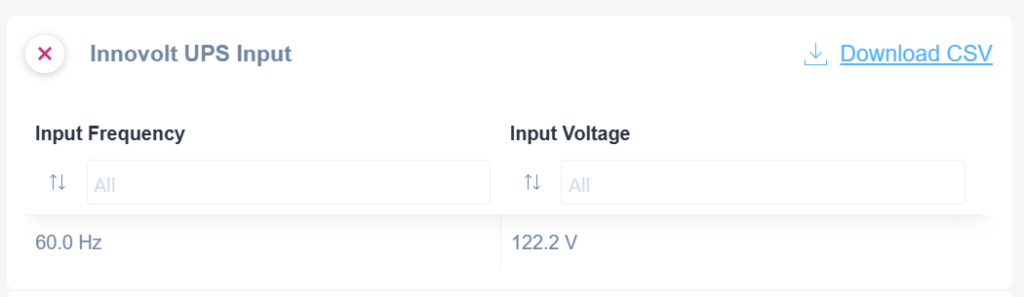
Innovolt UPS Input Dashboard
1. The dashboard displays data for Input Frequency and Input Voltage.
2. Under "Input Frequency," there is a text box with a default entry labeled "All" for filtering purposes. Below, the frequency is shown as 60.0 Hz.
3. Under "Input Voltage," there is a similar text box with "All" as the default entry. Below, the voltage is displayed as 122.2 V.
4. A link labeled "Download CSV" is available at the top right for exporting the data.
Output Readings
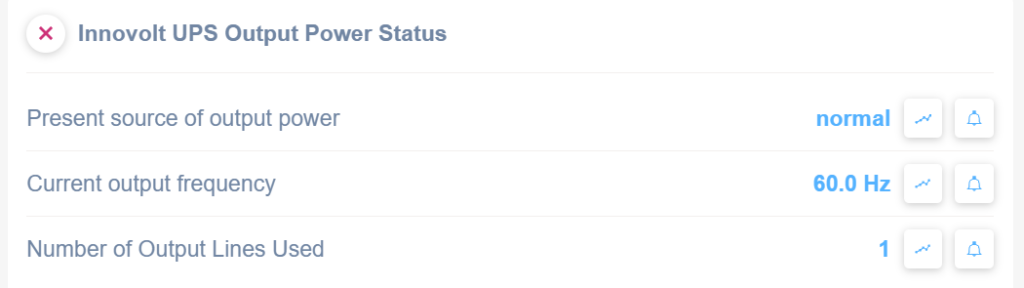
Innovolt UPS Output Power Status Information
1. The present source of output power is indicated as "normal."
2. Current output frequency is displayed as "60.0 Hz."
3. The number of output lines used is shown as "1."
Each entry is associated with icons, one for graph visualization and another for setting alerts.
UPS Test Results
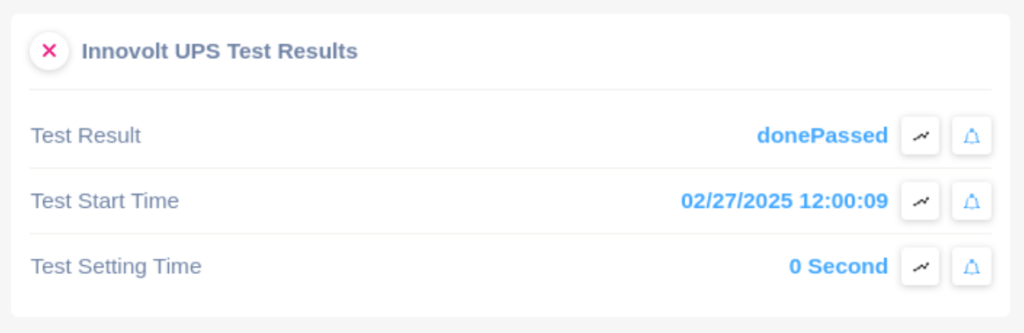
Innovolt UPS Test Results Interface
1. The section header is "Innovolt UPS Test Results."
2. Under "Test Result," the status is displayed as "donePassed."
3. "Test Start Time" shows the date and time as "02/27/2025 12:00:09."
4. "Test Setting Time" indicates "0 Second."
5. Each row has two icons, signifying options to view trends and receive alerts.
Bypass Mode
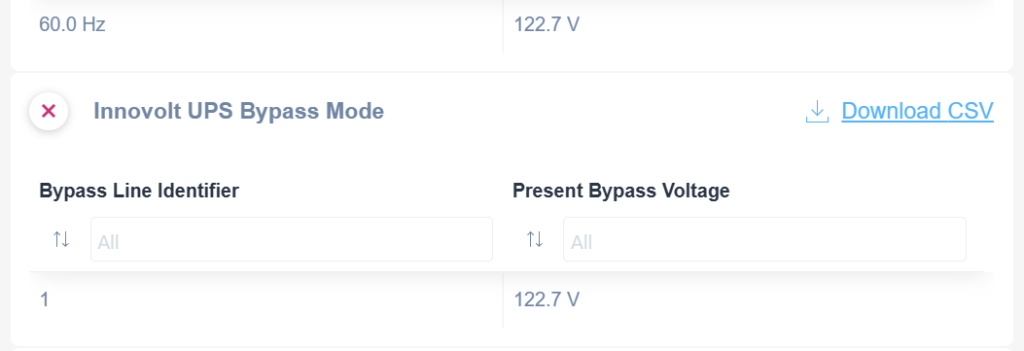
Innovolt UPS Bypass Mode Data
1. The interface shows the "Innovolt UPS Bypass Mode" section.
2. To the right, there is an option to "Download CSV" which allows users to download data in a CSV file format.
3. The table displays two columns: "Bypass Line Identifier" and "Present Bypass Voltage."
4. Below the column headings, there are input fields for filtering data, labeled with "All."
5. The table lists one entry with "Bypass Line Identifier" as 1 and "Present Bypass Voltage" as 122.7 V.
Enhancements
Domotz Collector Platform Updates and Improvements
Debian, Raspberry and Netgear Platforms
Version – 6.6.0
- Domotz Collector version 6.6.0 is now available for Debian, Raspberry, and Netgear platforms.
Domotz Box, Linux Snap; Network Collector 6.8.6 for
Version – 6.8.5 (Domotz Box, Linux Snap) – Version – 6.8.5 (Windows)
The following enhancements and fixes have been made to Domotz Box, Linux Snap, and Windows-based Collector platforms:
- Resolved issues with Wattbox PDU not unlocking.
- Fixed Collector visibility in the “Add a Collector” UI for unconfigured Windows instances.
- Addressed Windows Server 2016/2019 compatibility issues.
- Introduced Layer-3 deny list support for device management.
- Added a local HTTP API on Domotz Box for system restarts.
Fixes
Integration Fixes
- Luxul Switches (Public API): Resolved issue preventing PoE port activation via the Public API.
- Cisco Meraki: Fixed bug that caused unmanaged devices to not display in the AP Devices tab.
- Ubiquiti EdgeSwitch PoE: Resolved issue preventing port mapping when telnet is unavailable.
- Fresh Service: Fixed ticket creation failures due to misconfigured mandatory fields.
- Autotask: Addressed timeout issues when connecting to accounts with thousands of records.
UI & Usability Fixes
- Devices List: Search values now persist when returning from the Device Detail view.
- Automation & Scripts View: Resolved an issue preventing device selection using Advanced Search.
- Network Topology: Addressed performance issues on large-scale setups with extensive links and nodes that caused the topology view to freeze.