
How to find out the correct SNMP OIDs for your SNMP device
Domotz automatically discovers the set of MIBs supported by a device. However it is possible that a specific MIB is not known to Domotz yet.
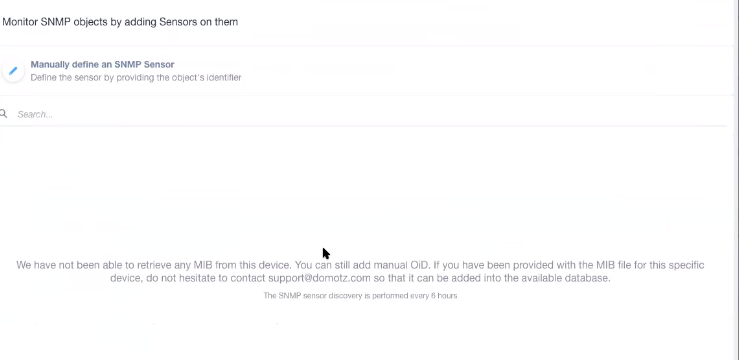
Monitor SNMP Objects by Adding Sensors
1. To manually define an SNMP sensor, provide the object's identifier in the designated section.
2. Use the search bar to locate specific SNMP sensors.
3. If no Management Information Base (MIB) is available, you can add a manual Object Identifier (OID). Contact support@domotz.com to add the MIB for your device to the database.
4. Note that SNMP sensor discovery occurs every 6 hours.
It is very helpful to use a MIB Browser iReader like the following: http://ireasoning.com/mibbrowser.shtml – free version for end users). Using this tool it is possible to navigate the OID tree for devices that support SNMP to find the OID sensor that you want to monitor.
The following is an example of a Sensor that will allow you to monitor the level of the black ink level of your printer.
In order to do this you will need to find some information in order to find the data you are looking for:
- Index number for Black cartridge.
- Maximum level for the black ink cartridge (to compare to current level in order to determine percentage consumed).
- Current level of black ink cartridge.
In order to do this, you will do the following steps:
1. You identify the reference index for the black cartridge (in this case the index is 4):
Using this index, you can get other details for SNMP OIDs that are related to this cartridge, i.e. the maximum level and actual level of the toner in that cartridge which you can then monitor and use to define your alerts.
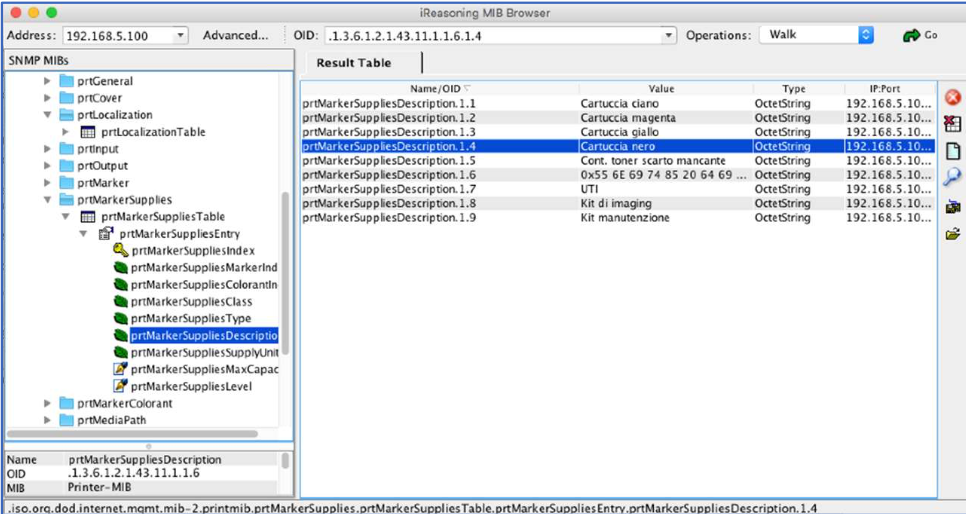
Managing Printer Supplies Using iReasoning MIB Browser
1. Navigate to the "prtMarkerSuppliesDescription" in the SNMP MIBs tree on the left panel under "prtMarkerSuppliesTable."
2. View the "Result Table" on the right side, displaying columns such as Name/OID, Value, Type, and IP:Port.
3. Identify the supplies descriptions listed, such as cartuccia ciano, magenta, giallo, and nero, each with corresponding OID values.
4. Note the data type is OcteString, and check IP:Port details for each entry, which are all set to 192.168.5.100.
Use this information to manage and track printer supplies efficiently.
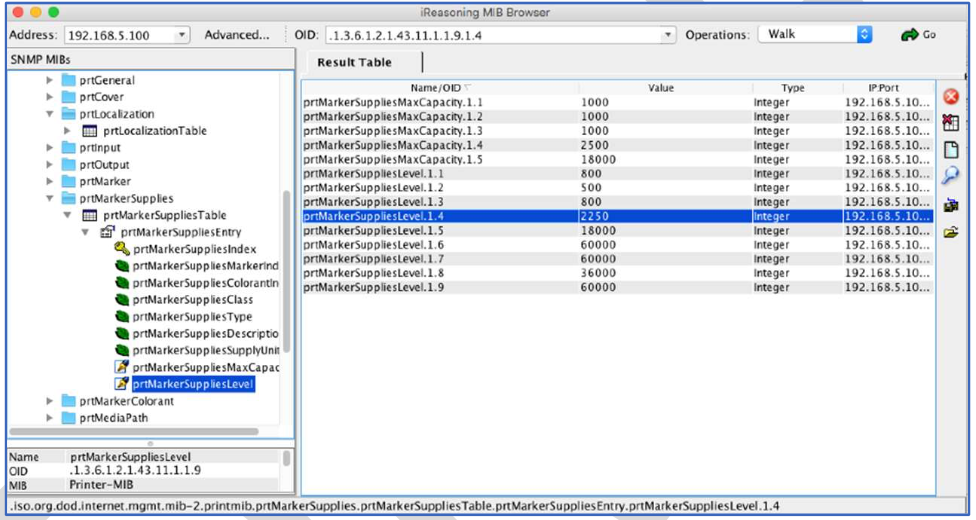
Navigating the iReasoning MIB Browser Interface
1. In the left panel, browse the SNMP MIBs tree structure. Expand the "prtMarkerSupplies" node to view its sub-items.
2. Under "prtMarkerSupplies", select "prtMarkerSuppliesLevel". This item is responsible for showing the current level of marker supplies.
3. The right panel displays the Result Table. It lists various attributes such as "Name/OID", "Value", "Type", and "IP Port".
4. Focus on the "prtMarkerSuppliesLevel.1.4" entry, which is highlighted. This shows a current value of 2250, indicating the marker supply level.
5. Check the "Type" column to see that all entries are of the Integer type.
6. The "IP Port" column specifies the IP address, confirming connectivity to the device at 192.168.5.100.
Use this interface to monitor and manage printer supplies effectively.
2. From the OID of the SuppliesMaxCapacity (in my case 1.3.6.1.2.1.43.11.1.1.8.1.4) you get 2500. This is the maximum value of the black toner that is supported by my printer. You will need this later to set up the alert.
3. Then you can get the OID of the SuppliesLevel (the OID for the Black cartridge in the example is 1.3.6.1.2.1.43.11.1.1.9.1.4).
This SNMP OID is what you will add to Domotz and will begin to monitor from the SNMP/TCP tab of the device (1.3.6.1.2.1.43.11.1.1.9.1.4).
Learn more about how to find your SNMP OIDs and what is SNMP.