
You can Export the Devices list and each device detail in an Excel format, in order to easily modify devices names etc and Import it back in a single click.

Menu bar in Domotz Pro Desktop App.
1. Locate the menu bar at the top of the Domotz Pro Desktop App window.
2. Click on "Import / Export" to access options for importing or exporting data.
3. The menu bar also includes navigation options: Edit, View, Window, and Help, which provide additional functionalities.
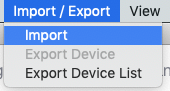
Menu options for importing and exporting.
1. Navigate to the top menu bar and select the "Import / Export" option.
2. From the dropdown menu, choose "Import" to bring in data.
3. Alternatively, select "Export Device List" to export your device data.
4. Note that "Export Device" is not selectable and may require additional permissions or conditions to be met before it can be used.