
Here are all the latest features we’ve added to Domotz this month:
- Export and import your Network Topology Map and edit it in MS Visio
- The Sites tab in Search & Manage reports additional information for identifying sites with issues
- The Sites tab has a new header
- The Devices tab in Search & Manage reports the additional features you can unlock on each of your devices
- Network Configuration Management features are now available for SonicWall
- Network Configuration Management improved for WatchGuard
- Associate Kaseya BMS tickets with a selected contract
- Automatically close Kaseya BMS Tickets if you choose
- Extended support for Gude PDU models
- Improved Network Topology Map supporting all RFC4188 compliant devices
- Additional MIBs
What’s new
Export Network Topology Diagram for Visio
Network Topology Diagrams for Visio are here. You can now export your Network Topology Map data into an Excel file:
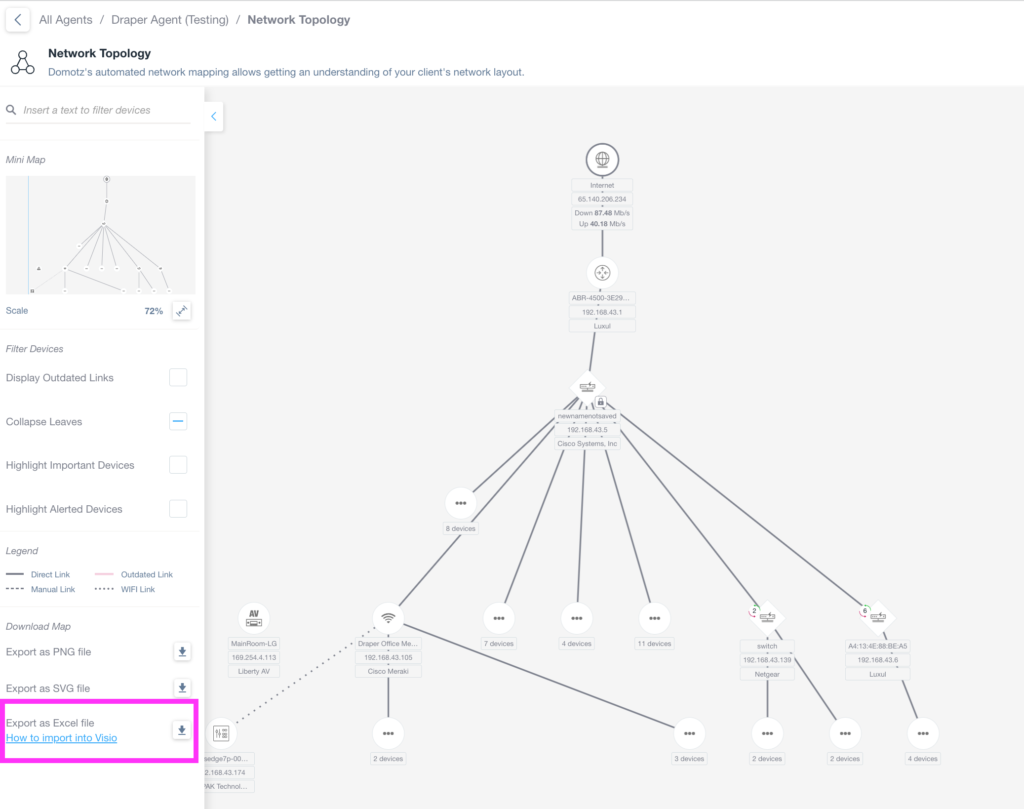
Network Topology Interface Overview
1. The interface displays a network topology with hierarchical connections from the internet to various devices.
2. On the left panel, there is a "Mini Map" for easy navigation of the network layout.
3. Under "Filter Devices," you can choose to display outdated links, collapse leaves, highlight important devices, and highlight alerted devices.
4. In the "Legend" section, symbols represent direct links, outdated links, manual links, and WiFi links.
5. The "Download Map" section allows exporting the network map as PNG, SVG, or Excel files. A link is provided to learn how to import the map into Visio.
We also provide you with a Microsoft Visio template you can use in combination with the exported data so that the Network Topology Map can be re-created directly in MS Visio for further customization.
For more information on network topology diagrams for Visio, read the help article on topology maps for Visio.
Once you import the file, Visio creates a network topology diagram that is similar to the image here:
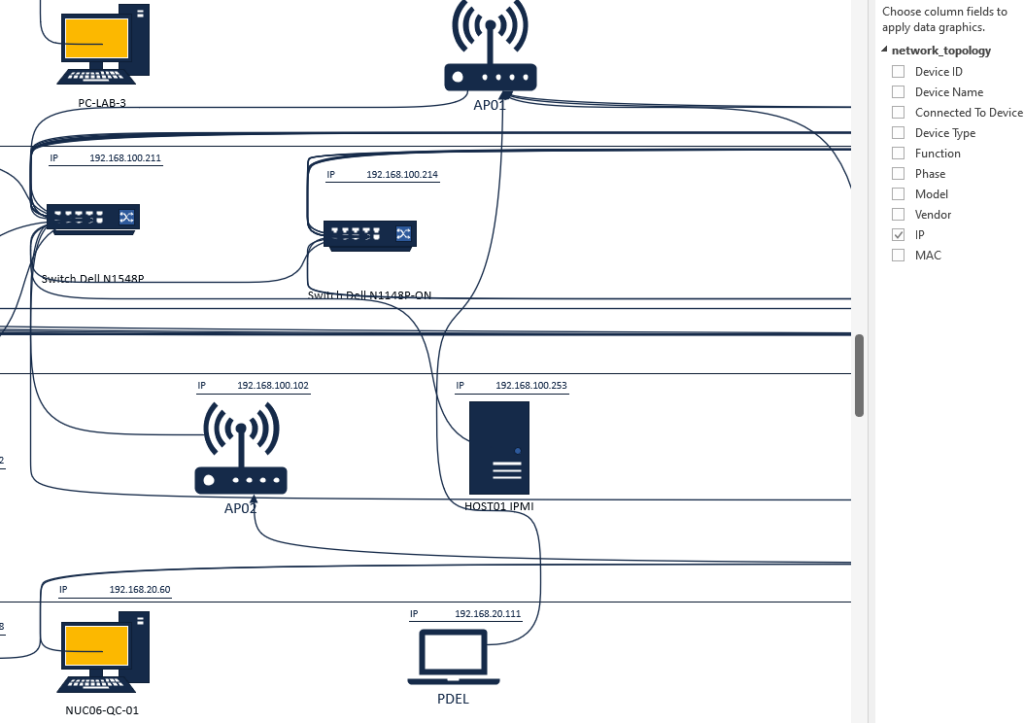
Network topology diagram for device connections and IP addresses.
1. A PC labeled "PC-LAB-3" is connected to an access point labeled "AP01".
2. "AP01" is connected to a switch labeled "Switch Dell N1548P" with the IP address 192.168.100.211.
3. Another switch, "Switch Dell N1548P-QN", has the IP address 192.168.100.214.
4. Another access point, "AP02", connects to "Switch Dell N1548P-QN". It has the IP address 192.168.100.102.
5. A device labeled "HOST01" is connected to "AP02" with the IP address 192.168.100.253.
6. Another PC, "NUC06-QC-01", is connected with IP address 192.168.20.60.
7. A device labeled "PDEL" is shown with IP address 192.168.20.11.
8. On the right, a selection box allows filtering by network attributes like Device ID, Name, Type, and IP, with only IP currently selected.
Therefore, you can now use this functionality to manually edit your Domotz Network Topology Map in Visio, before providing an image to your customers and stakeholders.
Sites Tab in Search & Manage has additional information
The Sites Tab in the Search & Manage section now reports the total number of Online Devices for each site, as well as the number of Offline Important devices (out of the total number of Important devices).
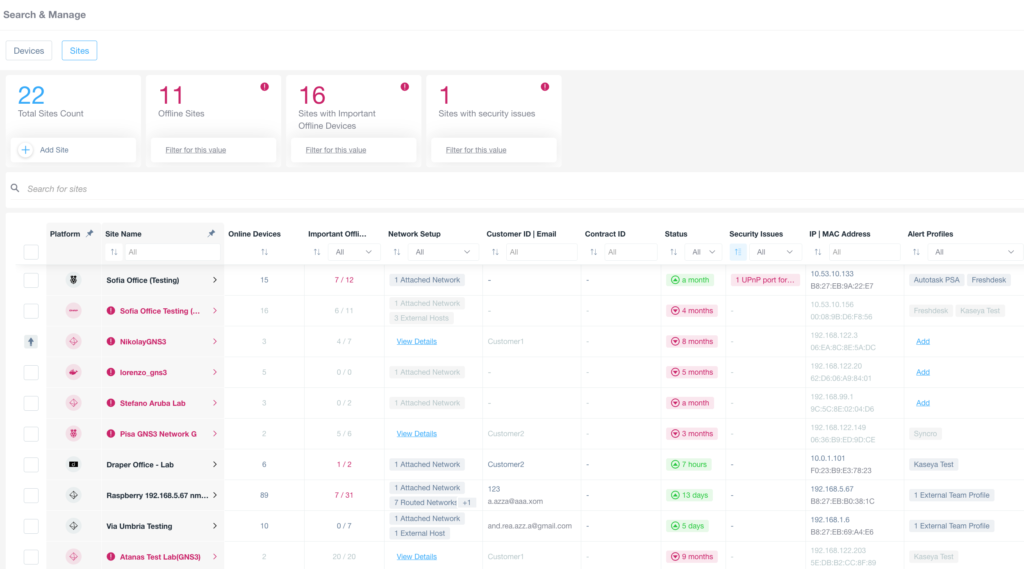
Site Management Dashboard Overview
1. The dashboard displays a summary of sites with key statistics:
- Total Sites Count: 22
- Offline Sites: 11
- Sites with Important Offline Devices: 16
- Sites with Security Issues: 1
2. To add a new site, click the "Add Site" button.
3. Use filters to sort or search sites based on criteria like total count, offline status, important offline devices, and security issues.
4. The table below the summary presents detailed information for each site:
- Columns include Platform, Site Name, Online Devices, Important Offline Devices, Network Setup, Customer ID/Email, Contract ID, Status, Security Issues, IP, MAC Address, and Alert Profiles.
- For each site, view details such as the number of online devices, attached networks, and any security issues.
- Status colors indicate time since the last update, such as "4 months," "8 months," or "13 days."
5. The "Security Issues" column highlights specific concerns, such as "1 UPnP port forwarding."
6. Use the "IP" and "MAC Address" columns for network information. Additional profiles can be viewed or added through the "Alert Profiles" column.
Therefore, you can now sort the list, for sites that are experiencing a majority of Important Devices that are offline. Moreover, you can filter for any sites that are having issues with Important Devices offline.
The number of possible Security Vulnerabilities discovered on each site, is displayed in a new field (when the capability is available).
Moreover, there’s a new header in the Sites tab of Search & Manage which also reports additional fields to give you a glance at key top-level information. This view now reports the following information:
Devices tab with additional capabilities
The new Devices tab in the Search & Manage section includes a new column that reports whether a specific device supports a special configuration that can be unlocked: (e.g. OS Monitoring, SNMP Management, ONVIF Monitoring, or Network Configuration Management). In these cases, the Domotz system requires you to input the credentials.
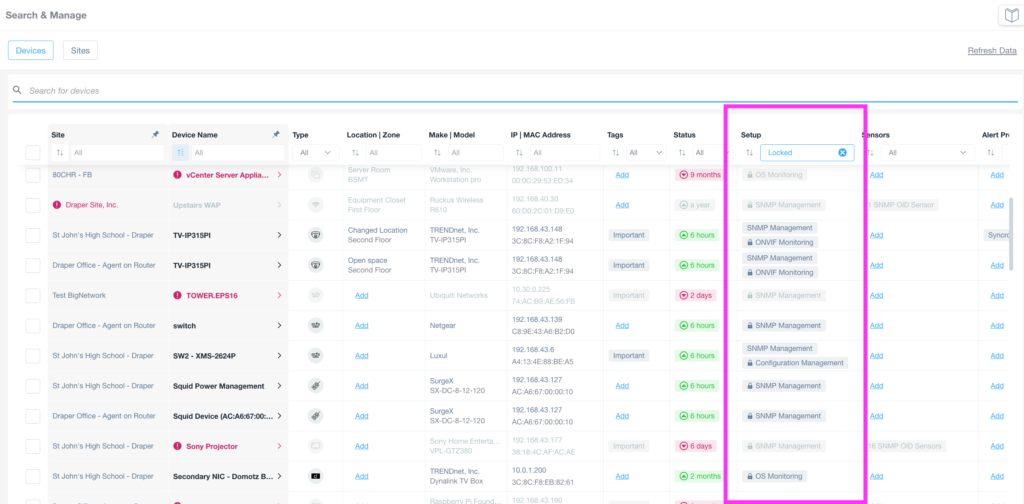
Device Management and Setup Options in a Network Dashboard
1. Navigate to the "Search & Manage" section of the dashboard, where you can switch between "Devices" and "Sites" view.
2. Use the search bar at the top to find specific devices by entering relevant details.
3. The list displays several columns, including "Site," "Device Name," "Type," "Location/Zone," "Make/Model," "IP/MAC Address," "Tags," "Status," among others.
4. To configure a device, locate the "Setup" column on the far right of the list.
5. The setup options include tasks like "SNMP Management," "OS Monitoring," "Configuration Management," and more, which can be selected per device.
6. Utilize these setup features to manage device settings and monitoring configurations effectively.
This new column helps you see all the devices that have additional capabilities you can unlock. You can also use the filter to search for devices with specific capabilities.
Improvements
Add Contract Info to Kaseya BMS tickets
When configuring the integration with Kaseya BMS, you can now select and map each Domotz Agent/Site to a specific Kaseya BMS Account under a specific Contract:
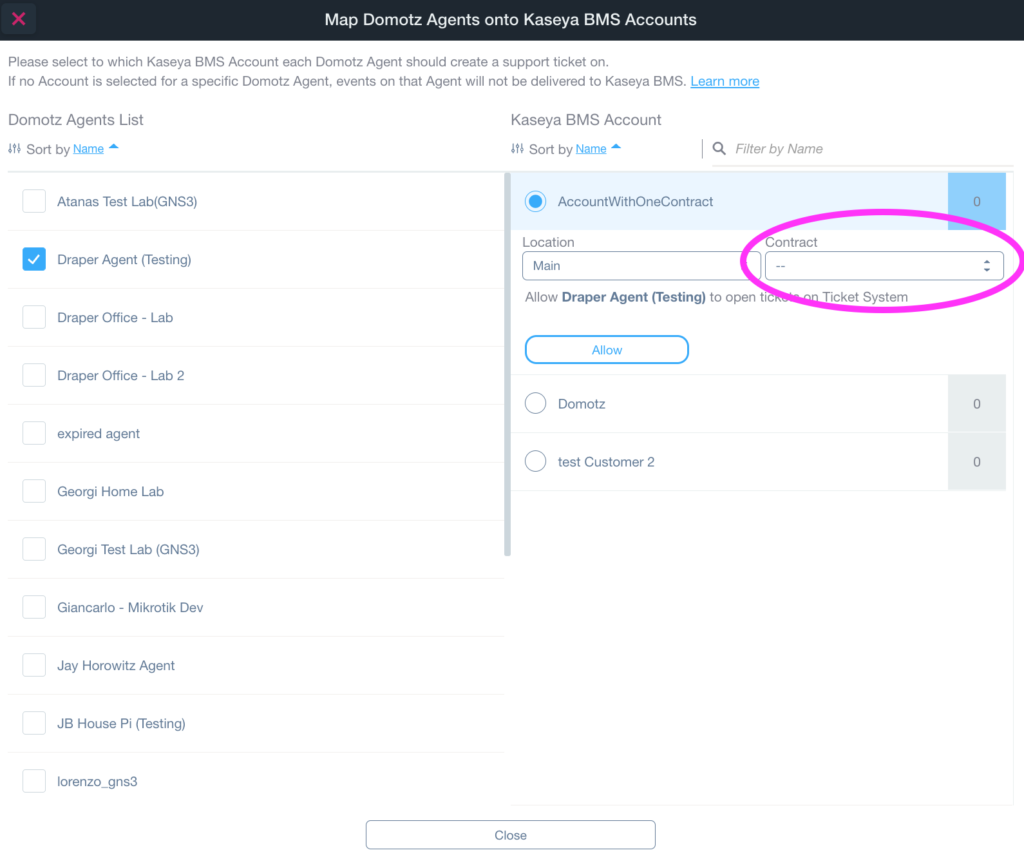
Mapping Domotz Agents to Kaseya BMS Accounts
1. In the "Domotz Agents List," select the desired agent by checking the box next to its name. For example, select "Draper Agent (Testing)."
2. In the "Kaseya BMS Account" panel on the right, click the dropdown next to "Contract" to choose the appropriate contract for the selected agent.
3. Ensure "Allow Draper Agent (Testing) to open tickets on Ticket System" is visible and the "Allow" button is active.
4. Choose the appropriate account from the list below, such as "Domotz" or "test Customer 2," to map the agent.
5. Click "Close" to finish the mapping process.
As a result, when Domotz automatically opens tickets in Kaseya BMS, we associate them with your selected contract.
Automatic Closure of Kaseya BMS Tickets
We’ve improved the integration with the Kaseya BMS platform. Additionally, you can configure Domotz to automatically closes Kaseya BMS tickets when the following monitored events occur:
- Device goes up
- Agent network goes up
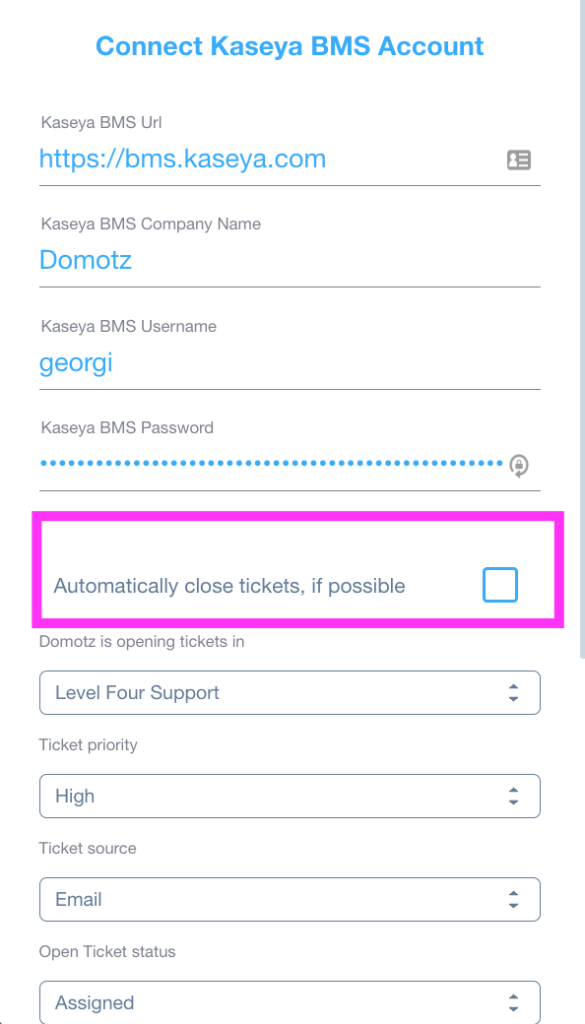
Connect Kaseya BMS Account Setup
1. Enter the Kaseya BMS URL as "https://bms.kaseya.com".
2. Fill in the Kaseya BMS Company Name with "Domotz".
3. Input the Kaseya BMS Username as "georgi".
4. Enter the Kaseya BMS Password in the designated field.
5. To enable automatic ticket closure, select the checkbox for "Automatically close tickets, if possible".
6. Choose "Level Four Support" from the dropdown for opening Domotz tickets.
7. Set the Ticket priority to "High".
8. Select "Email" as the Ticket source.
9. Ensure the Open Ticket status is set to "Assigned".
This new feature allows you to save time and troubleshoot faster with Domotz and Kaseya BMS. For more information, visit the Domotz Kaseya BMS Integration.
Network Configuration Management added for SonicWall
Our network configuration management features are now available on Sonicwall to help you stay on top of crucial changes happening in your network infrastructure.
You can now you can automatically backup the running configuration files of your SonicWall devices. Additionally, Domotz will keep track of the configuration changes over time and notify you if any change occurs to help you easily identify network configuration issues.
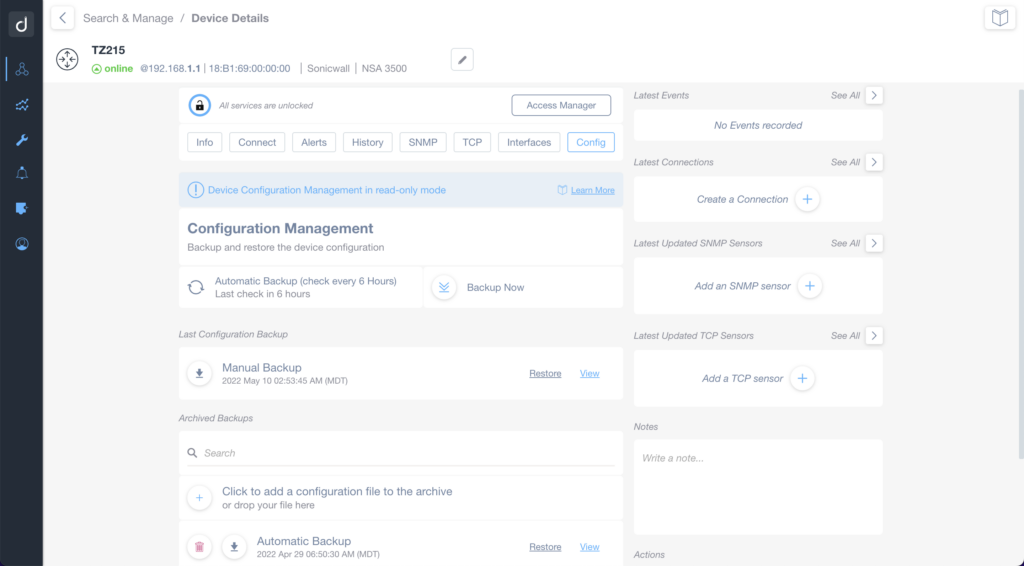
Device Configuration Management Interface
1. The interface displays details for the device labeled TZ215, which is online and shows IP and hardware details.
2. The top menu includes tabs for Info, Connect, Alerts, History, SNMP, TCP, Interfaces, and Config. Click "Config" to manage configurations.
3. Under "Configuration Management," options for automatic and manual backups are offered. Automatic Backup occurs every 6 hours, with the last check noted. "Backup Now" initiates a new backup.
4. For "Last Configuration Backup," a manual backup timestamp is provided with options to "Restore" or "View" the backup.
5. In the "Archived Backups" section, use the upload area to add files to the archive, or drag and drop files into it.
6. Several panels on the right section include:
- "Latest Events": No events recorded.
- "Latest Connections": Option to "Create a Connection."
- "Latest Updated SNMP Sensors": Option to "Add an SNMP sensor."
- "Latest Updated TCP Sensors": Option to "Add a TCP sensor."
7. A notes section is available for writing additional information.
Network Configuration Management improved for WatchGuard
Additionally, you can now configure the WatchGuard integration so that Domotz can perform read-only actions from the devices. As a result, you can avoid unnecessarily exposing admin accounts of your WatchGuard firewall.
For more information, visit our help article on Network Configuration Management.
Improved Network Topology Map supporting all RFC4188 compliant devices
Domotz can now automatically extract via SNMP the mapped devices on each Network Interface of any device compliant with RFC 4188.
Several device types (not necessary Network Infrastructure devices) can report which device is “reachable” via a specific Network Interface on their SNMP. This happens if the device is compliant with RFC 4188. Now Domotz can extract this information from these devices. Additionally, we leverage this information for enriching our Automatic Network Topology Maps.
Gude PDUs extended support
We now support the following Gude PDU models for the Outlet controls:
- Expert Net Control 2302
- Gude Expert Net Control 2304
- Expert Power Control 8001
Additional MIBs available in Domotz DB
Additional MIB files are available for the following devices and their OiDs can be searched from Domotz:
- Mobotix Camera
- NETAPP devices
Fix
We’ve fixed the following issues:
- The Ruckus Controller integration.
- The errors in unlocking and reading HP Ilo devices have been fixed.
- The management of ticketing system integration has been changed so that the integration is not blocked in case of a few sporadic issues on the communication channel.
- We’ve fixed the field Notes in the Agent view in the latest version of the Mobile App,
- The issue caused several alerts on DHCP server changes.
- An issue in the import of device settings and properties.
- The timestamp reported in the “Report & Logging” section has been aligned to the same style as other timestamps reported in the App/WebApp (including the indication of the TimeZone).
- Domotz Agent was attempting SNMP, TFTP, and NTP deeper scans which triggered alerts on some systems. We’ve fixed this issue.
Known limitations
- Firstly, monitoring Dashboards are currently limited to Monitoring Tables as Widgets. Furthermore, they do not report some variables (e.g. the ones created by the Custom Drivers) within the Monitoring Tables.
- Firstly, Luxul Router-based Agents do not support VPN on demand. To elaborate, we’ll add this capability as soon as Luxul’s team provides us with the required API resources.
- Devices with multiple network interfaces (multiple MAC addresses) can’t be merged into a single device. This affects some types of switches that appear as multiple instances on Domotz when VLANs are configured.
- The static IP address on the Domotz Box cannot be configured before configuring the Agent.
- HCP cannot be leveraged on additional VLANs on the Domotz Box.
To conclude, these release notes cover what’s changed in the Domotz Pro service since the previous Release Notes. Furthermore, these changes include Domotz Pro cloud, Domotz Agent, and Domotz Pro App.
All in all, to learn more, check out our network monitoring software or check out our Know Your Networks Blog.