
If you have a Ubiquiti UISP Cloud Console you can unlock advanced features inside Domotz.
Please refer to this guide for local or third-party cloud controllers: Ubiquiti UniFi Integration.
In the Ubiquiti Console
In order to connect Domotz to the UISP console you need to create an API Token.
Inside the UISP Network web configuration please go to Users -> API tokens, and click on Create new API token:
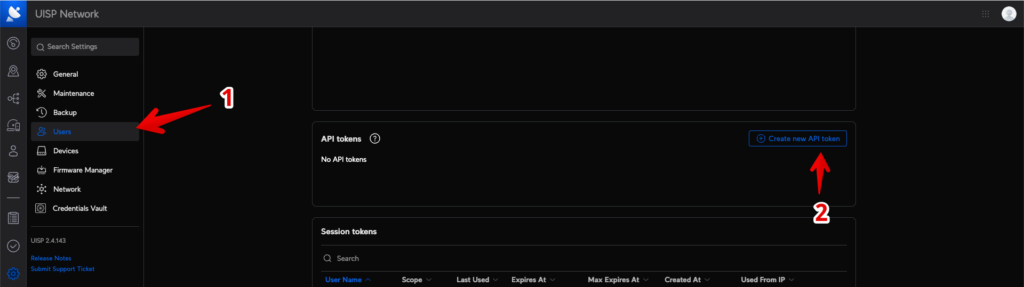
Creating a New API Token in UISP Network
1. In the UISP Network interface, navigate to the left-side menu.
2. Click on "Users" to open the Users section.
3. In the API tokens section, click the "Create new API token" button to initiate the process of generating a new API token.
Name it, assign it to Super Admin role, and click Save:
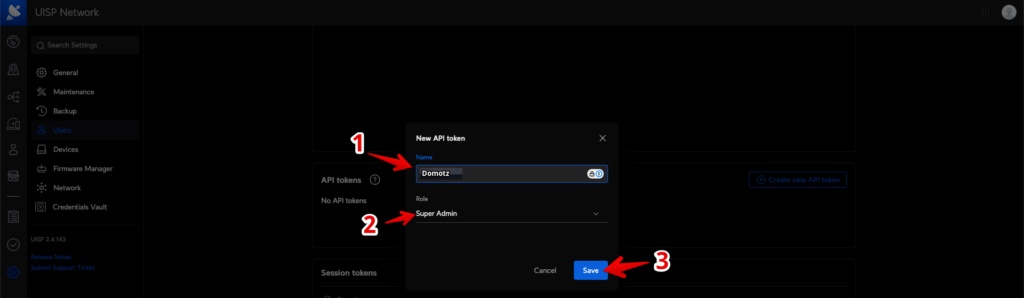
Creating a New API Token in UISP Network
1. In the "New API token" dialog, enter a name in the "Name" field.
2. Under "Role," select "Super Admin" from the dropdown menu.
3. Click the "Save" button to finalize the creation of the new API token.
Once the token is visible, copy it to your clipboard by clicking the button:
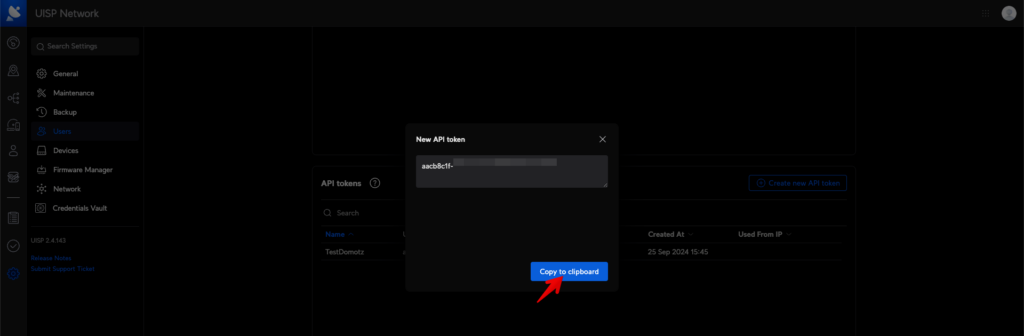
Generating a new API token in UISP Network.
1. Navigate to the "Users" section from the left-hand menu.
2. Open the "API tokens" tab.
3. Click on "Create new API token."
4. A pop-up will appear displaying the new API token.
5. Click the "Copy to clipboard" button to save the token for later use.
In Domotz
Access your Domotz Collector Device List -> Device External Services:
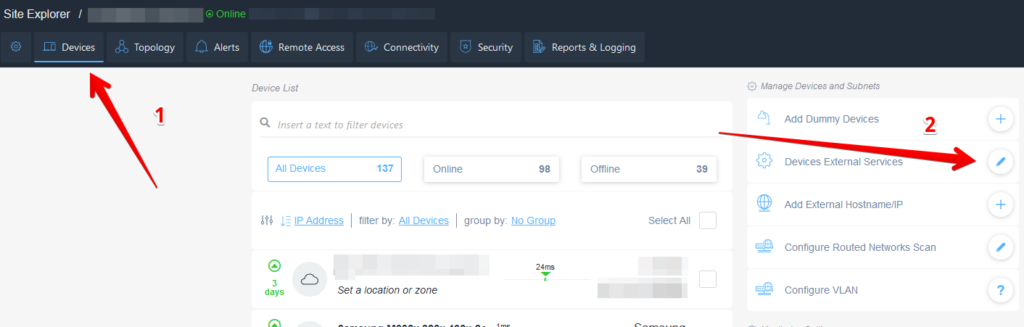
Accessing Devices and External Services Settings
1. In the top navigation bar, select the "Devices" tab to view and manage the list of connected devices.
2. On the right side, under the "Manage Devices and Subnets" section, click on "Devices External Services" to configure external services related to the devices.
Then, click on the + button named “Connect” under the Ubiquiti UISP Cloud Console:
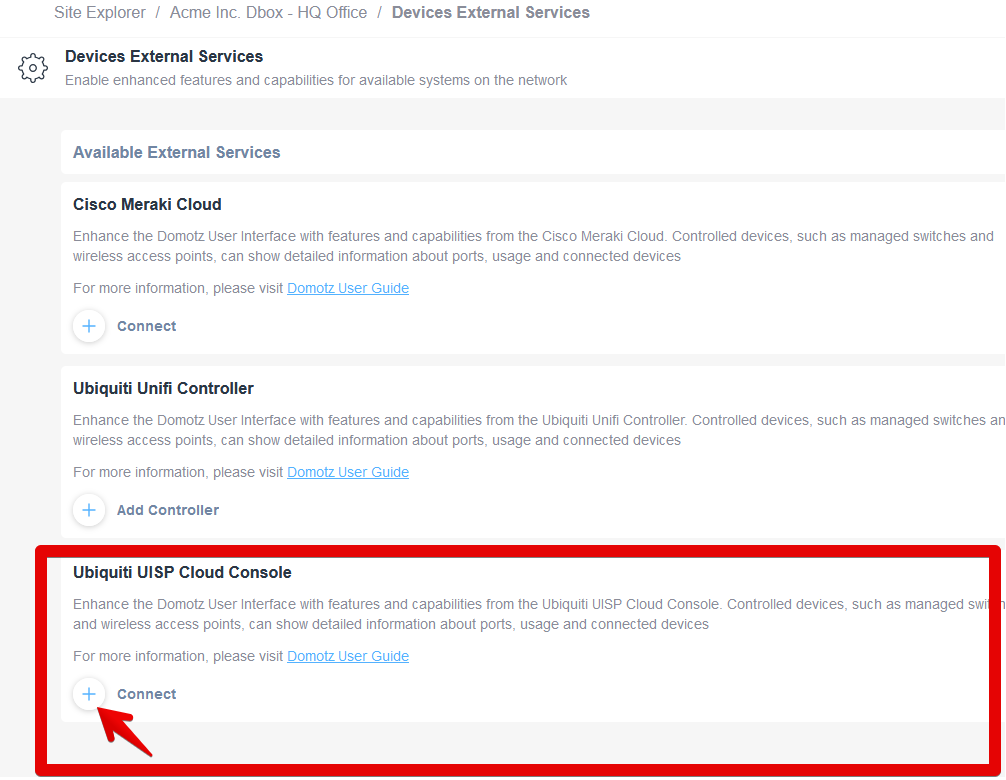
Connecting to the Ubiquiti UISP Cloud Console
1. Navigate to the "Devices External Services" section.
2. Locate the "Available External Services" list.
3. Find the "Ubiquiti UISP Cloud Console" option.
4. Click the "Connect" link below this option to enhance the Domotz User Interface with capabilities from the Ubiquiti UISP Cloud Console. This integration allows detailed information about ports, usage, and connected devices.
5. For further details, refer to the provided Domotz User Guide link.
Then add the hostname, the API Token, and click connect:
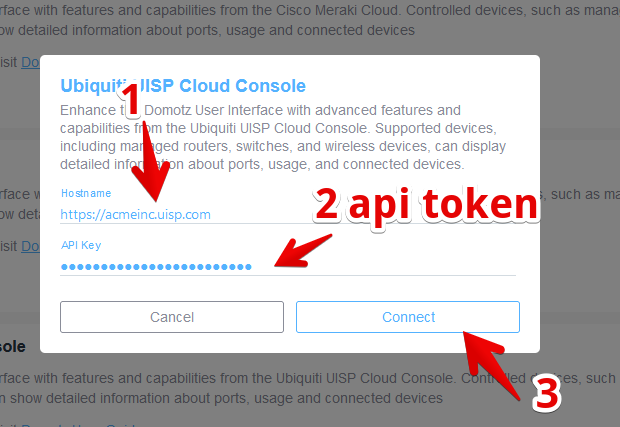
Connecting to the Ubiquiti UISP Cloud Console
1. Enter the Hostname into the designated field. For example, "https://acmeinc.uisp.com".
2. Provide the API Key in the corresponding field.
3. Click the "Connect" button to establish the connection. Use "Cancel" if you wish not to proceed.