
Below you will find the necessary permissions for the AWS custom integration drivers that we offer. You will see the required permissions, followed by a JSON example of the least privileged permissions required.
AWS CloudWatch Metrics

AWS CloudWatch Metrics Integration Overview
1. Title: "AWS CloudWatch Metrics" with an AWS logo next to it.
2. Description: Details the capability to monitor AWS CloudWatch metrics, mentioning the retrieval of data such as CPUUtilization, NetworkIn, NetworkOut, and DiskReadOps.
3. Tags: Includes tags labeled "cpu," "network," and "storage."
4. Buttons: Features a "Use Driver" button for initiating the process and an options button represented by three dots for additional actions.
Example Policy JSON (least privilege):
{
  "Version": "2012-10-17",
  "Statement": [
    {
      "Sid": "AllowCloudWatchMetricQueries",
      "Effect": "Allow",
      "Action": [
        "cloudwatch:GetMetricData"
      ],
      "Resource": "*",
      "Condition": {
        "StringEquals": {
          "aws:RequestedRegion": "ADD_REGION"
        }
      }
    }
  ]
}
Replace ADD_REGION with the region used in the driver.
AWS Billing Metrics

AWS Billing Metrics Overview
1. Title: "AWS Billing Metrics" with the AWS logo displayed beside it.
2. Description: States the function of the script, which retrieves billing metrics from AWS to monitor costs and usage.
3. Tags: Labeled "billing" and "cloudwatch," indicating the categories the metrics relate to.
4. Buttons:
- "Use Driver" button for executing or integrating the script.
- An additional options button represented by three dots for more actions or settings.
Required IAM Permissions:
- ce:GetCostAndUsage
Example Policy JSON (least privilege):
{
  "Version": "2012-10-17",
  "Statement": [
    {
      "Sid": "AllowCostExplorerQueries",
      "Effect": "Allow",
      "Action": [
        "ce:GetCostAndUsage"
      ],
      "Resource": "*"
    }
  ]
}
AWS EBS Metrics

AWS EBS Metrics Description Panel
1. Displays the title "Aws EBS Metrics" with a subtitle "aws."
2. Describes the function: "Monitor AWS Elastic Book Store metrics," retrieving information about Burst Balance, Idle Time, Queue Length, etc.
3. Includes tags labeled "elastic" and "storage" for categorization.
4. Presents two buttons: "Use Driver" for initiating the monitoring process, and a menu button with three dots for additional options.
Required IAM Permissions:
- cloudwatch:GetMetricData
Example Policy JSON (least privilege):
{
  "Version": "2012-10-17",
  "Statement": [
    {
      "Sid": "AllowCloudWatchEBSMetricsQueries",
      "Effect": "Allow",
      "Action": [
        "cloudwatch:GetMetricData"
      ],
      "Resource": "*",
      "Condition": {
        "StringEquals": {
          "aws:RequestedRegion": "ADD_REGION"
        }
      }
    }
  ]
}
Replace ADD_REGION with the region used in the driver.
AWS EC2 Metrics
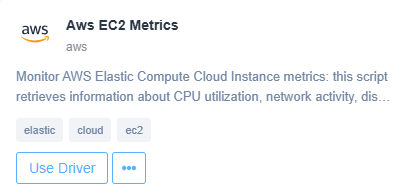
AWS EC2 Metrics Integration
1. The title "Aws EC2 Metrics" indicates the focus on monitoring AWS Elastic Compute Cloud instance metrics.
2. The text below the title explains that the script retrieves data on CPU utilization, network activity, and more.
3. Tags such as "elastic," "cloud," and "ec2" show relevant categories.
4. The "Use Driver" button is available for initiating the related process.
5. An additional options button is present, represented by three dots, for accessing more functionalities.
Required IAM Permissions (EC2 + attached EBS via CloudWatch):
- cloudwatch:GetMetricData
Example Policy JSON (least privilege):
{
  "Version": "2012-10-17",
  "Statement": [
    {
      "Sid": "AllowCloudWatchMetricQueriesForEC2AndEBS",
      "Effect": "Allow",
      "Action": [
        "cloudwatch:GetMetricData"
      ],
      "Resource": "*",
      "Condition": {
        "StringEquals": {
          "aws:RequestedRegion": "ADD_REGION"
        }
      }
    }
  ]
}
Replace ADD_REGION with the region used in the driver.
AWS EC2 Volumes
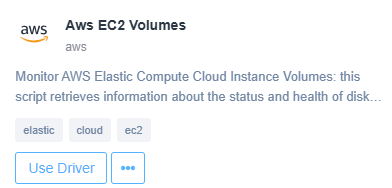
AWS EC2 Volumes Monitoring Interface
1. The top section displays the title "Aws EC2 Volumes" with the AWS logo, indicating the resource type.
2. Below the title, there is a brief description stating that the script monitors AWS Elastic Compute Cloud Instance Volumes, retrieving status and health information about disk volumes.
3. Tags "elastic," "cloud," and "ec2" are shown underneath the description for categorization.
4. At the bottom, a "Use Driver" button is available, allowing users to interact or apply the script.
Required IAM Permissions:
- ec2:DescribeVolumes
Example Policy JSON (least privilege):
{
  "Version": "2012-10-17",
  "Statement": [
    {
      "Sid": "AllowDescribeVolumesForAttachedEBS",
      "Effect": "Allow",
      "Action": [
        "ec2:DescribeVolumes"
      ],
      "Resource": "*",
      "Condition": {
        "StringEquals": {
          "aws:RequestedRegion": "ADD_REGION"
        }
      }
    }
  ]
}
Replace ADD_REGION to match the driver’s region.
AWS RDS Metrics
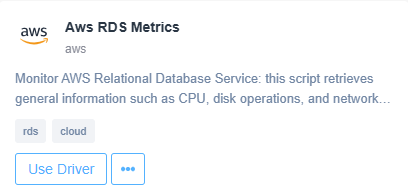
AWS RDS Metrics Overview
1. Title: "AWS RDS Metrics" indicates the purpose of the script.
2. Description: Explains that the script retrieves general information including CPU usage, disk operations, and network metrics for AWS Relational Database Service.
3. Tags: "rds" and "cloud" to categorize the script.
4. Buttons: The "Use Driver" button allows implementation of the script. An additional option button indicated by three dots provides more actions or settings.
Required IAM Permissions (RDS via CloudWatch):
- cloudwatch:GetMetricData
Example Policy JSON (least privilege):
{
  "Version": "2012-10-17",
  "Statement": [
    {
      "Sid": "AllowCloudWatchMetricQueriesForRDS",
      "Effect": "Allow",
      "Action": [
        "cloudwatch:GetMetricData"
      ],
      "Resource": "*",
      "Condition": {
        "StringEquals": {
          "aws:RequestedRegion": "ADD_REGION"
        }
      }
    }
  ]
}
Replace ADD_REGION with the region used by the driver.
AWS RDS Instance Info
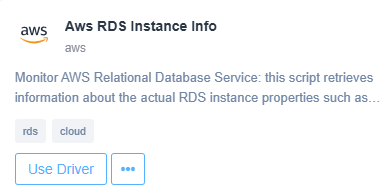
AWS RDS Instance Info Interface
1. At the top, the interface title is "Aws RDS Instance Info" with a label for AWS.
2. Below the title, a brief description indicates that the script retrieves information about AWS Relational Database Service (RDS) instance properties.
3. There are two tags labeled "rds" and "cloud" indicating the related categories or topics.
4. A blue button labeled "Use Driver" is present for initiating the process.
5. Next to the button is an icon with three dots, likely representing more options or settings to be accessed as needed.
Required IAM Permissions (RDS describe):
- rds:DescribeDBInstances
Example Policy JSON (least privilege):
{
  "Version": "2012-10-17",
  "Statement": [
    {
      "Sid": "AllowDescribeDBInstances",
      "Effect": "Allow",
      "Action": [
        "rds:DescribeDBInstances"
      ],
      "Resource": "*",
      "Condition": {
        "StringEquals": {
          "aws:RequestedRegion": "ADD_REGION"
        }
      }
    }
  ]
}
Replace ADD_REGION with the region used by the driver.