
How can I temporarily disable alerts on a network?
During maintenance operations you may want to disable all alerts.
In order to do this, go to the agent associated to that network and click on Alerts Settings
Alerts Settings and Counts Panel 1. The panel displays a bell icon, indicating it is related to notifications.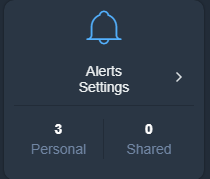
2. Below the icon, there are options for "Alerts" and "Settings," allowing you to manage notification preferences.
3. To the right, an arrow suggests navigating to more detailed settings.
4. At the bottom, two sections show counts: "Personal" with a value of 3, indicating three personal alerts, and "Shared" with a value of 0, indicating no shared alerts.
and click on the control button shown in the picture below:
Alert Settings and Configuration 1. Navigate to the "Alerts Settings" section to manage alerts for the agent.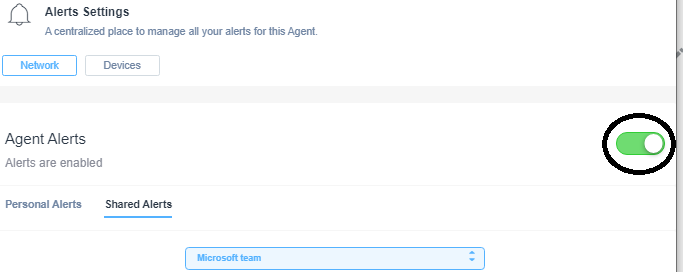
2. Choose between "Network" and "Devices" tabs, based on your alert needs.
3. In the "Agent Alerts" section, ensure alerts are enabled using the toggle switch, which appears in the 'on' position.
4. Select between "Personal Alerts" and "Shared Alerts" tabs at the bottom.
5. For shared alerts, use the dropdown menu to choose a team, such as "Microsoft team."
The same button can be used to restore alerts on the network.
Note that these actions are also recorded in the Logging and Reports section of the agent.
Logging and Reports Interface Overview 1. The main header reads "Logging & Reports" with a subtext: "Keep track on what happened on the network and share reports with others."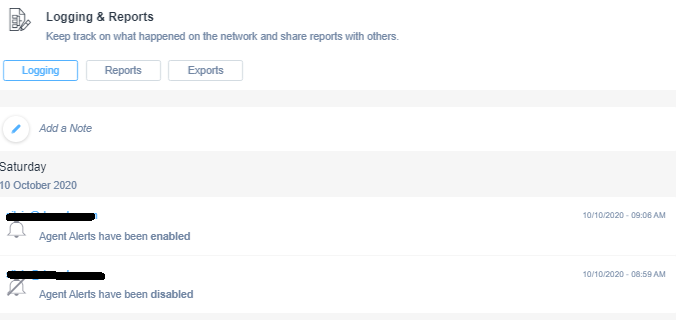
2. Three tabs are available: "Logging," "Reports," and "Exports." The "Logging" tab is currently selected.
3. Below the tabs is an option to "Add a Note."
4. Under the date "Saturday, 10 October 2020," two log entries are displayed.
5. The first entry indicates that "Agent Alerts have been enabled" at 09:08 AM.
6. The second entry states that "Agent Alerts have been disabled" at 08:59 AM.
7. Each log entry displays a timestamp on the right side.
Snooze Alerts
It is also possible to temporary disable Alerts completely on a whole Domotz Agent for:
- a specific duration
- or until a specific date/time
If you are planning to perform some maintenance activity for the next few hours on a Network, you would like to disable all the Alerts and Notifications generated by Domotz. You can now do that, without the trouble of remembering to re-enable back the Alerts.
Visit the Alerts Setting tile for the specific Domotz Agent and click on the Agent Alerts toggle:
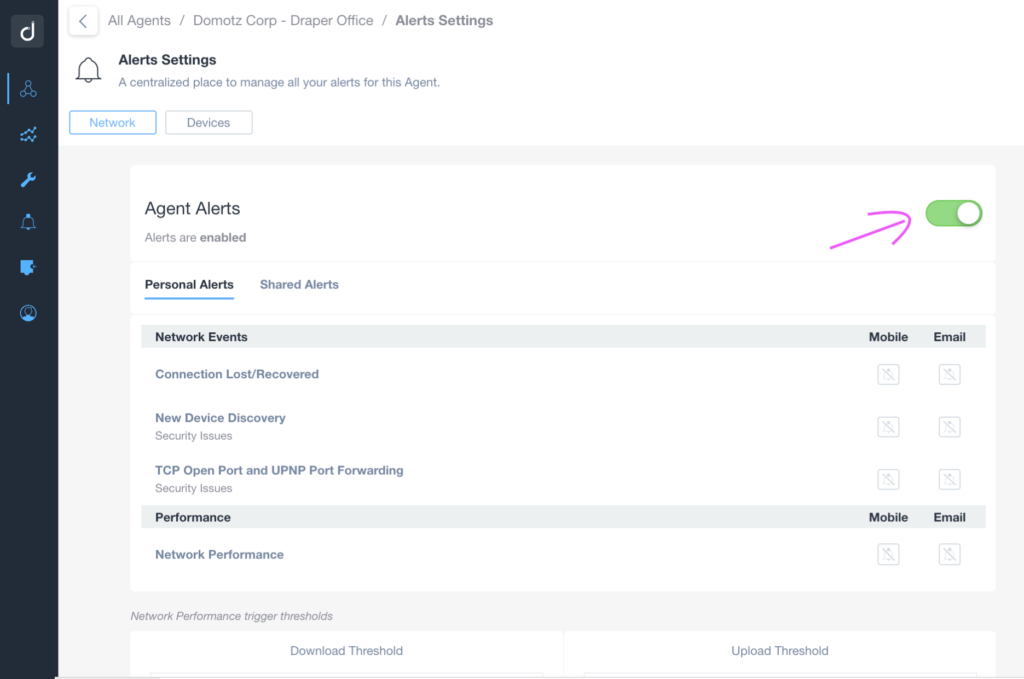
Alerts Settings Page for an Agent
1. Navigate to the "Alerts Settings" section.
2. Ensure "Agent Alerts" are turned on by checking the toggle switch in the top right; it should be green.
3. Select between "Personal Alerts" and "Shared Alerts" based on your preference.
4. Under "Network Events," you can configure alerts for "Connection Lost/Recovered," "New Device Discovery," and "TCP Open Port and UPNP Port Forwarding," all under the category of "Security Issues."
5. For "Performance," configure "Network Performance" alerts.
6. Note that notifications can be set for Mobile and Email, though options are currently shown as muted.
You will be proposed with the possibility to “Disable” the Alerting completely or temporarily disable the alerts by “Snooze”:

You can then either select to temporary disable the Alerts until a specific Time and Date or for a certain amount of time (days or hours):
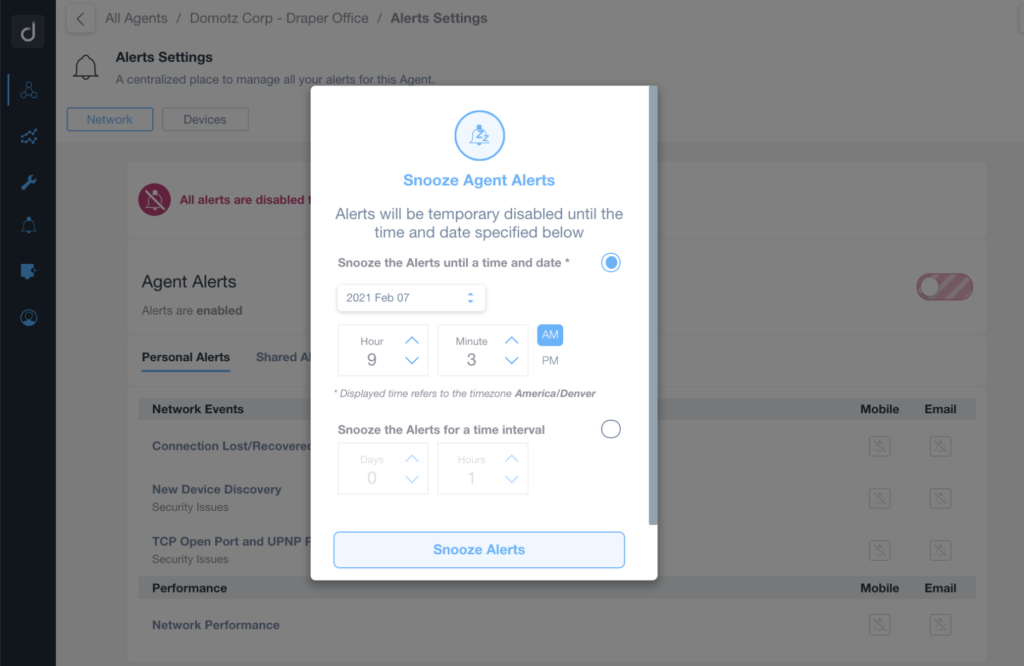
Snooze Alert Settings Configuration
1. Open the Alerts Settings panel for the desired agent under "Agent Alerts."
2. Choose between "Network" or "Devices" to specify which alerts to manage.
3. In the "Snooze Agent Alerts" popup, select "Snooze the Alerts until a time and date" to specify a future date and time. Use the dropdown menu to select the date, and set the hour and minute using the respective fields. Choose AM or PM to finalize the time.
4. Alternatively, select "Snooze the Alerts for a time interval" to set a duration. Enter the number of days, hours, and minutes for the snooze interval.
5. Click "Snooze Alerts" to apply the settings.
You can use this functionality also if you are planning not to pro-actively monitor a Network for a certain amount of days/months (e.g. in the case of seasonal offices/residences).