
Domotz IP Security Cameras Integration
Domotz has developed a specialized set of features for IP cameras supporting the ONVIF standard.
How to set-up the Domotz IP Cameras Integration
When a camera is detected, Camera Tab is automatically displayed in the Device Details section of the device.
In this section you can find more info about the camera itself: Video Profiles and Camera Capabilities. The option to reboot the camera and to take a snapshot and stream the video for 1 minute.
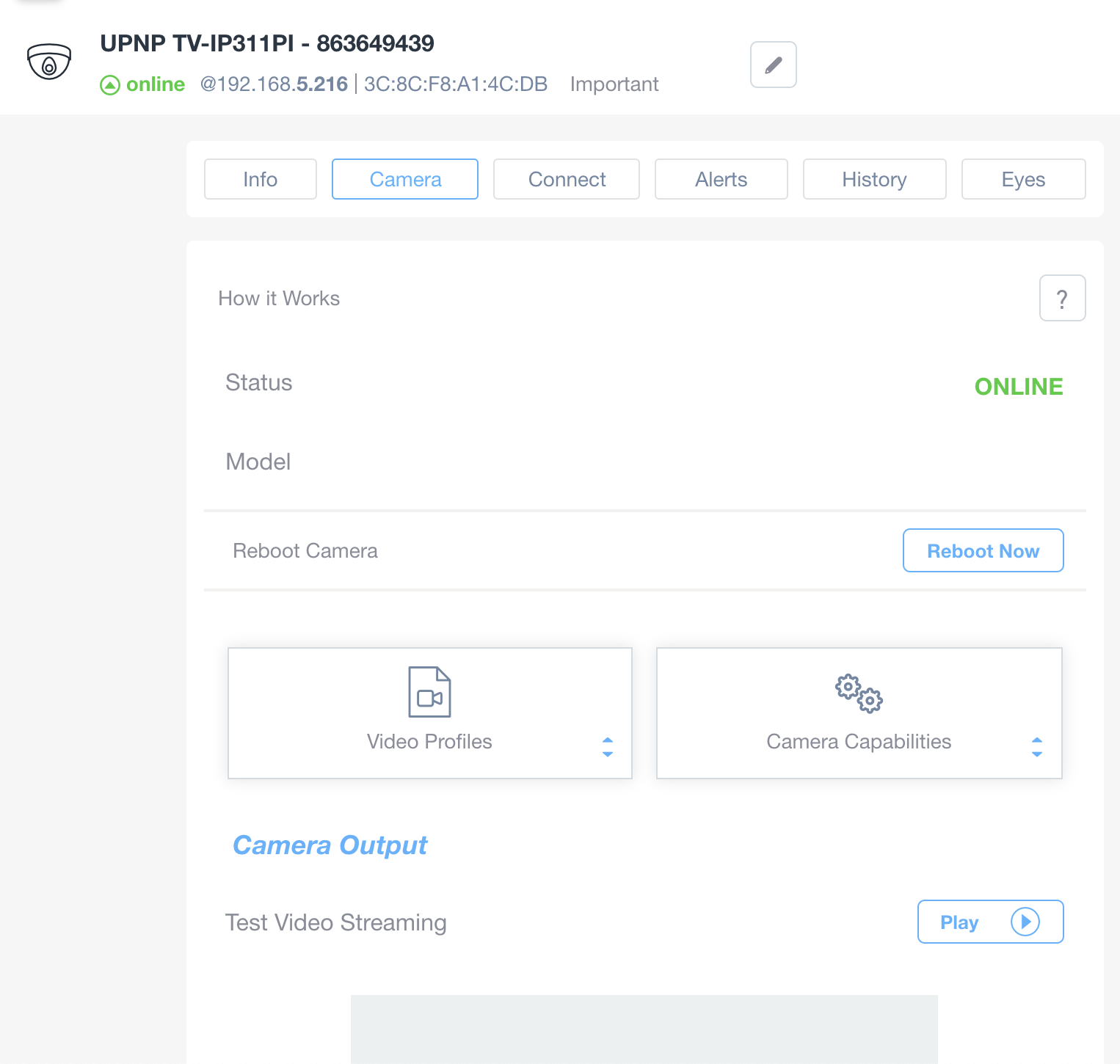
Camera Management Interface Overview
1. At the top, the device information is displayed, showing the camera name "UPNP TV-IP311PI" with its serial number. The status indicates the device is "online" and displays the IP address and MAC address.
2. Below this, there is a navigation bar with tabs: "Info," "Camera," "Connect," "Alerts," "History," and "Eyes." The "Camera" tab is currently selected.
3. Under "How it Works," it shows the camera's status as "ONLINE" and includes sections for "Status" and "Model."
4. A "Reboot Camera" section is available with a "Reboot Now" button to restart the camera.
5. Further down, options for "Video Profiles" and "Camera Capabilities" are provided, allowing users to configure or view settings.
6. The "Camera Output" section includes a "Test Video Streaming" feature with a "Play" button to initiate video streaming tests.
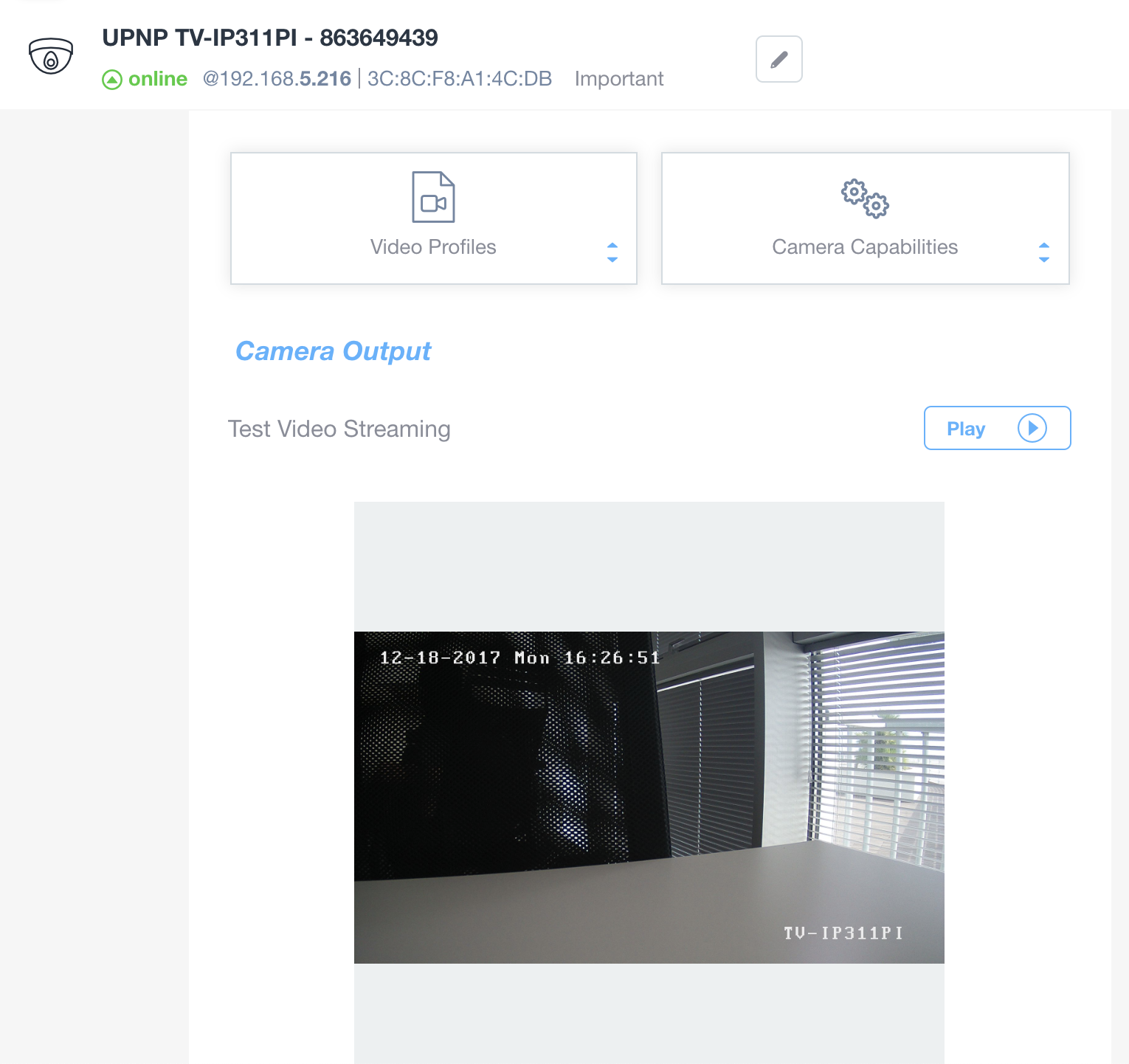
Live Camera Feed and Control Interface
1. View the online status and IP address of camera UPNP TV-IP311PI; it is currently online at IP 192.168.5.216.
2. Access "Video Profiles" to configure streaming settings or "Camera Capabilities" for device specifications.
3. Under "Camera Output," select "Play" to start testing video streaming.
4. The video display shows the camera's live feed, including a timestamp of 12-18-2017 Mon 16:26:51.
Snapshot and streaming are meant for diagnostics and functional check. By design we keep those images at a low resolution. For privacy reasons those images are not stored in the Domotz cloud. Domotz also sends an email to your customer (as you have specified in the Customer Management section of the app) every time you activate video streaming on each remote camera from the Domotz app.