
Domotz Solution360 Integration
The Domotz Solutions360 integration enables you to create and update Solution360 tickets when a specific event occurs on the networks or devices monitored through Domotz. Use the Domotz and Solution360 integration to provide faster support to your customers for network and device issues.
How to set-up the Domotz Solution360 Integration
You can connect your Solutions360 (Q360) account with Domotz. Q360 will become one of the Contact Channels available when creating a Shared Alert. This means that you can create or update an Q360 Service Ticket when a specific event occurs in Domotz.
Before adding the Q360 integration in Domotz you need to set up your Q360 account properly. See the next section.
Connecting an Account on Q360 Platform 1. Locate the Q360 logo or icon on your screen. This represents the Q360 platform.
2. Next to the logo or icon, find the option labeled “Connect Account.”
3. Click on “Connect Account” to initiate the account connection process on the Q360 platform.
Solutions360 – Q360 user creation
Within Q360, you will need to complete the steps below.
- Setup the Q360 director.
a. Create a dedicated user ID for managing and authenticating integrations.
b. Go to Maintenance > User Maintenance.
c. In the User ID field, enter the username. The recommendation is to use the ID Q360API.
d. In the User Type field, select Q360API.
e. Click the Save icon.
Note: it is recommended that both the User ID and the User Type be named Q360API.
f. Configure the Director settings by going to Maintenance > API Configuration > Director tab.
g. Enter the following details:
- Director URL: The URL https://example.com/Q360API/director.php, where example.com is the domain name for your instance.
- User ID: The Q360API user ID created in the above section
- Password: The password for the Q360API user ID.
h. Click Save.
i. Click Test Service. If the setup is successful, the message “Director is configured correctly.” displays.
2. Create a “Q360API” userid for “DOMOTZ” via Q360 User Maintenance screen. Users will need this userid/password for input in the Domotz portal.
3. Configure the Call Status codes to denote which ones are “PENDING” or “CLOSED”. This tells Domotz if the call is closed or not.
4. Enter the Q360 API URL, USERID and PASSWORD in Domotz portal, and you’re all set.
The user needs to be of type: Q360API, and have the following permissions assigned:
- DispatchList
- DispatchSave
- DispTranSave
- SiteList
User Permissions Management Interface 1. Navigate to the "Permissions/Groups" tab to manage user permissions.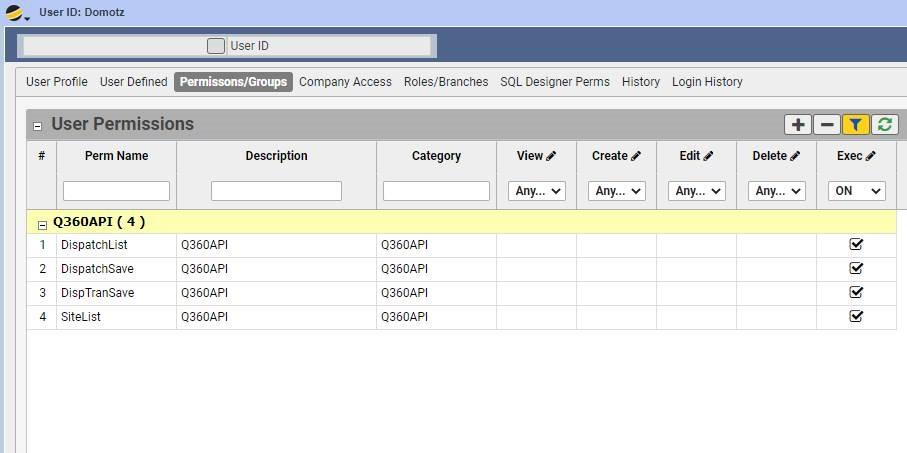
2. The "User Permissions" section is displayed with columns for Permission Name, Description, and Category.
3. Each row represents a permission under the group "Q360API," including "DispatchList," "DispatchSave," "DispTranSave," and "SiteList."
4. Use the dropdown menus above each column to filter permissions by "View," "Create," "Edit," "Delete," and "Exec" options.
5. The checkboxes on the right enable or disable specific permissions. Ensure the desired permissions are checked or unchecked according to your requirements.
After the above steps are completed in Q360, you can now connect your Q360 account with Domotz.
Solutions360 – Q360 Contact Channel Creation
Now that you have your Solutions360 API user created, you can proceed to connecting it to Domotz. Please click on Connect Account and enter your credentials.
Connect a Q360 Account 1. Enter the Q360 API URL: "http://q360rd.solutions360.com".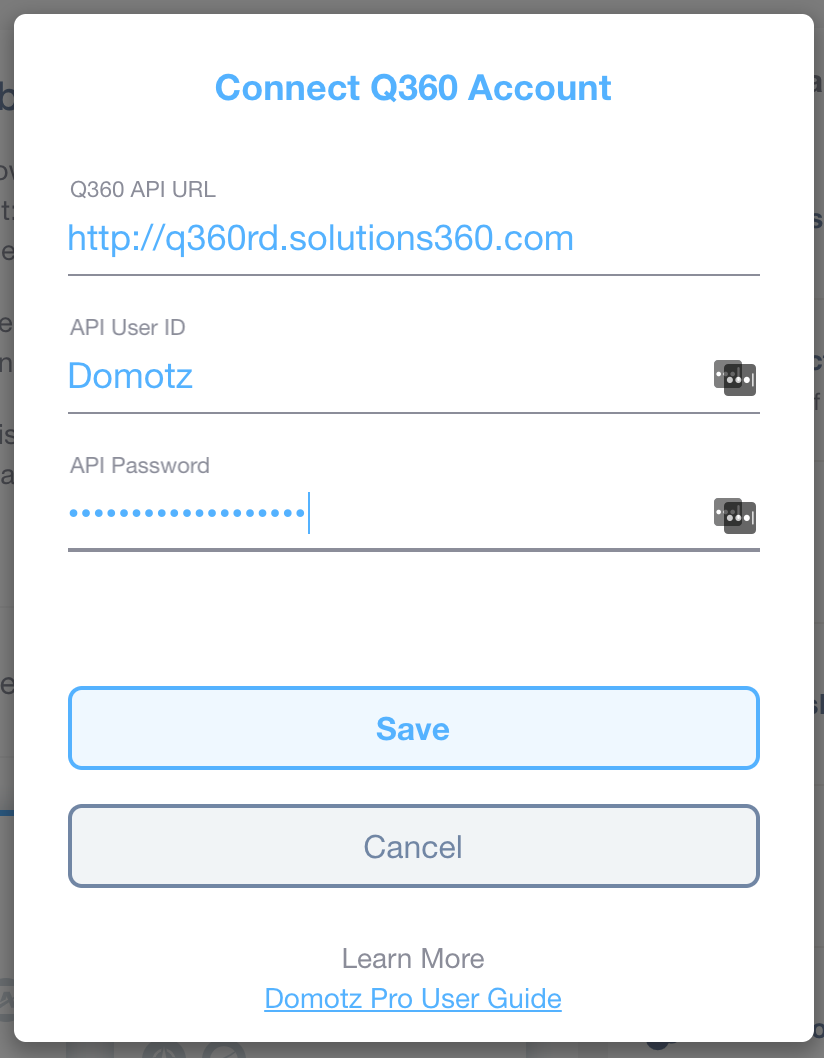
2. Enter your API User ID in the designated field.
3. Enter your API Password in the provided field.
4. Click the "Save" button to connect the account.
5. If needed, click "Cancel" to exit without saving.
6. For further information, access the "Domotz Pro User Guide" link at the bottom.
Now select which Q360 site each Domotz Agent should create a support ticket on. If no site is selected for an Agent, the ticket will not be associated with a site.
Map Domotz Agents to Q360 Sites 1. In the Domotz Agents List, select "Office Draper - Maker Board" by clicking the checkbox next to it.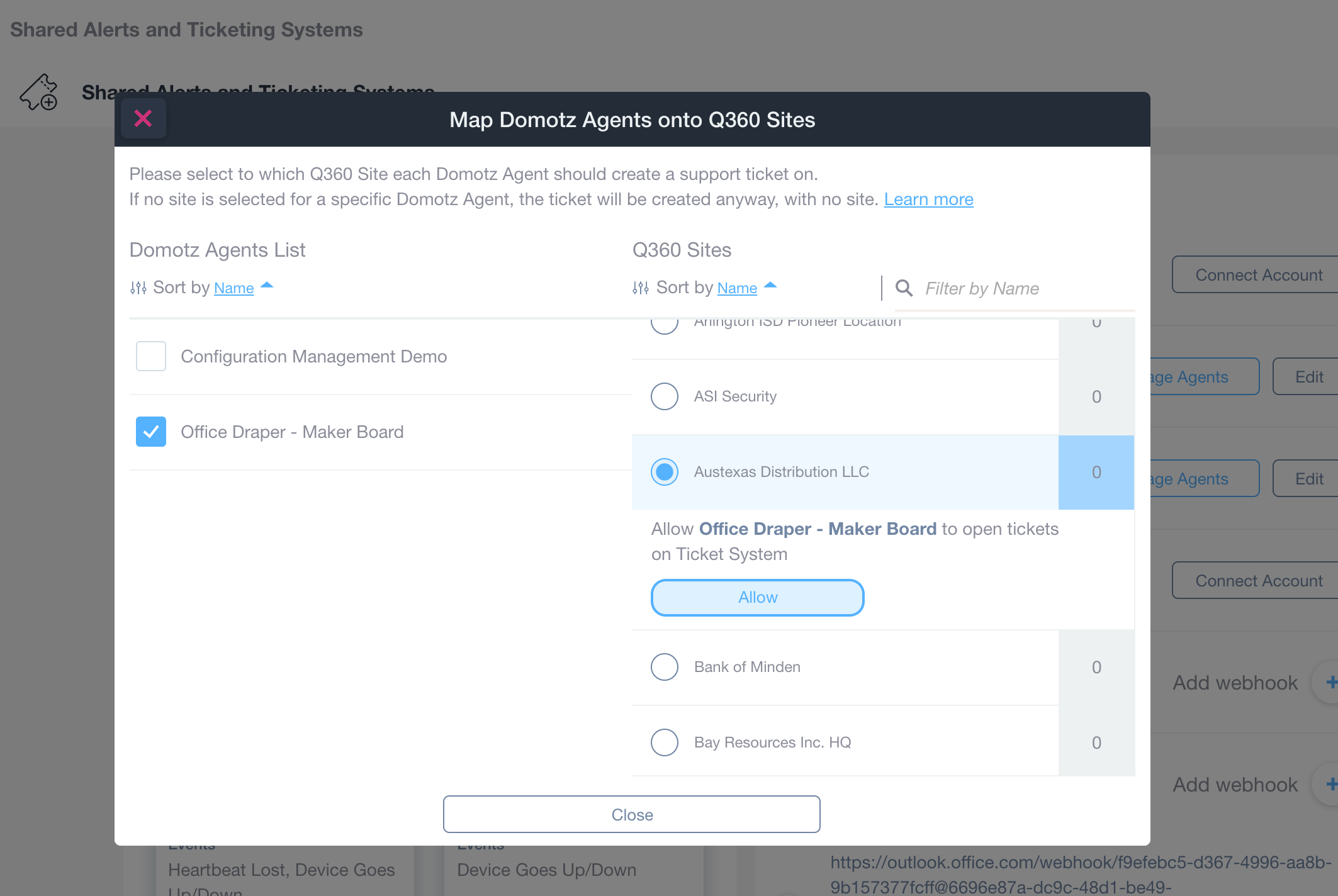
2. In the Q360 Sites section, choose "Austexas Distribution LLC" by clicking the corresponding radio button.
3. Beneath the site selection, confirm that "Office Draper - Maker Board" is allowed to open tickets on the Ticket System, then click the "Allow" button.
4. Click "Close" to finish mapping.
Please note that the Domotz Agent mapping is mandatory. If no selections are made the tickets in Q360 will not be created for Alert events occurring on the Domotz Agents with no mapping.