


Integrated Dell Remote Access Controller (iDRAC) is a remote server management processor which is embedded within every Dell PowerEdge Server. It is designed for secure local and remove server monitoring and management.
Depending on its version it supports various protocols such as SNMP, SSH (as well as RESTful API based on Redfish).
This article will cover up how you can monitor your Dell servers hardware equipped with a Dell IDRAC Controller using Domotz.
Monitoring iDrac
To monitor a Dell iDRAC-equipped server, you can choose the following methods:
- SNMP Pre-Configured Templates
- Pre-Configured Drivers – SSH Protocol (Recommended)
- OS Monitoring – SSH Protocol
SNMP Pre-Configured Templates
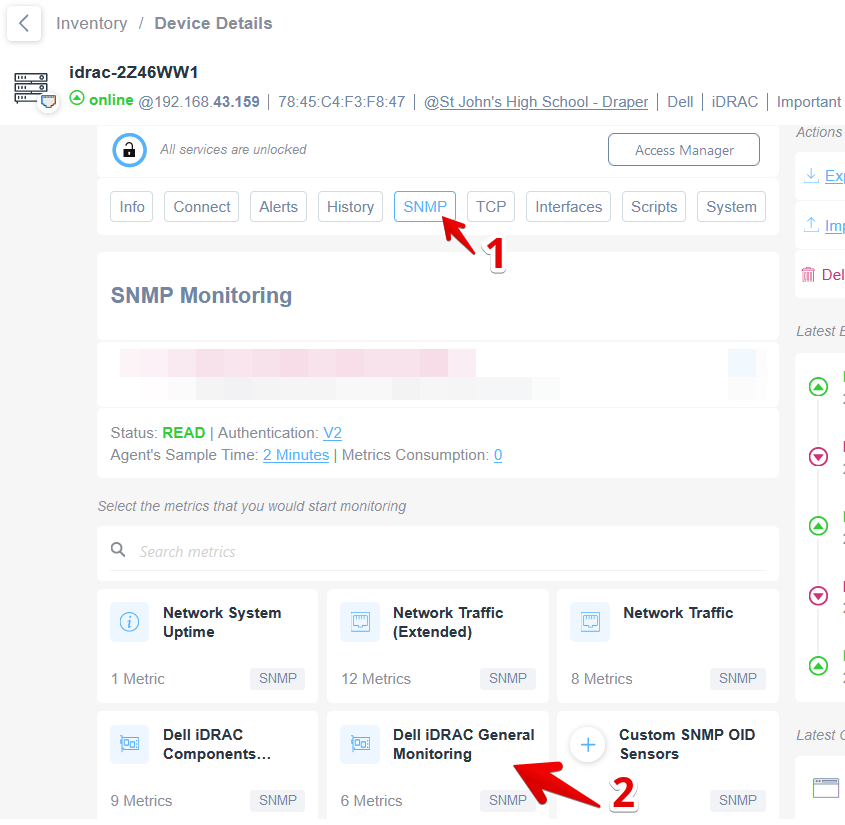
After you have enabled the SNMP service on your Dell iDrac controller, and set-up the authentication credentials inside Domotz (https://help.domotz.com/tips-tricks/how-to-set-custom-snmp-credentials-in-domotz/), Domotz will automatically display the Dell IDRAC Preconfigured SNMP Templates in the device SNMP section:
And you will be able to apply them on each device by selecting them from this modal window:
Or, if you prefer, you might assign these SNMP templates in bulk using Domotz Monitoring dashboards and tables:
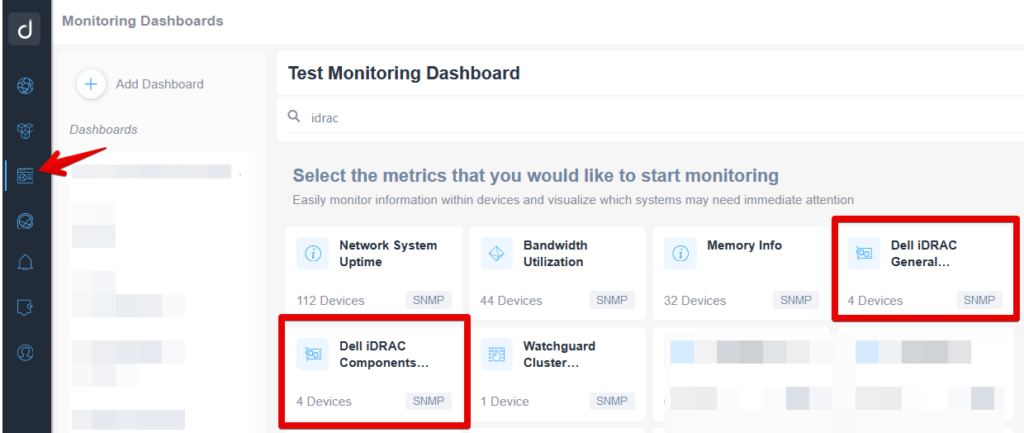
To see what you will be able to monitoring with the Dell iDRAC General Monitoring, and the Dell iDrac Components Status Monitoring SNMP templates, you might check this kb article: https://help.domotz.com/monitoring-management/pre-configured-snmp-sensors/#htoc-dell-iDrac
Alert Settings – what and how to monitor using the SNMP templates?
General SNMP template
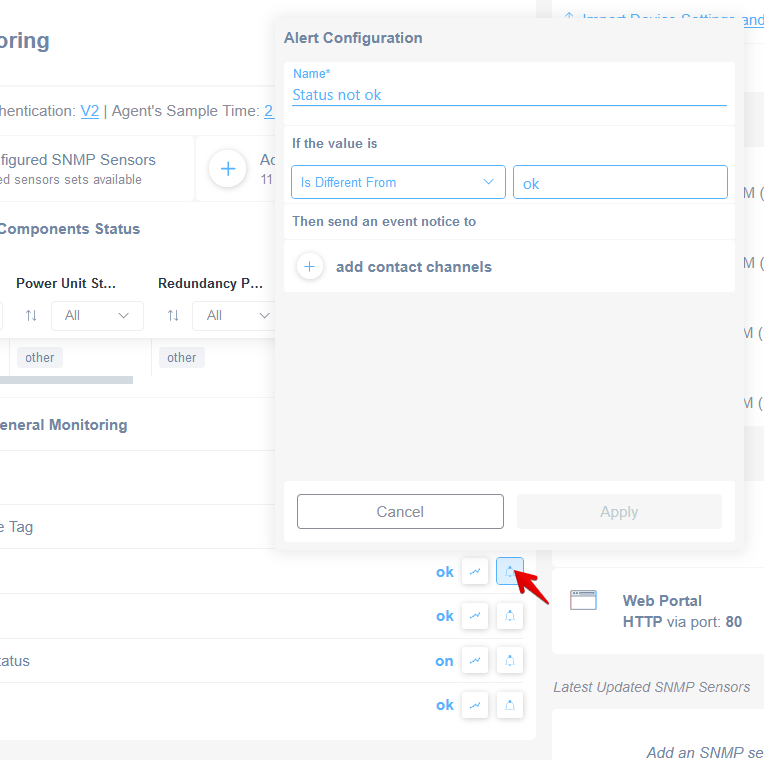
If using the General SNMP template you might setup an alert on the System Status and Storage Status:
| Value to be alerted | Alert Condition (if the value is) | Condition value | Notes |
| System Status | is Different From | ok | |
| Storage Status | is Different From | ok |
Components Status monitoring template
Otherwise, if you enabled the Components Status monitoring template, you might create an alert profile to monitor the following:
| Value to be alerted | Alert Condition (if the value is) | Condition value | Notes |
| Global System Status | is Different From | ok | |
| Power Unit Status | add the three alert profiles | ||
| (1) Power Unit Status | Equals to | critical | failure state |
| (2) Power Unit Status | Equals to | non critical | warning state (not critical) |
| (3) Power Unit Status | Equals to | non recoverable | dead state |
| Redundancy Power Unit Status | add the three alert profiles | ||
| (1) Redundancy Power Unit Status | Equals to | critical | failure state |
| (2) Redundancy Power Unit Status | Equals to | non critical | warning state (not critical) |
| (2) Redundancy Power Unit Status | Equals to | non recoverable | dead state |
| Temperature | is Different From | ok | |
| Cooling Device Status | is Different From | ok | |
| Processor Status | is Different From | ok | |
| Amperage Status | is Different From | ok | |
| Chassis Intrusion | is Different From | ok |
Pre-Configured Drivers (Recommended)
With Pre-Configured Drivers, you can monitor the following components using the SSH service of your iDRAC:
- Dell iDRAC CPUs Monitoring
- Dell iDRAC Fan Monitoring
- Dell iDRAC Memory Monitoring
- Dell iDRAC Physical Disk Monitoring
- Dell iDRAC RAID Monitoring
- Dell iDrac – Components Temperature
- Dell iDRAC PSU Monitoring
How to Access the Drivers
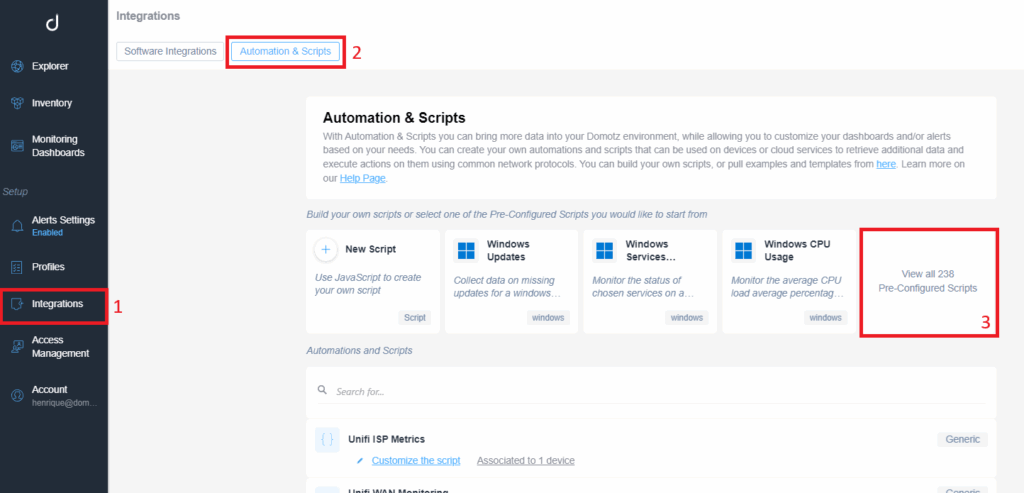
Web App → Integrations → Automation & Drivers → View All → Search for iDRAC
You can use them by going into the Webapp > Integrations > Automation & Drivers > View All > Search for iDrac:
The screenshot below highlights the navigation steps:
For additional details about Pre-Configured Driver, please refer to the Automation & Scripts documentation.
Here is some advanced monitoring available in Dell iDRAC server controllers via Domotz Integration Drivers.
Physical Disk Monitoring
By applying the Physical Disks driver, you will be able to monitor all this information:
- Type
- Description
- Primary Status
- Raid Status
- Raid Types
- Size
- Used Size
- Free Size
- Manufacturer
- Model
- Bus protocol
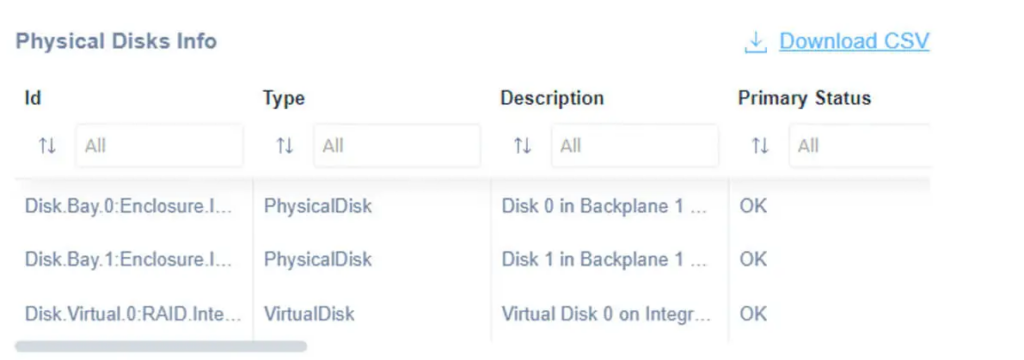
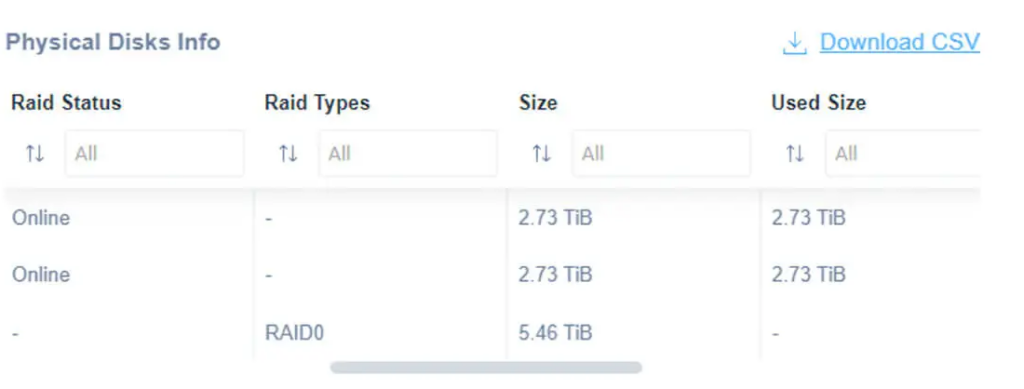
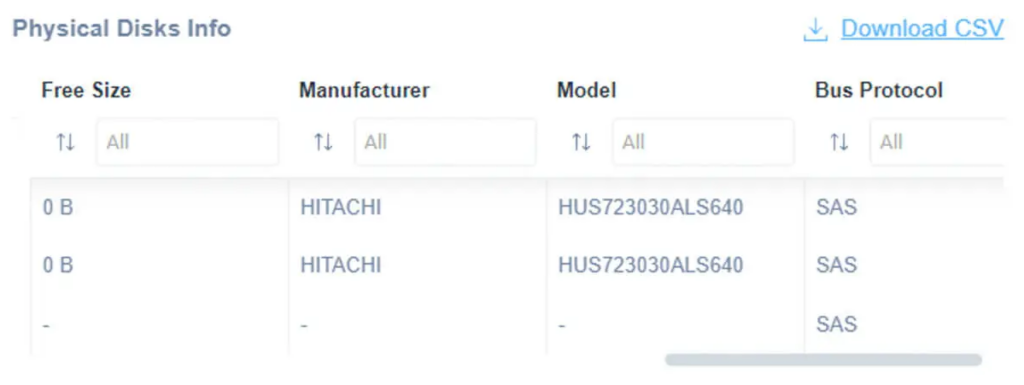
Most common values on which you might want setup an alert are:
| Value to be alerted | Alert Condition (if the value is) | Condition value | Notes |
| Status | Is Different from | OK | |
| Raid Status | Is Different from | Online |
PSU Monitoring
By choosing the PSU (Power Supply Unit) Monitoring driver you will be able to get access to this data:
- Power Supply Description
- Primary Status
- Total Output Power
- Input Voltage
- Redundancy Status
- Part Number
- Model
- Manufacturer
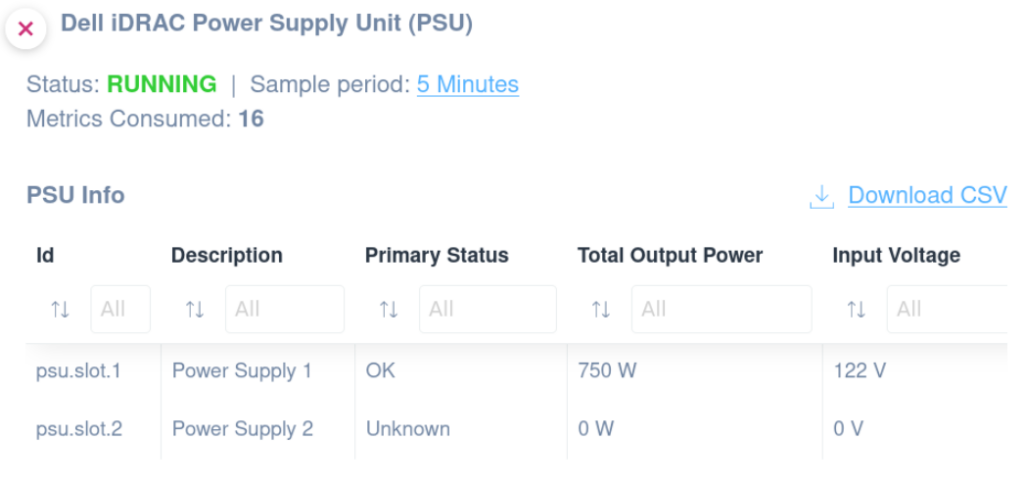
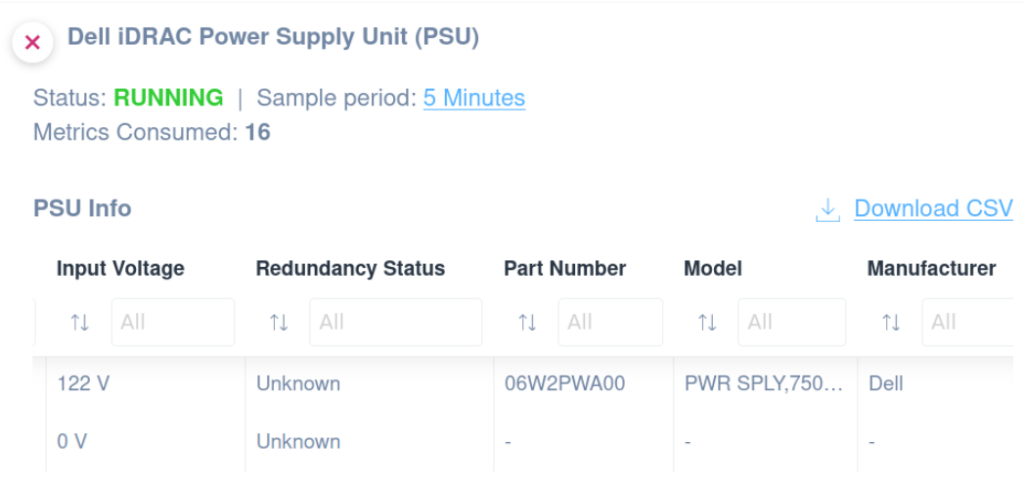
Most common values on which you might want setup an alert are:
| Value to be alerted | Alert Condition (if the value is) | Condition value | Notes |
| Primary Status | Is Different from | OK | |
Raid Monitoring
By choosing the Raid Monitoring driver, you will be able to get access to this data:
- Type
- Primary Status
- Product Name
- Description
- Support RAID 10 Uneven Spans
- Cache Size
- Driver Version
- Encryption Mode
- Security Status
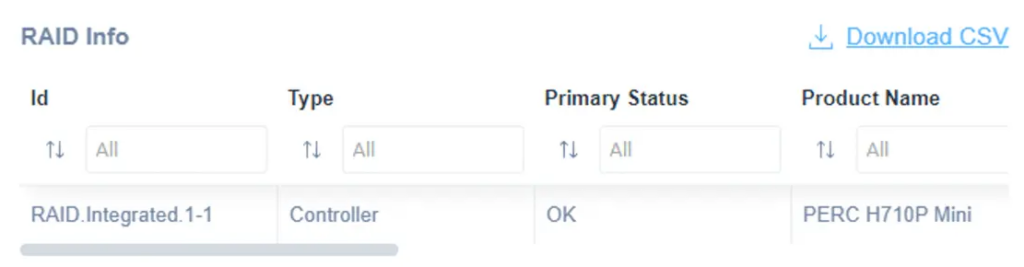
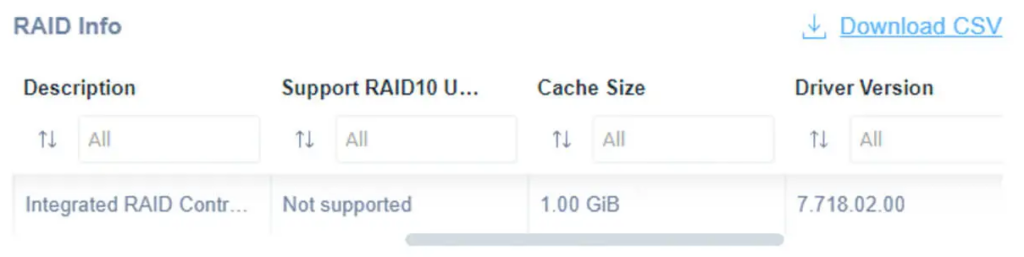
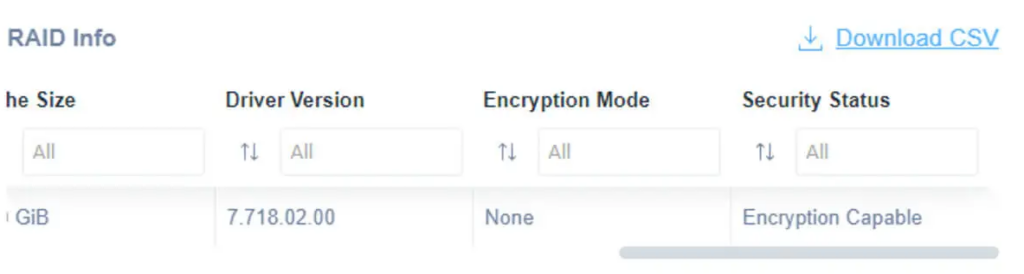
Most common values on which you might want setup an alert are:
| Value to be alerted | Alert Condition (if the value is) | Condition value | Notes |
| Primary Status | Is Different from | OK | |
Memory Monitoring
By using the Memory Monitoring driver. you will be able to fetch the following data:
- Type
- Description
- Primary Status
- Bank Label
- Model
- Part Number
- Serial Number
- Manufacturer
- Size
- Speed
- Current Operating Speed
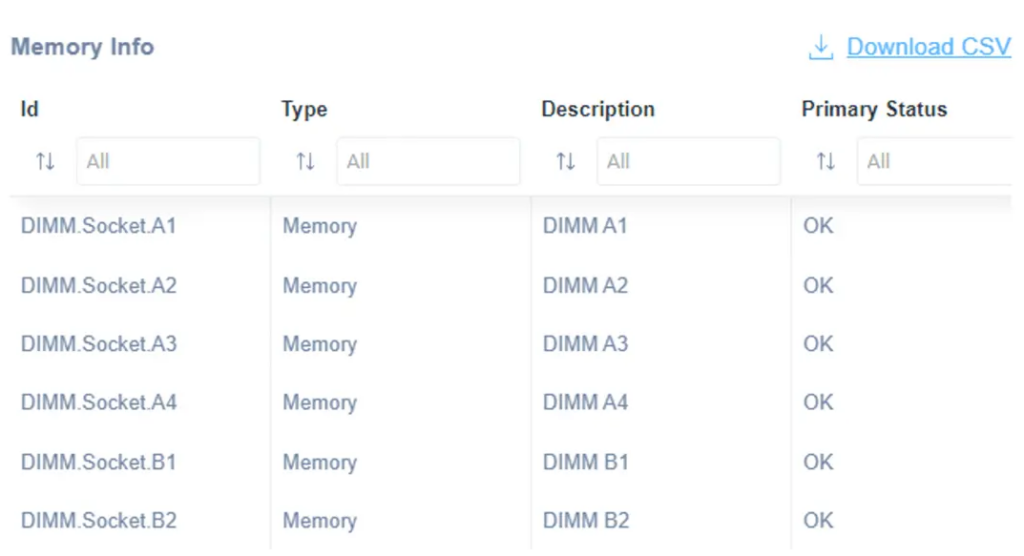
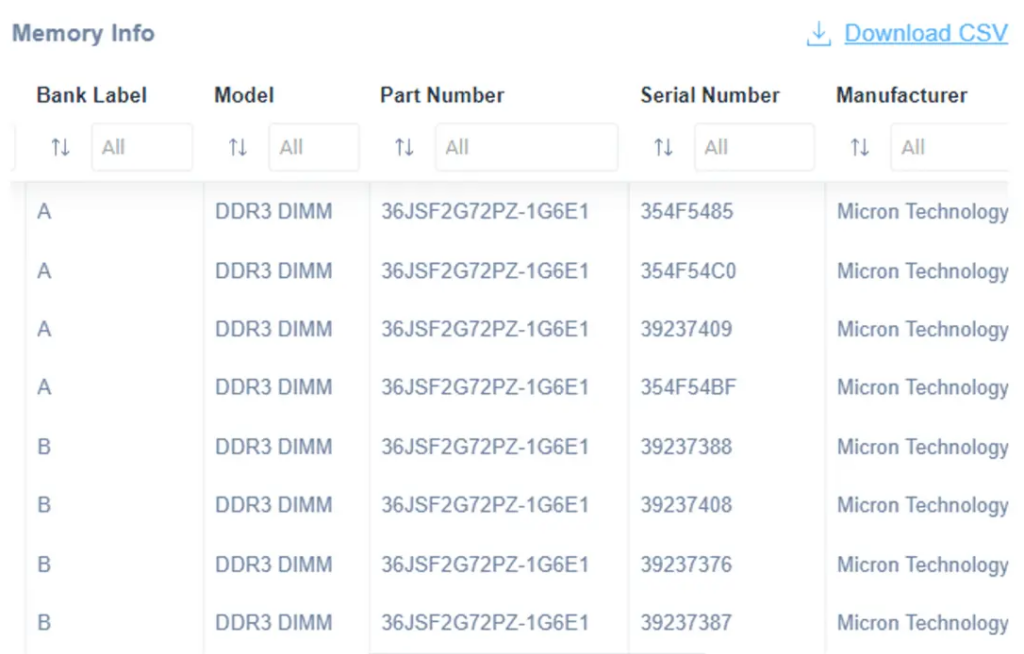
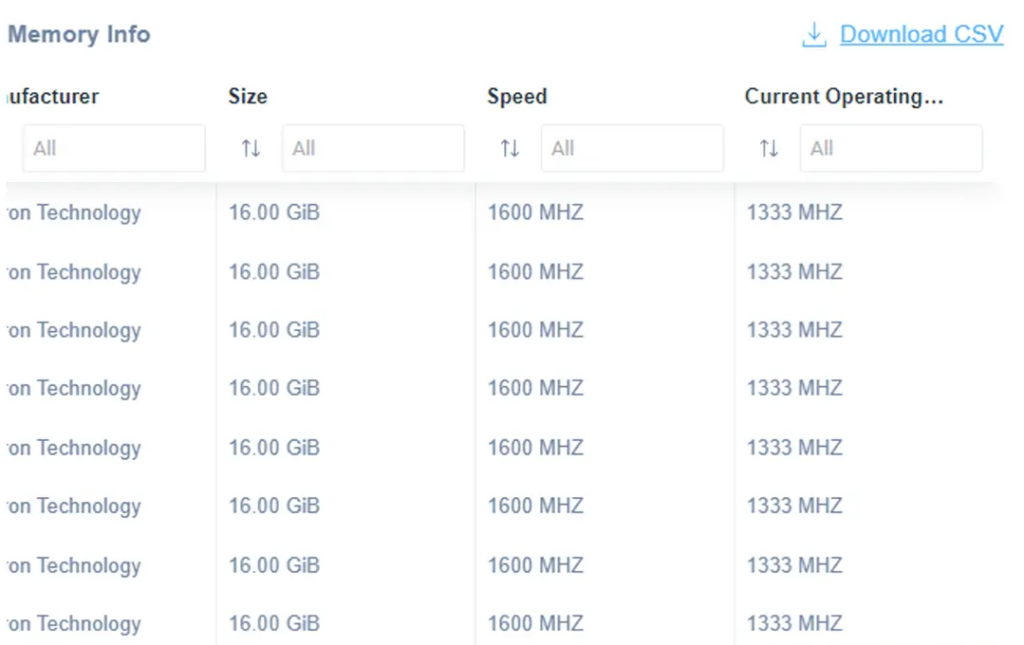
Most common values on which you might want setup an alert are:
| Value to be alerted | Alert Condition (if the value is) | Condition value | Notes |
| Primary Status | Is Different from | OK | |
Fan Monitoring
With the Fan Monitoring driver you will be able to fetch and monitor the following data:
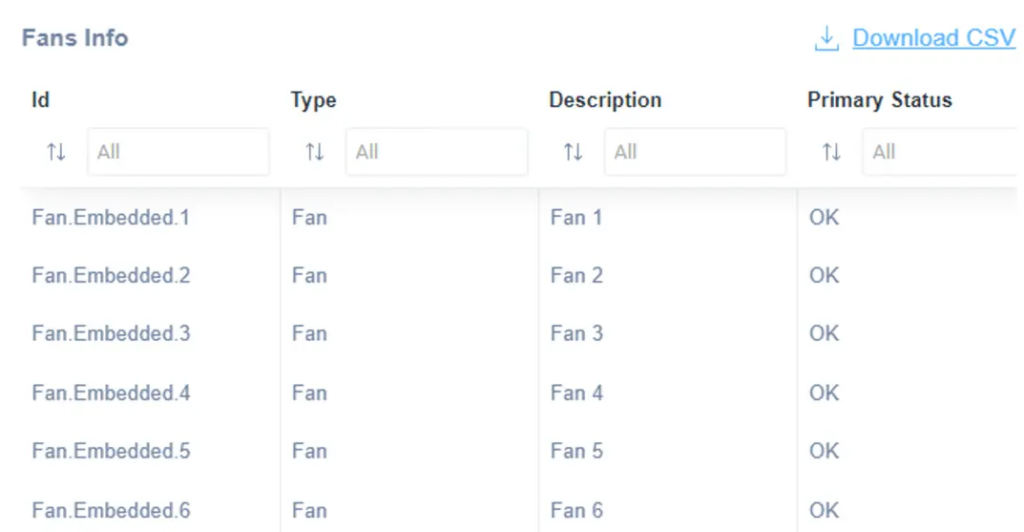
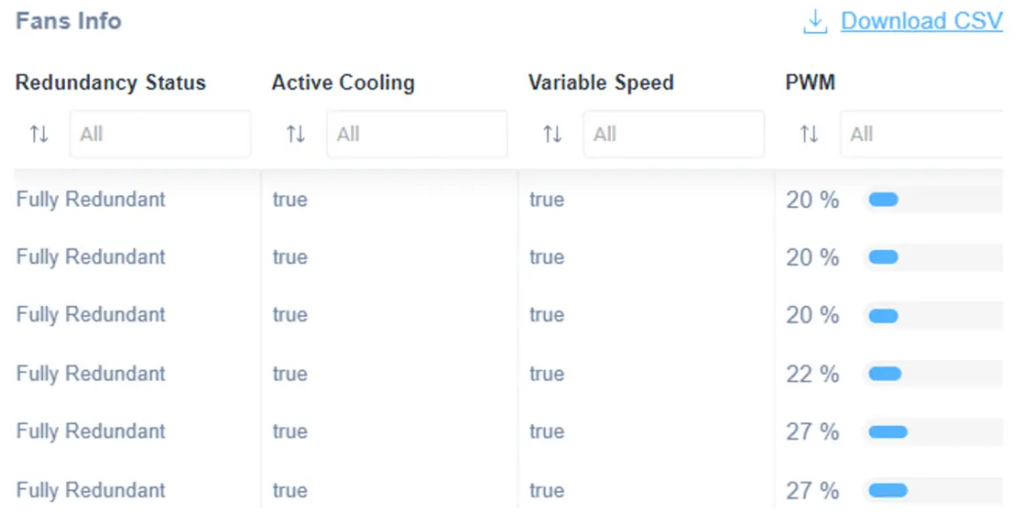
Most common values on which you might want setup an alert are:
| Value to be alerted | Alert Condition (if the value is) | Condition value | Notes |
| Primary Status | Is Different from | OK | |
| PWN | Is Greater than | 90% | PWM stands for “pulse width modulation.” This is a standardized pulse signal that controls the fan speed. |
Processors Monitoring
Our specific driver about Processors Monitoring will allow you to monitor the following:
- Type
- Description
- Model
- Primary Status
- Max Clock Speed
- Virt Tech Enabled
- Hyper Threading Enabled
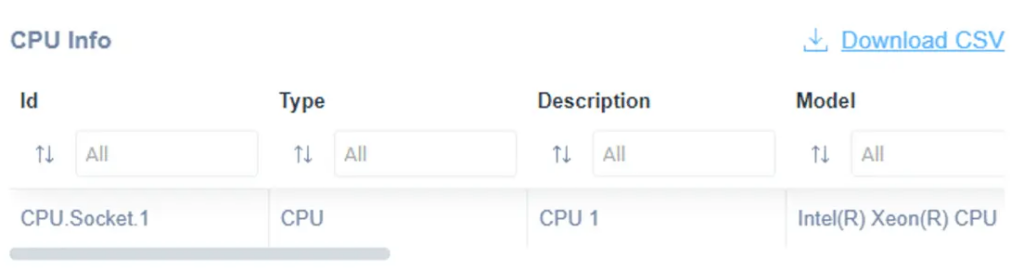
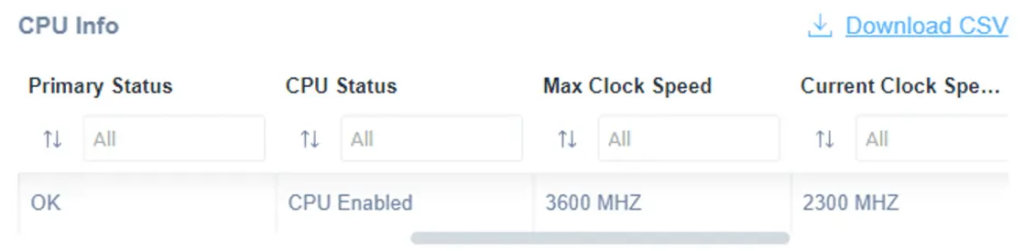
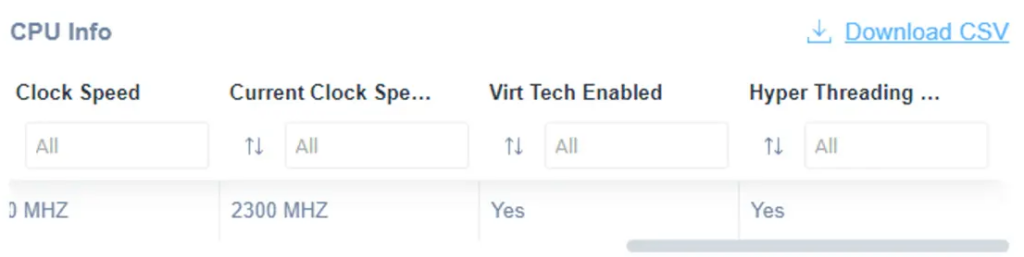
Most common values on which you might want setup an alert are:
| Value to be alerted | Alert Condition (if the value is) | Condition value | Notes |
| Primary Status | Is Different from | OK | |
| CPU Status | Is Different from | CPU Enabled |
OS Monitoring
We also provide a native integration (called OS monitoring), which is SSH-based and allows you to monitor IPMI sensors.
After unlocking over ssh the iDRAC controller using the Access Manager
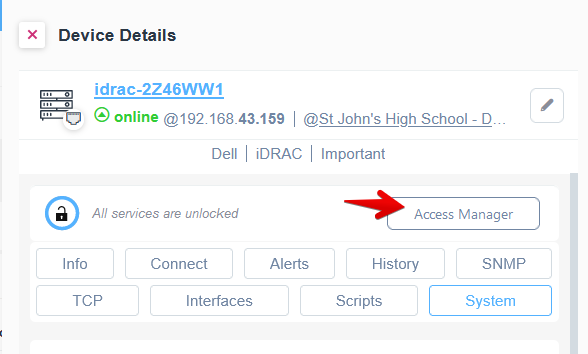
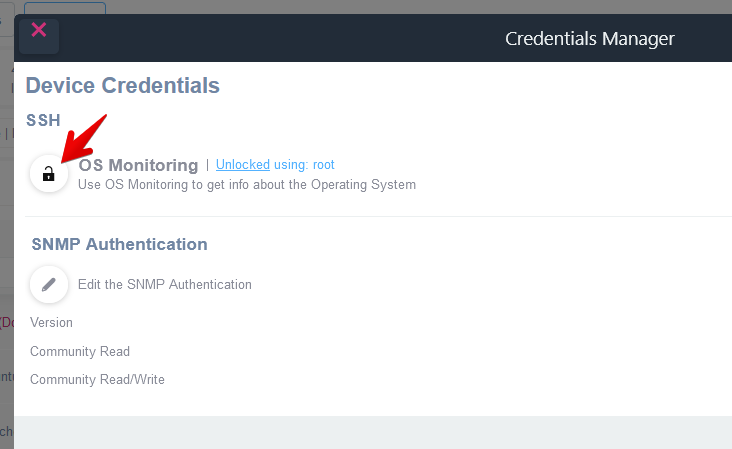
you will be able to setup alerts on IPMI sensors:
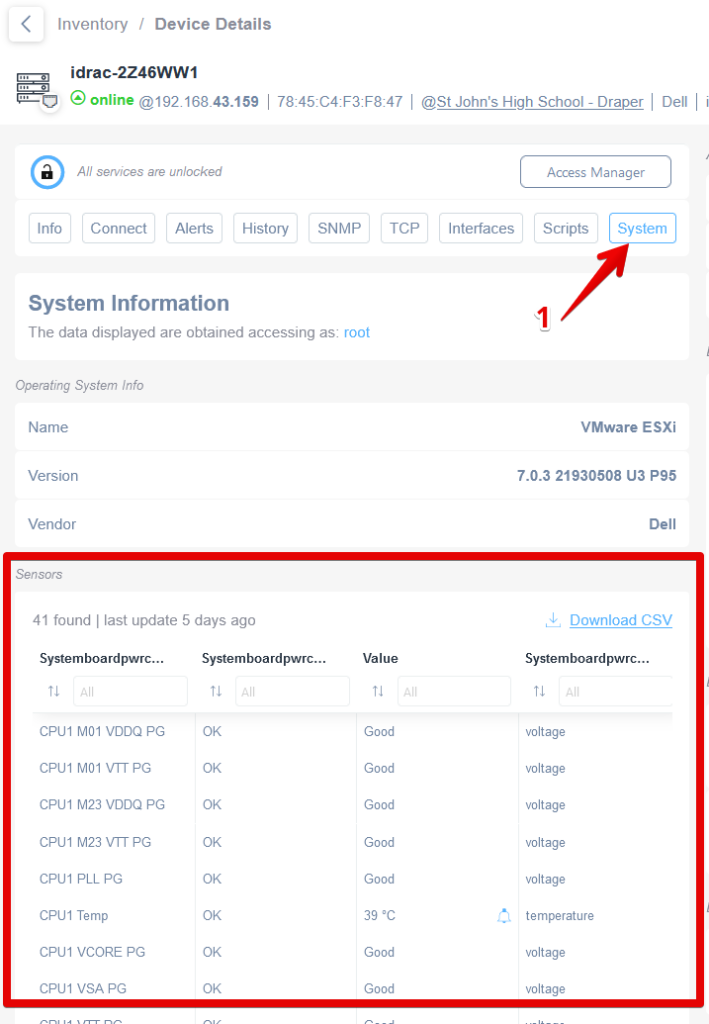
Most common IPMI sensors on which you might want to be alerted are:
| Value to be alerted | Alert Condition (if the value is) | Condition value | Notes |
| CPU1 Temp | is Grater or Equal To | 79 | |
| CPU1 Temp | is Grater or Equal To | 79 | |
| System Board Inlet Temp | is Grater or Equal To | 35 | |
| System Board Fan1 | is Less Than | 3000 | |
| System Board Fan* | is Less Than | 3000 |