
Unified Alerts is currently in open beta and available to all Domotz customers. Features and behavior may evolve before general availability. We encourage you to try it and share your feedback, which directly shapes what we build next.
What is Unified Alerts?
Unified Alerts is a new alerting system that brings all of your alert configuration into one consistent, centralized experience across every device, collector, and event type in your Domotz environment.
Previously, alerting in Domotz varied depending on what you were monitoring. Some alert types weren’t configurable at all, severity levels were inconsistent, and there was no single place to see or manage your alert rules across your environment. Unified Alerts changes that: one system, one configuration model, full coverage.
Problems this solves
| Before | With Unified Alerts |
|---|---|
| Alert configuration was split across different parts of the UI depending on the entity type (device, collector, integration) | All alert rules managed in one unified interface at the account, collector, and device level |
| Some alert types (Controller Integration failures, Configuration Backup failures, Custom Driver failures) couldn’t be configured at all | Full coverage: all event types are now configurable, including previously locked alert types |
| Severity levels were inconsistent or unavailable across different alert types | Standardized severity levels (Critical, High, Medium, Low) across all alerts for consistent prioritization |
| No way to see active or past alerts in one place, so you relied entirely on notification channels to know what fired | Active Alerts & History: a centralized view of open and resolved alerts visible directly inside Domotz |
| Configuring alerts across large device inventories required manual, per-device work | Bulk apply and manage alert rules across multiple devices at once |
How to join the beta
Unified Alerts is available to all Domotz customers as an open beta. New users get Unified Alerts by default. Existing customers can have it enabled in their account by contacting Domotz support at support@domotz.com.
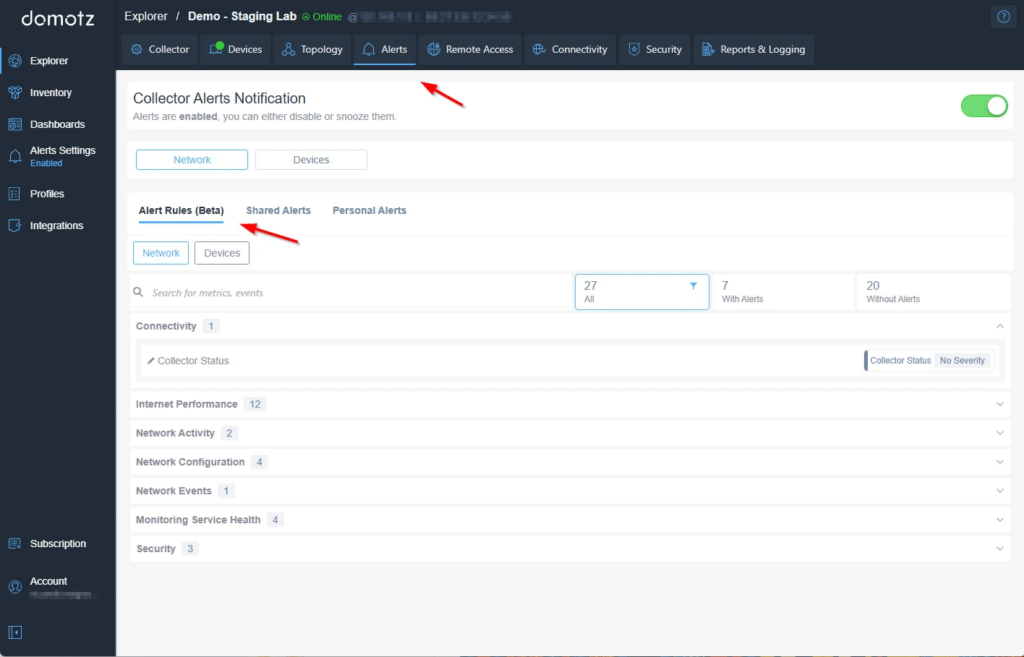
Managing Collector Alerts in Domotz
1. Navigate to the "Alerts" tab in the main menu at the top.
2. Under "Collector Alerts Notification," choose between the "Network" or "Devices" tabs to manage specific alerts.
3. In the "Alert Rules (Beta)" section, select either "Network" or "Devices" to specify the type of alerts you want to configure.
4. Use the available filter options to view alerts: "All," "With Alerts," or "Without Alerts."
5. Scroll through alert categories such as "Connectivity," "Internet Performance," "Network Activity," "Network Configuration," "Network Events," "Monitoring Service Health," and "Security" to configure or review alerts within each category.
The Alerts Beta tab appears as the first tab in your Collector’s alert management interface.
What’s available now
The following features are live for all beta participants.
Unified alert rules – devices and collectors
You can now configure, view, and manage alert rules for all entity types (devices, collectors, and device instances such as ports and disks) from a single interface. Views are available at three levels:
- Account level: see all alert rules across your entire environment
- Collector level: see alert rules scoped to a specific collector and the devices on it
- Device level: configure alerts for individual devices and their instances via a side panel
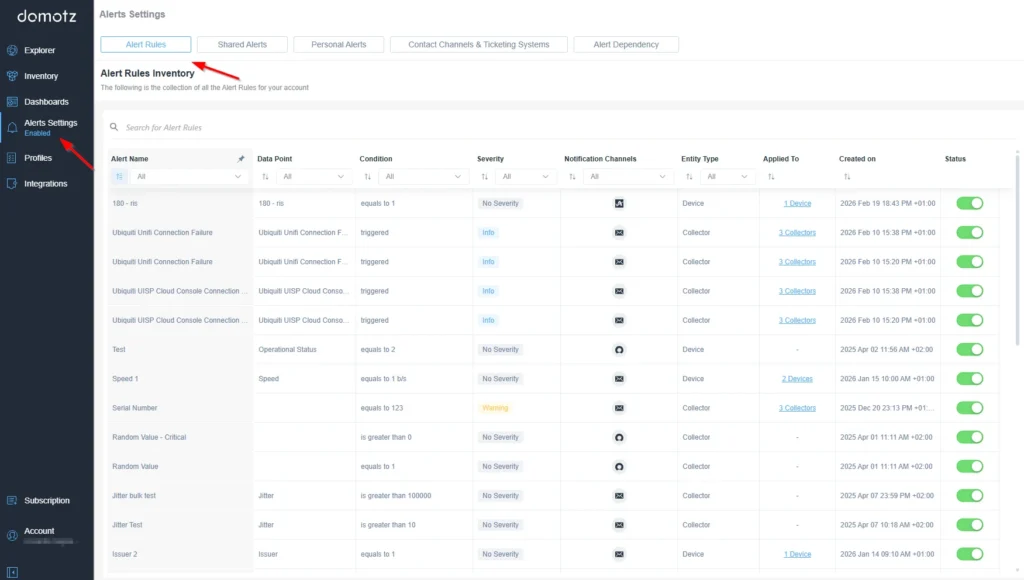
Alert Rules Inventory in Domotz Alerts Settings
1. Navigate to the "Alerts Settings" in the left sidebar menu, which includes options such as Explorer, Inventory, and Dashboards.
2. Click on the "Alert Rules" tab at the top to view the Alert Rules Inventory.
3. The inventory lists alerts with details such as Alert Name, Data Point, Condition, Severity, Notification Channels, Entity Type, Applied To, Created On, and Status.
4. Use the filtering options at the top of each column to sort or narrow down the alerts by specific criteria.
5. The "Status" column allows toggling alerts on or off with a switch button.
6. Use this interface to manage alert rules, change their settings, or monitor their current statuses.
Account-level alert rules view showing the full list of rules across devices and collectors.
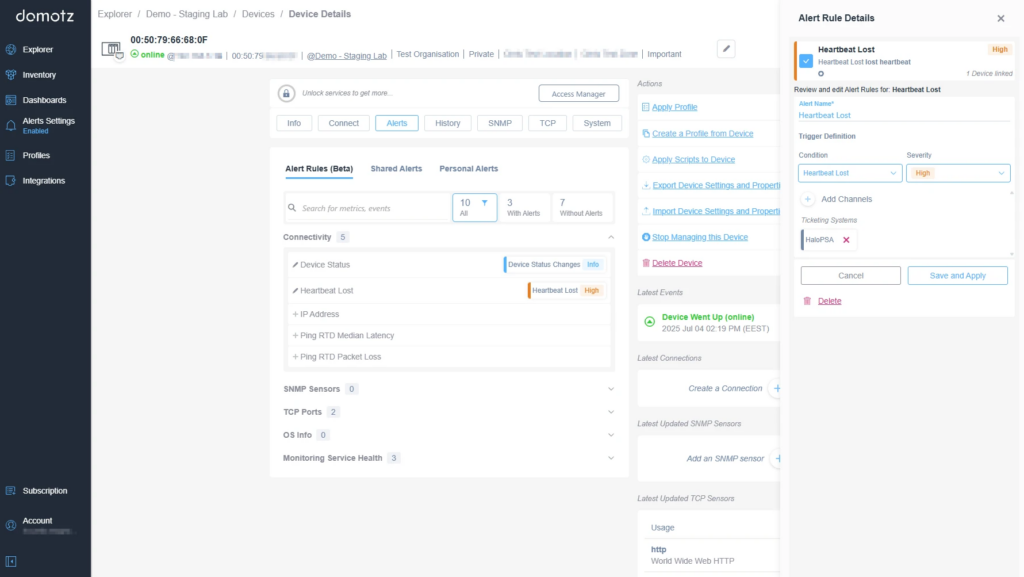
Creating and Editing an Alert Rule in Domotz
1. Navigate to the device details page and click on the "Alerts" tab to view alert rules.
2. Under "Alert Rules (Beta)," find "Connectivity" and notice "Device Status Change" and "Heartbeat Lost."
3. Click on "Heartbeat Lost" under "Alert Rules" to open the "Alert Rule Details" panel on the right.
4. In "Alert Rule Details," enter the alert name as "Heartbeat Lost."
5. Set the "Condition" to "Heartbeat Lost" and the "Severity" to "High."
6. Add notification channels if needed and select any ticketing systems, such as "HaloPSA."
7. Click "Save and Apply" to activate the alert rule. Use "Delete" to remove it if necessary.
Device-level side panel showing alert configuration for an individual device.
Alert Rules Inventory
The Alert Rules Inventory is a centralized list of all alert rules configured in your account. From here you can:
- View all rules in one place with their current status
- Enable or disable individual rules without deleting them
- Create new rules directly from the inventory (coming in the next release)
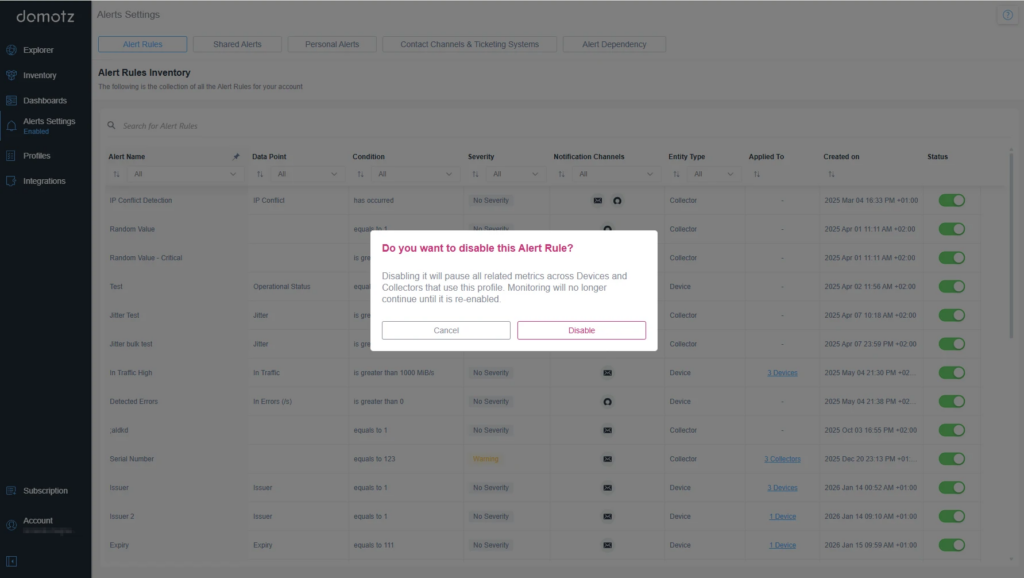
Disabling an Alert Rule in Alert Rules Inventory
1. A dialog box appears asking, "Do you want to disable this Alert Rule?"
2. The message within the dialog states that disabling it will pause all related metrics across devices using this profile and stop monitoring until it is re-enabled.
3. Two buttons are available: "Cancel" to exit without changes and "Disable" to confirm disabling the rule.
4. The background shows the Alert Rules Inventory with columns for Alert Name, Data Point, Condition, Severity, Notification Channels, Entity Type, Applied To, Created On, and Status. Each alert has a toggle switch to indicate if it is currently active.
Alert Rules Inventory page showing the rule list with Enable/Disable controls.
Alert rules in Device Profiles
Unified Alert rules are now integrated into Device Profiles as the Alerts tab is available alongside the existing tabs. Enabling the Alerts module on a profile lets you select which alert rules to include, set the application method, and apply those rules automatically to any device the profile is assigned to.
This makes it significantly faster to roll out consistent alerting across large device inventories. Instead of configuring each device individually, you define the alert rules once in a profile and apply it at scale.
Currently, all alert rules available in your account are selectable within a profile. Selectable alert rules include OOB events, SNMP sensor metrics, TCP sensor events, and driver metrics/events. We’re working on an enhancement that will allow profiles to surface only the alert rules relevant to the specific sensors and metrics included in that profile. For example, if an SNMP sensor is part of the profile, only the alert rules applicable to that sensor will be shown. This will make profile-based alert configuration more focused and easier to manage.
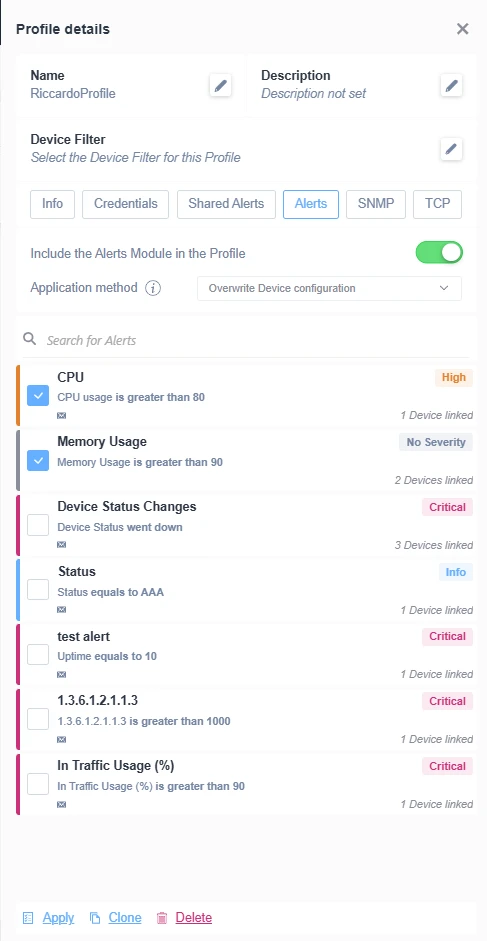
Profile Details Configuration for Alerts
1. Enter the profile name in the "Name" field and optionally add a description in the "Description" field.
2. Choose a filter in the "Device Filter" section by selecting from available options.
3. Navigate to the tab menu below and click on "Alerts" to manage alert settings.
4. Ensure the "Include the Alerts Module in the Profile" toggle is switched on for alert functionality.
5. Select the desired "Application method" from the dropdown menu to define how alerts are applied.
6. Use the "Search for Alerts" field to find specific alerts by name or criteria.
7. Check the box next to each alert you want to activate:
- "CPU usage is greater than 80" marked as High severity.
- "Memory Usage is greater than 90" with no set severity.
- "Device Status went down" marked as Critical.
- "Status equals to AAA" marked as Info.
- "Uptime equals to 10" marked as Critical.
- "1.3.6.1.2.1.1.3 is greater than 1000" marked as Critical.
- "In Traffic Usage (%) is greater than 90" marked as Critical.
8. Finalize changes with the "Apply" button, duplicate the profile using "Clone," or remove it with "Delete."
The Alerts tab in Device Profiles lets you include alert rules as part of a profile and apply them across all assigned devices.
Expanded alert type coverage
Several alert types that were previously fixed or not configurable are now fully supported, including:
- Controller Integration failures
- Configuration Backup failures
- Custom Driver failures
You can set notification channels, adjust thresholds, and configure severity for these events just like any other alert.
Standardized severity levels
All alerts now support a consistent set of severity levels: Critical, High, Medium, and Low, displayed in a consistent order across all views. This makes it easier to prioritize response and triage by actual importance rather than treating all alerts as equivalent. Note that severity is not required, so any existing alert rules may have no severity set. If you update the severity level of an alert rule it will apply to any collector or device on which that alert rule is set.
Collector-level alert control
You can enable, disable, or snooze alerts at the collector level, which is useful when performing maintenance on a site and wanting to suppress notifications without touching individual device configurations.
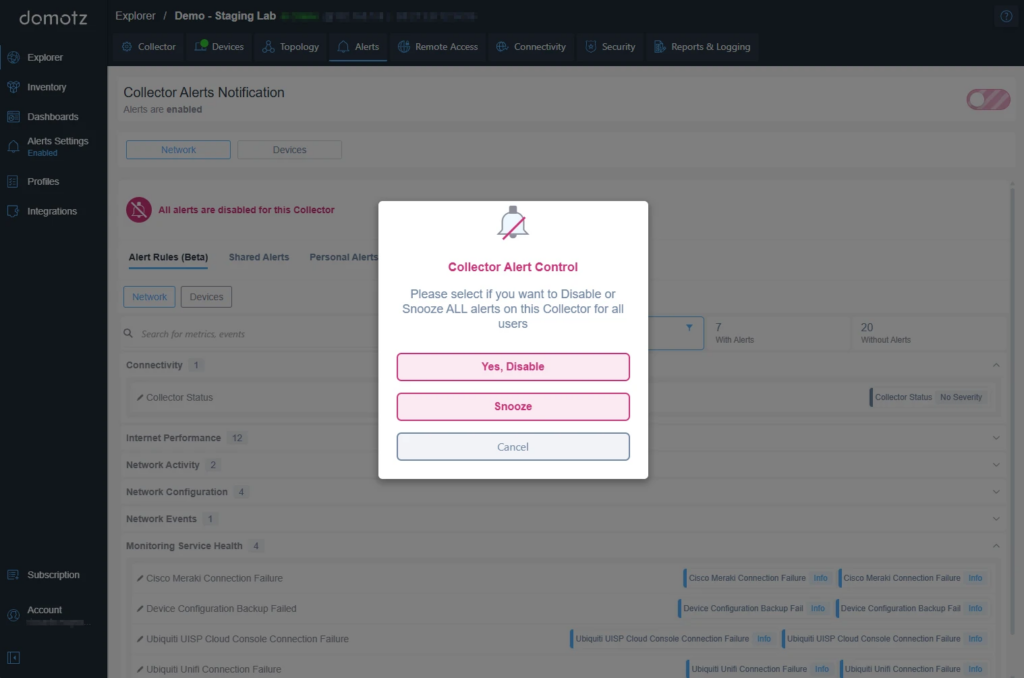
Disable or Snooze Alerts for a Collector.
1. In the "Collector Alerts Notification" section, note that alerts are currently disabled for the Collector.
2. Click the "Network" or "Devices" tab to choose the alert type you wish to manage.
3. In the "Collector Alert Control" popup, decide if you want to disable alerts permanently by selecting "Yes, Disable."
4. To temporarily pause alerts, choose "Snooze."
5. If you do not wish to make changes, click "Cancel."
Collector-level alerts view showing enable/disable/snooze controls.
Bulk alert configuration
Apply alert rules to multiple devices at once using the Bulk Edit view in the Inventory Dashboard. Bulk bind and unbind operations now also surface proper error messages if there are permission issues.
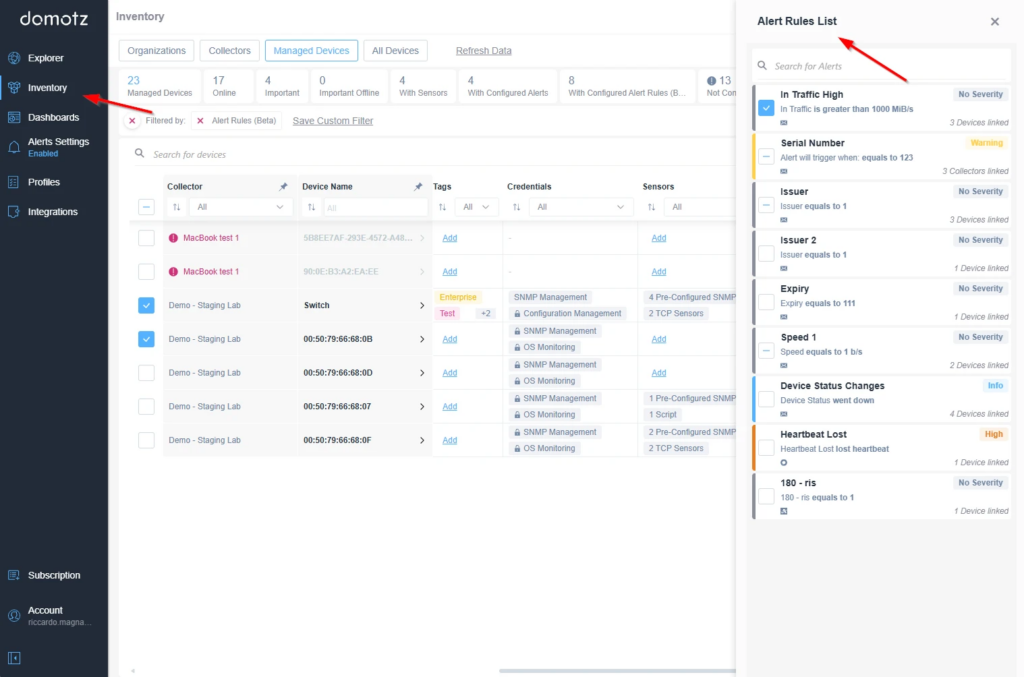
Inventory and Alert Rules in a Network Management Dashboard
1. Navigate to the "Inventory" section in the sidebar to manage devices.
2. Under "Managed Devices," view details like the number of devices, online status, and device importance.
3. Use filters such as "Alert Rules" or "Custom Filter" to refine the device list.
4. The device list includes columns for Collector, Device Name, Tags, and Sensors. Use the "Add" option to modify Tags and Sensors.
5. The right panel displays the "Alert Rules List," with rules such as "In Traffic High" and "Heartbeat Lost." Each rule includes a description, its severity level, and the number of linked devices.
6. Use the search bar within the "Alert Rules List" to find specific alerts.
Inventory Dashboard Bulk Edit view with alert rule assignment across multiple selected devices.
Mobile push notifications
Mobile Push Notification is now available as a contact channel for Unified Alert rules, alongside other channels including email, SMS, ConnectWise, Halo PSA, and Autotask.
Active Alerts & History
For the first time, Domotz gives you a live view of what’s happening across your entire environment, directly inside the product and not just in your inbox or PSA. Active Alerts & History brings all of your alert activity into one place, so you can see what’s open, review what’s resolved, filter by severity and time, and take action without leaving Domotz.
This is one of the most significant additions in the Unified Alerts beta. If alert fatigue or missed issues are a challenge for your team, this is where to start.
The traffic light panel
The left navigation includes a traffic light panel showing live counts of your open alerts by severity:
- Critical: open alerts at the highest severity
- High: open alerts requiring attention
- Warning: open alerts at advisory level
Clicking any of these applies a combined filter showing only open alerts at that severity level. Resolved alerts at that severity will not appear. This panel is focused on what needs your attention right now. To view resolved alerts, use the Status filter in the main table.
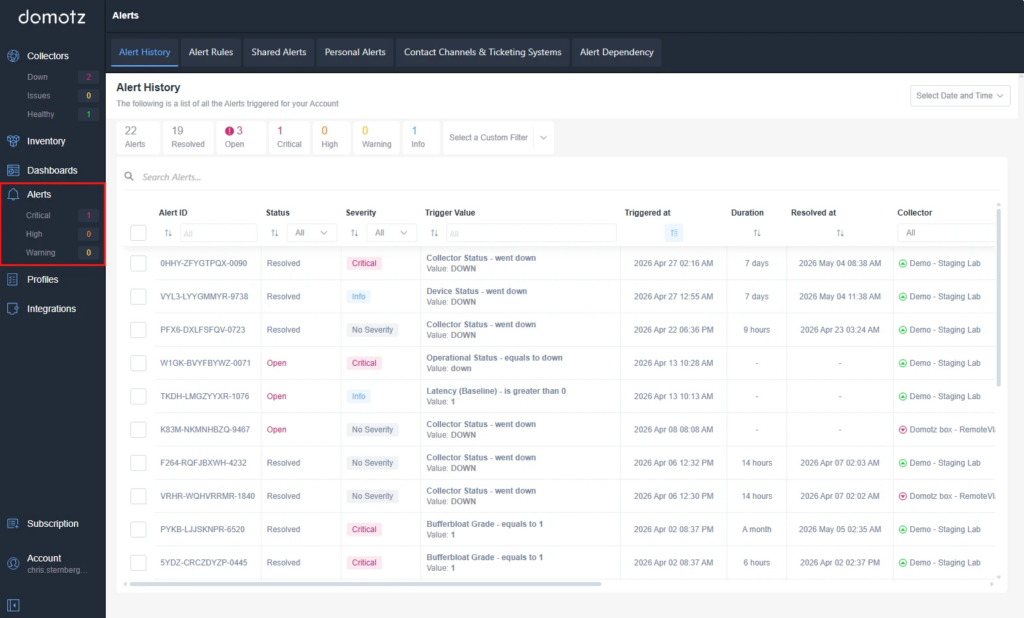
Alert Dashboard Overview
1. Access the "Alerts" section from the main menu on the left pane to view alert statuses.
2. The dashboard displays a summary of alerts, with counts for Critical, High, and Warning categories.
3. The "Alert History" tab shows a list of all alerts with columns for Alert ID, Status, Severity, Trigger Value, Triggered at, Duration, Resolved at, and Collector.
4. Use the filter options at the top to narrow results by Status, Severity, Triggered Time, or specified filters.
5. Search for specific alerts using the search bar.
6. Use the date and time drop-down menu on the right for more refined filtering by time period.
The Alert History page with the traffic light panel showing live counts of open alerts by severity.
Summary bar
Across the top of the alert table, a summary bar shows counts for your current view: total alerts, resolved, open, and a breakdown by severity level (Critical, High, Warning, Info). These counters update as you apply filters and give you a quick read on the state of your environment. Use the column filters or traffic light panel to filter the table directly.
Browsing and filtering your alert history
The main table lists all alert activity in your account. Columns include:
- Alert ID: unique identifier for the alert
- Status: Open or Resolved
- Severity: Critical, High, Warning, Info, or No Severity
- Trigger Value: the value that caused the alert to fire
- Triggered at: when the alert started
- Duration: how long the alert has been or was active
- Resolved at: when the alert resolved (blank for open alerts)
- Collector and Device: the source of the alert
Additional columns including Type, Device Tags, Location, Zone, and Importance are accessible by scrolling the table horizontally.
Filtering by status and severity: use the dropdown filters on the Status and Severity columns to narrow the table to open only, resolved only, or any combination of severity levels.
Filtering by date and time: use the date and time selector in the top right to focus on a specific window. Choose from quick ranges (Last 15 minutes, 1 hour, 24 hours, 7 days, 1 month, up to 1 year) or set a custom absolute date and time range. Click Apply Time Range to confirm. A Reset button clears the filter.
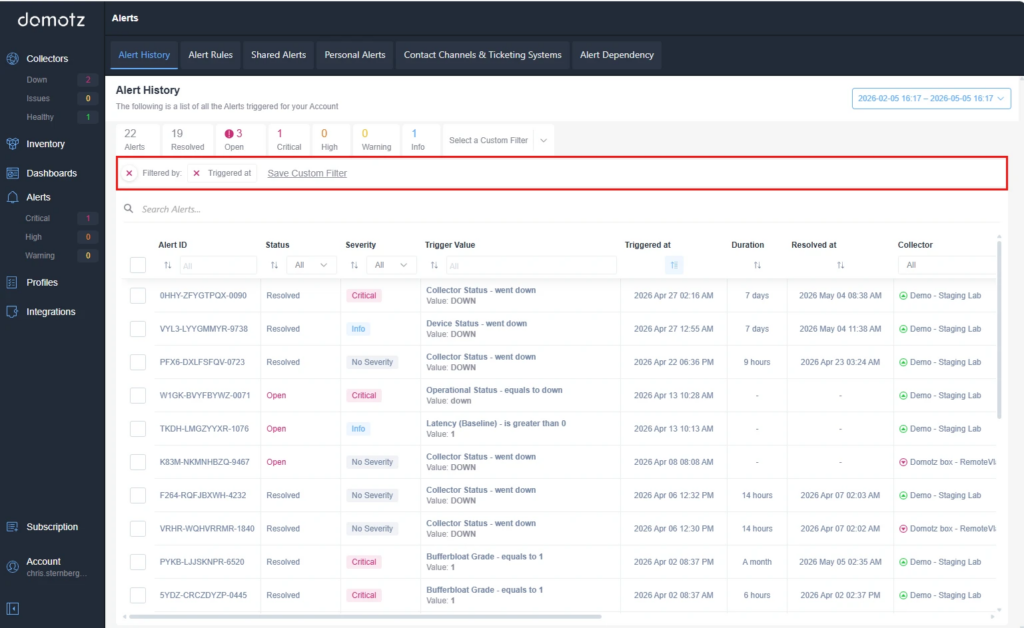
Viewing and Filtering Alert History in Domotz
1. At the top of the alert history, you can view summary metrics: total alerts, resolved alerts, open alerts, alerts with critical status, high warning, and information warnings.
2. Use the search bar to find specific alerts by entering keywords or alert IDs.
3. Apply filters such as "All Alerts," "Resolved," "Open," and severity levels like "Critical" or "Info" to narrow down the list.
4. Alerts are displayed in a table with columns for Alert ID, Status, Severity, Trigger Value, Triggered at, Duration, Resolved at, and Collector.
5. Use the date range selector in the top right to view alerts within a specific timeframe.
6. To customize filters, use the "Save Custom Filter" option for frequently used settings.
The active filter bar appears when a date range or other filter is applied, showing current filters and a Save Custom Filter option.
Saving custom filters: when filters are applied, an active filter bar appears below the summary bar showing your current filter selection. Click Save Custom Filter to save the combination for future use.
Viewing alert details
Click any row in the table to open the alert details panel. The panel has two tabs:
Metrics & Details
Shows the technical context for the alert:
- Alert Rule: the rule that triggered this alert, with a direct link to view and edit the rule
- Datapoint: the specific metric that was evaluated (note: currently displayed in technical notation for SNMP-based alerts; human-readable labels are coming)
- Condition and Value: the threshold and the value that breached it
- Status and Severity: both editable directly from this panel
- Triggered at, Duration, Resolved at: timing of the alert
- Notification sent: confirms whether a notification was dispatched for this alert
- Resolved by: how the alert was resolved
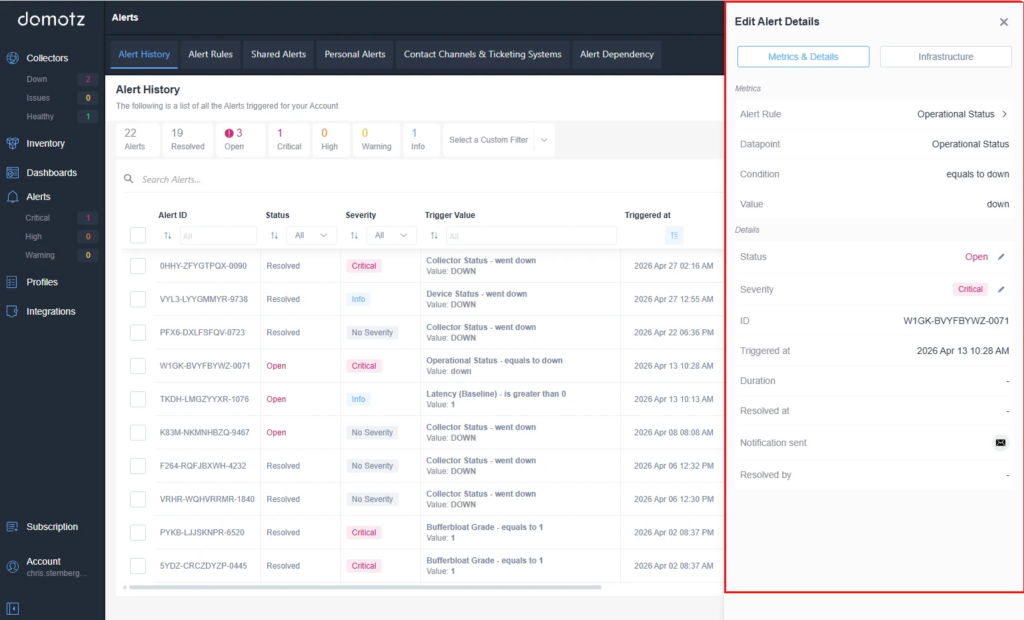
Edit Alert Details in Alert Management Interface
1. Navigate to the "Alerts" section in the sidebar to view the Alert History.
2. Identify the alert you want to edit. Alerts are listed by Alert ID, Status, Severity, and Trigger Value.
3. Click on an alert with the status "Open" to view its details.
4. On the right panel, review "Edit Alert Details":
- Check "Metrics & Details" for "Alert Rule" and "Datapoint," which indicate "Operational Status."
- Confirm the "Condition" set to "equals to down" with value "down."
- Note the "Status" is "Open" and "Severity" is "Critical." These can usually be edited.
- Find "ID," "Triggered at," and "Duration" for further alert information.
5. Use the right panel to edit details as necessary, such as adjusting severity or resolving the alert.
6. Ensure changes are saved if applicable.
The alert details panel showing the Metrics & Details tab with technical context, editable status and severity, and notification information.
Infrastructure
Shows the environmental context for the alert. Sections displayed depend on the alert source:
- Organization: the account the alert belongs to.
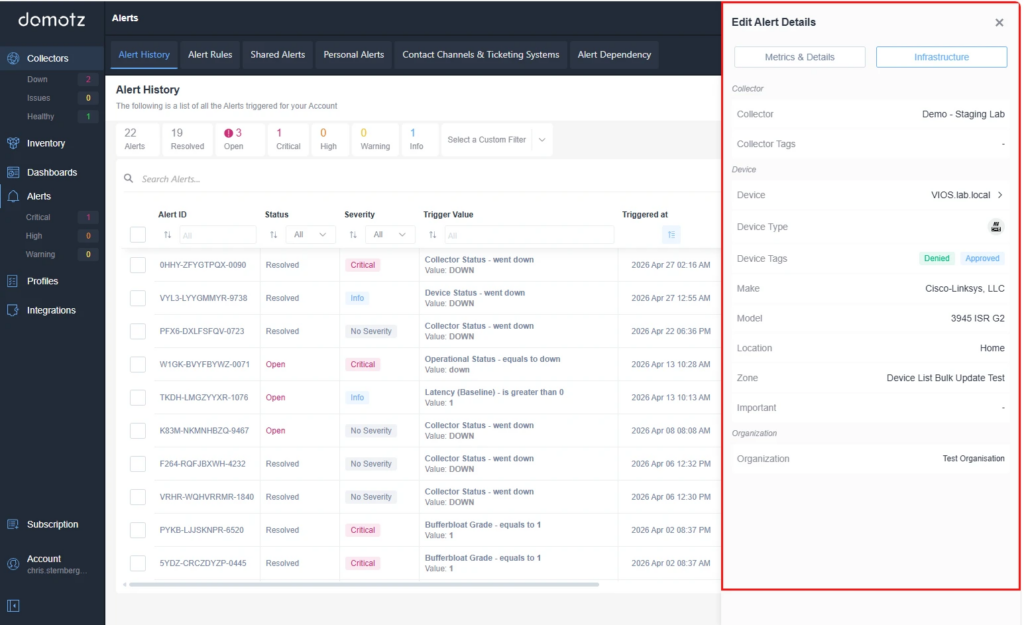
Alert Management Interface Overview
1. The main panel displays alert history with columns for Alert ID, Status, Severity, Trigger Value, and Triggered at date and time. The list includes various alerts with different statuses such as "Resolved" and "Open," and varying severities like "Critical" and "Info."
2. Above the alert list, summary statistics show the total number of alerts and breakdowns by status: Resolved, Open, Critical, and Warning.
3. A search bar is available to filter alerts by specific criteria.
4. The right panel is for editing alert details. It includes tabs for "Metrics & Details" and "Infrastructure."
5. Key fields in the "Infrastructure" tab include:
- Collector: Indicates the source, e.g., “Demo - Staging Lab.”
- Device: Specifies the device involved in the alert, e.g., “VIOS.lab.local.”
- Device Tags: Options for status tags like "Denied" or "Approved."
- Make and Model: Device specifications, e.g., "Cisco-Linksys, LLC" and "3945 ISR G2."
- Location, Zone, and Organization fields provide further context about the device and its alert environment.
The Infrastructure tab in the alert details panel showing the Collector, Device, and Organization context for the selected alert.
Editing severity and status
You can update an alert’s severity or status directly from the details panel using the edit icon next to each field. This is useful for managing your alerts. For example, you can escalate a Warning to Critical or manually resolve an alert that cleared without triggering an automatic resolution.
Bulk editing: to update multiple alerts at once, check the boxes on the rows you want to change. The details panel will show how many alerts are selected and allow you to change Status and Severity across all of them in a single action.
Note: only open alerts can have their severity edited. If your selection includes resolved alerts, severity editing will be restricted for those.
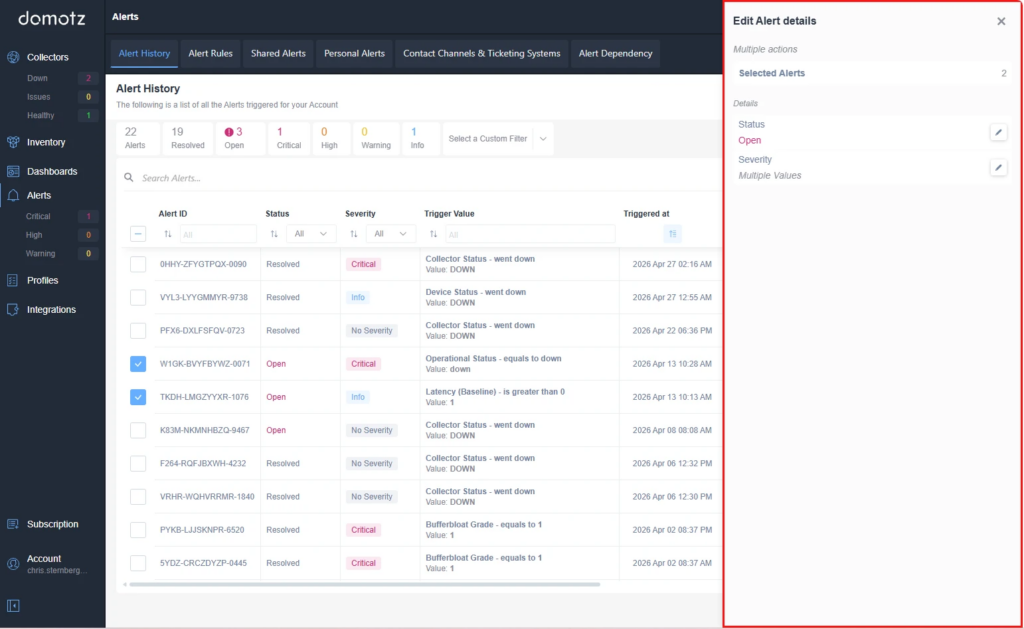
Alert Management Interface in Domotz
1. Navigate to the "Alerts" section from the sidebar menu, where the "Alert History" tab is active.
2. View the summary at the top showing the total alerts and status counts: 22 total, 19 resolved, and 3 open.
3. A table lists alerts with columns for Alert ID, Status, Severity, Trigger Value, and Triggered At. Some alerts are marked "Resolved" with varying severity levels like "Critical" or "Info," while others are "Open."
4. To edit alert details, use the pane on the right side. It shows selected alerts and allows editing of "Status" (currently "Open") and "Severity" by clicking the edit icons.
5. Ensure changes reflect the intended alert modifications before closing the edit pane.
Selecting multiple alerts opens the bulk edit panel, allowing status and severity changes across all selected alerts in one action.
Migrating from your existing alert configuration
Unified Alerts runs alongside your existing alert configuration during the beta. Your current alerts continue to work; you are not required to migrate anything immediately.
What carries over automatically
Alert Dependency rules (parent/child device relationships for device-down events) are already compatible with the new system. No action needed. Device status alerting works with the existing topology-based dependency behavior. Alert Dependency is now supported across ConnectWise, Halo PSA, and Autotask integrations.
Sensor and driver metric alert rules are also retained automatically. These rules were already part of the Alert V3 foundation on which Unified Alerts is built, so no migration is needed for them.
What needs to be reconfigured
Personal and Shared Alerts from the legacy system do not automatically transfer to Unified Alerts. During the beta, migration is a manual process; you’ll need to recreate your key rules in the new interface. This is particularly relevant for alert types that are now configurable for the first time, such as Controller Integration failures, Configuration Backup failures, and Custom Driver failures.
We’re actively working on tools to automate the migration from legacy alerting (Personal and Shared Alerts) to Unified Alerts, which will be part of the path to general availability. We’ll share updates as this becomes available.
Running both systems at the same time
During the beta, legacy and Unified Alerts coexist. To avoid duplicate notifications for the same alert, review your notification channels when enabling a new Unified Alert rule that covers the same condition as an existing legacy rule.
Share your feedback
Unified Alerts is an open beta and your feedback directly influences what gets built. We’re particularly interested in how the new interface fits your alerting workflow, which legacy rules you rely on most, and what you’d need before fully switching over, especially around the migration experience.
You can also reach the Domotz support team directly at support@domotz.com with any questions or issues.