
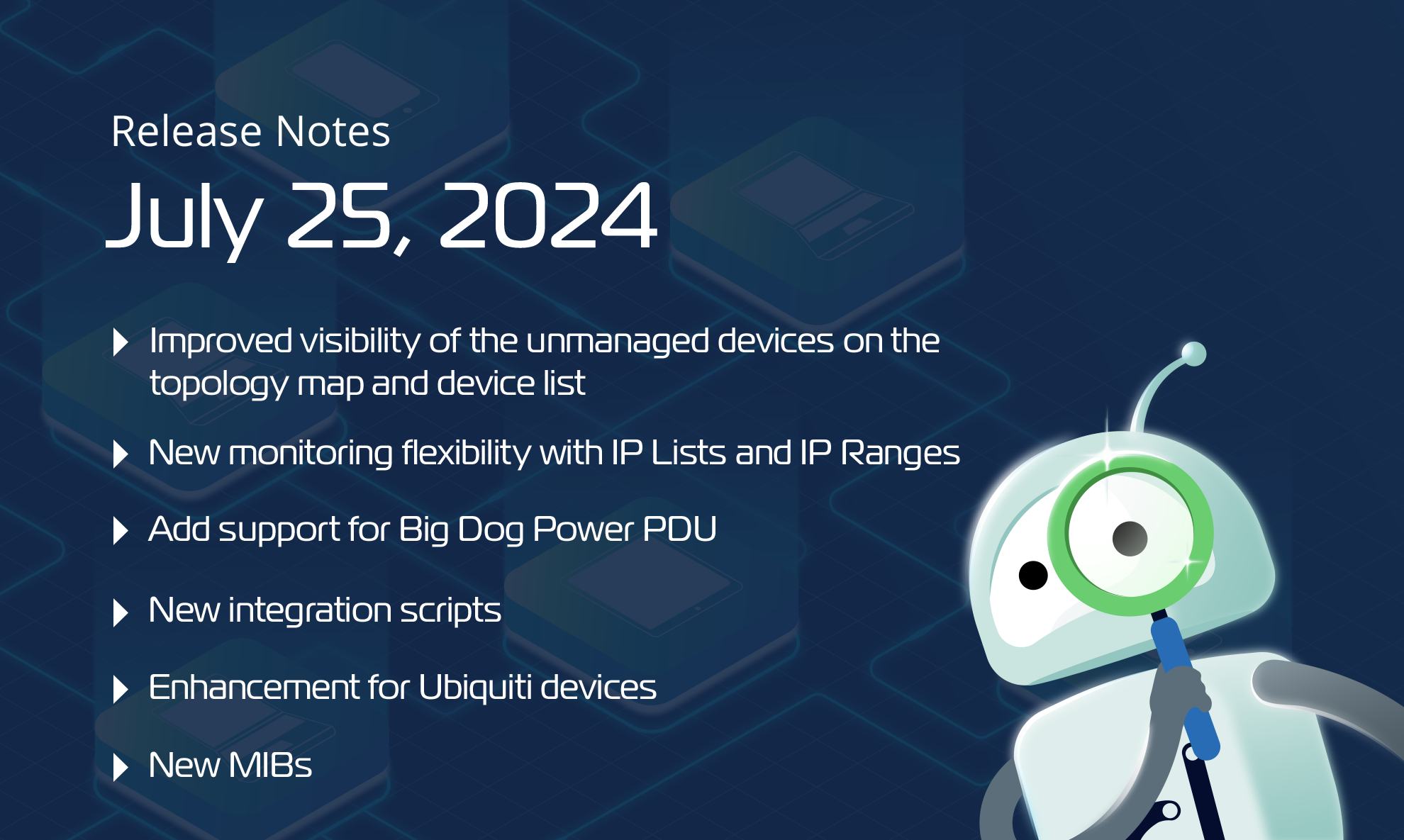



We are thrilled to share the latest news, enhancements, new integration scripts like VMWare vCenter, and updates from Domotz.
We highly value your feedback and encourage you to contact our support team at support@domotz.com for any comments, questions, or suggestions you may have.
- New Features
- Enhancements
- Integration Scripts and Pre-Configured SNMP Templates
- MIBs
- Fixes
New Features
More visibility and control of all your network-connected devices
Our latest update introduces significant enhancements to the Network Collectors in device-based mode, providing greater visibility and control over all network-connected devices.
Key improvements
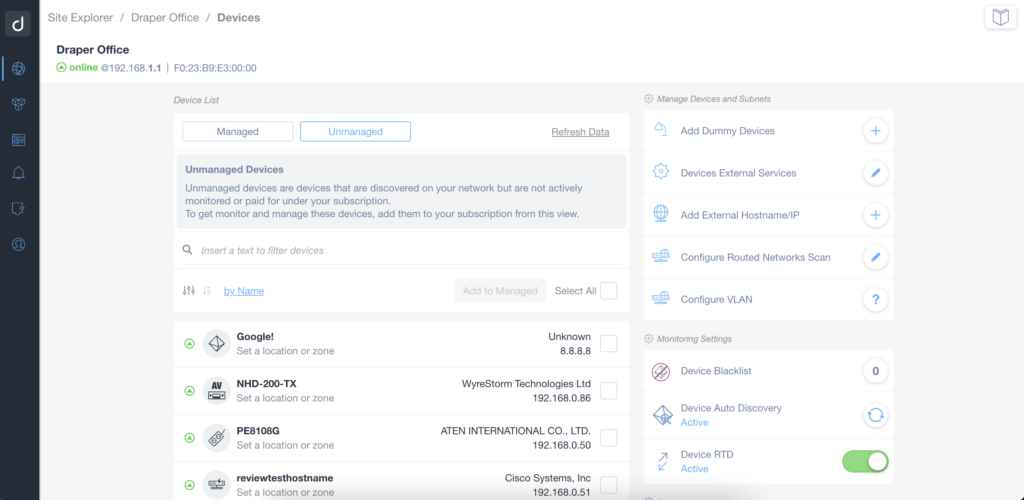
- Unmanaged Devices on Topology Map and Device List: Network Collectors now display unmanaged devices on both the Topology Map and Device List, allowing for easier identification and management. This feature brings a comprehensive view of your network, highlighting both managed and unmanaged devices directly on the map, enhancing your ability to oversee and control network infrastructure.
- Improved Visibility and Control: You can now access the list of network-connected devices in a simpler and more intuitive way. Moreover, you can now seamlessly identify, access, and modify the list of managed devices using a per-device subscription model.
- Streamlined Access to Device Lists: Previously, the complete list of managed and unmanaged devices was only accessible through the collector settings, typically consulted during the initial setup. With the new update, this view is now directly accessible from the device list, a section used daily. This change ensures that network administrators can effortlessly monitor and manage all devices connected to the network without navigating through multiple settings.
- Distinct Tabs for Managed and Unmanaged Devices: Upon accessing the device list section, two distinct tabs will appear above the list: “Managed” and “Unmanaged.” Clicking on these tabs allows users to switch between views of monitored devices and those connected to the network but not actively managed. This feature ensures a clear distinction and easy navigation between different device statuses.
- Greater Control Over Network-Connected Devices: Last but not least, the enhancements to the per-device mode want to give you greater visibility and control over everything connected to the network, including devices that are not currently managed. This holistic view ensures that no device goes unnoticed, providing you with the tools needed to maintain a secure and efficient network environment.
For additional information on this device monitoring capability, visit our website or contact our sales team.
New Monitoring Flexibility with IP Lists and IP Ranges
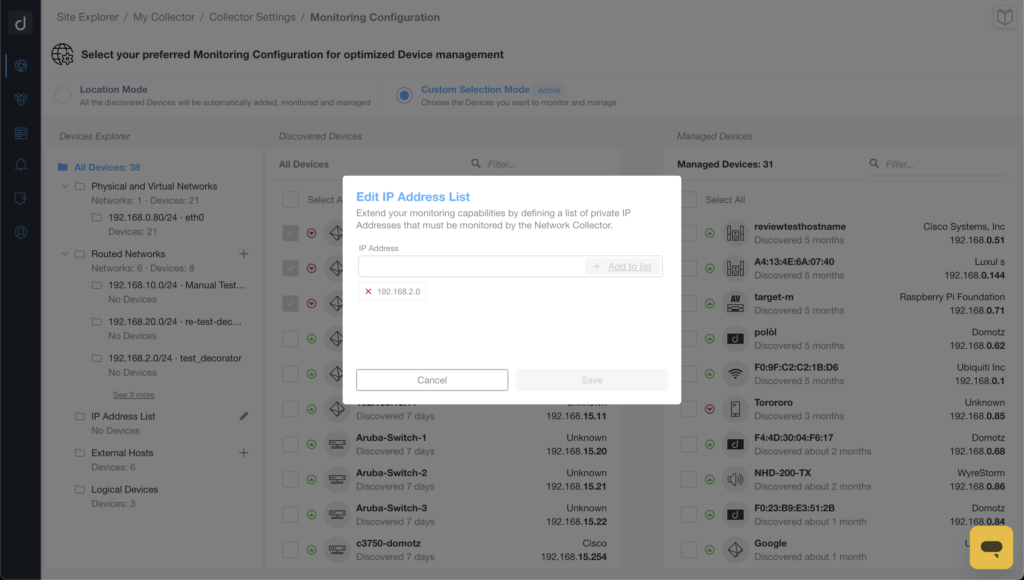
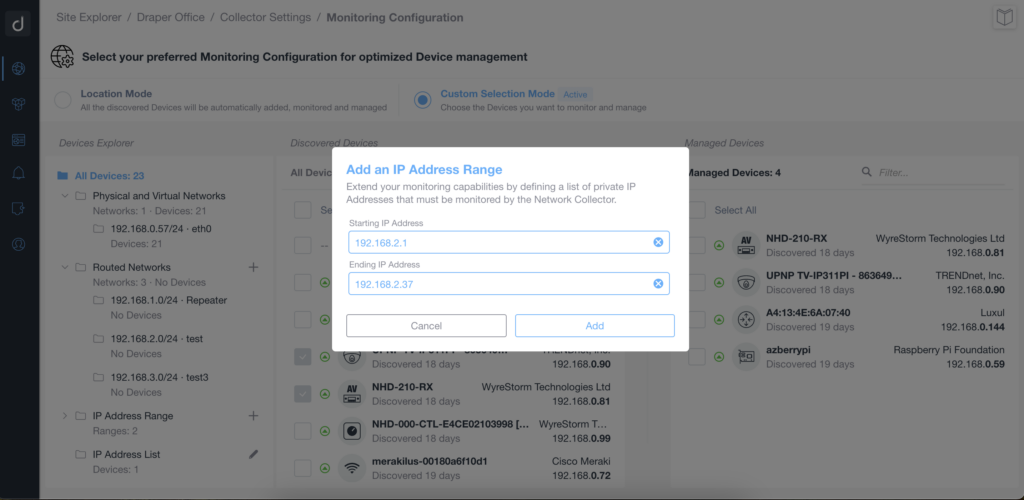
Going forward, with this release, you will have the power to decide what to monitor in a flexible and dynamic manner. If you prefer not to monitor everything on your network but only specific devices, we provide the tools to do so. Utilizing IP lists and IP ranges, you can specify “monitor only these IP addresses or those within the range from A to B,” avoiding unnecessary stress on other devices.
Key Benefits:
- Firstly, flexibility to perform ping and recovery operations on selected IP addresses and subsets.
- Secondly, tailored monitoring to meet diverse needs and requirements.
This release is impactful for the device-based model, adding another layer of customization and control.
In conclusion, this feature complements the existing visibility of managed and unmanaged devices. It is a part of the same process, allowing you to decide where Domotz should search for devices on VLAN networks, routed networks, external hosts, or specified IP lists/IP ranges. Once devices are discovered, you can select which ones to continue monitoring.
Add support for Big Dog Power PDU
In addition, we now support Big Dog Power on the PDU management feature.
Thanks to this enhancement, you will be able to toggle on/off the power outlets or power-cycle them.

Enhancements
External Services integrations for external UniFi Controllers do not consume External Hosts
We have refined the integration process for external UniFi Controllers, ensuring that they do not consume External Hosts. This change optimizes resource allocation, allowing you to maximize the utility of your External Hosts without unnecessary consumption. Streamlining this integration enhances overall system efficiency and ensures smoother operations.
Rebrand EBERTLANG into Elovade
In alignment with strategic rebranding initiative, EBERTLANG and Achab are now Elovade. We have updated the logos on our webapp to reflect this change, providing a unified and modernized look.
Navigate directly from Ubiquiti Devices to the External Services page
Starting from now, any Ubiquiti devices (Controllers, Access Points, Switches, etc) now allow direct navigation to the External Services page, where the customers can configure the integration with such brands to unlock more data and capabilities on Ubiquiti devices.
This enhancement reduces the time spent navigating through menus and improves the overall efficiency of device management.
Increase Persistent Devices threshold
To meet our users’ growing needs, we have increased the threshold for Persistent Devices to 15 units. Additionally, the Booster Pack now supports an increase of up to 30 Persistent Devices each. This expansion provides users with greater capacity to manage their devices, ensuring that their networks can scale effectively as they grow.
Enhancements for Docker and Luxul Network Collector
Allow users to configure VLANs on Collector with proper subnet netmask (Docker, Luxul Network Collector)
We have introduced the capability for users to configure VLANs on Collector with the appropriate subnet netmask. This feature enhances network segmentation and management, allowing for more precise control over network traffic and improving overall network performance and security.
Fortilink devices discovery does not require Routed Network configuration (Docker, Luxul Network Collector)
Discovering Fortilink devices is now more straightforward, as it no longer requires Routed Network configuration. This simplification makes it easier for users to identify and integrate Fortilink devices into their networks, reducing setup complexity and improving the user experience.
Integration Scripts and Pre-Configured SNMP Templates
Integration Scripts
Windows Physical Disks
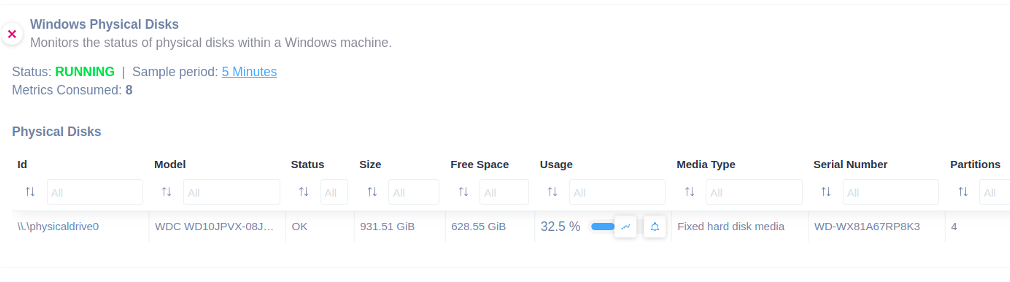
We have enhanced the existing “Windows Physical Disks” script to monitor the free space available and the disk usage percentage.
The script now enables you to monitor the following additional information:
- Free Space
- Usage (%)
The script uses the WinRM protocol and has been validated and tested on Windows 11 and Windows Server 2019.
Windows Static IP Monitor
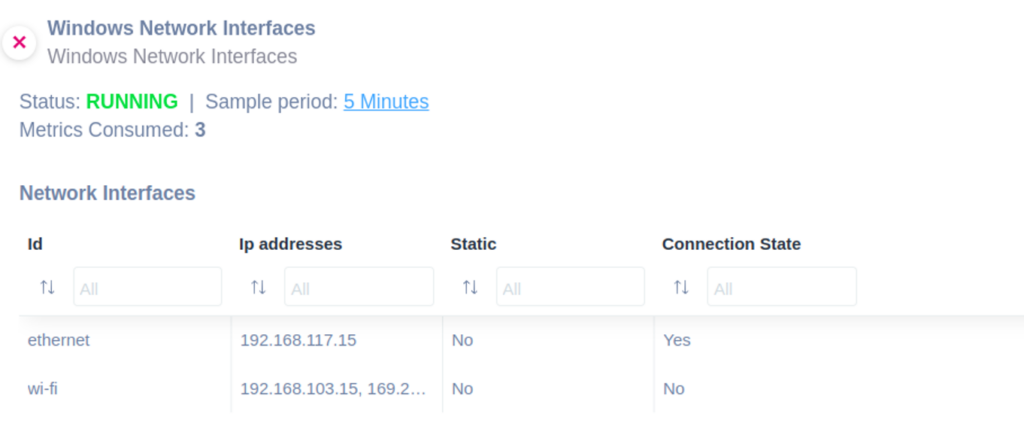
Easily monitor whether a static IP is assigned to a network interface on Windows by applying this script. Extract more details about the following information:
- Network ID
- IP addresses
- Static flag
- Connection State
The script uses WinRM protocol and has been validated and tested on Windows 11.
VMWare vCenter Certificate Expiration
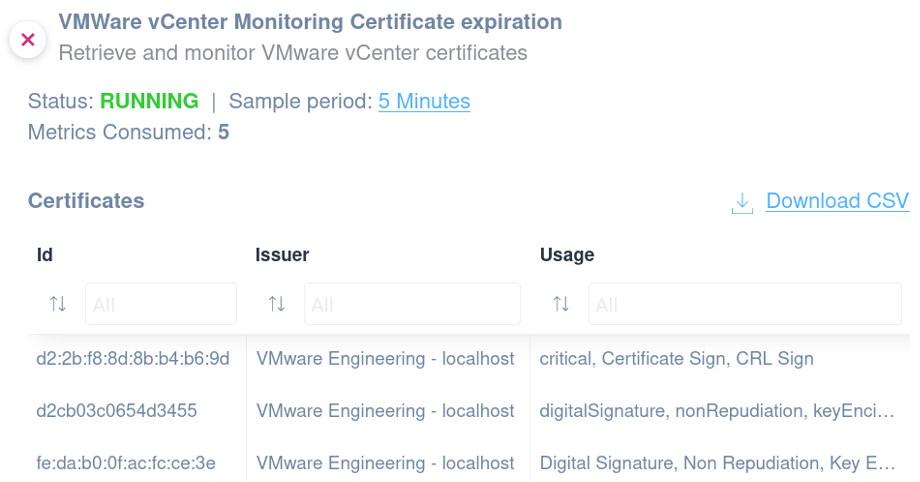
Apply the VMWare vCenter script to monitor the expiration dates and validity status of certificates used in your VMware vCenter environment. It specifically monitors Machine SSL certificates, VMware Certificate Authority certificates, STS Signing Certificates, and Trusted Root certificates within VMware vCenter.
Apply this integration script to monitor the following information about the vCenter certificates:
- Issuer
- Usage
- Expiry
- Remaining days
- Is valid
This script has been validated and tested on VMware vCenter version 8.0.2 and uses HTTP protocol for API communication and SSH for executing commands on the VMware vCenter server.
Hyper-V Virtual Machines Integration Services
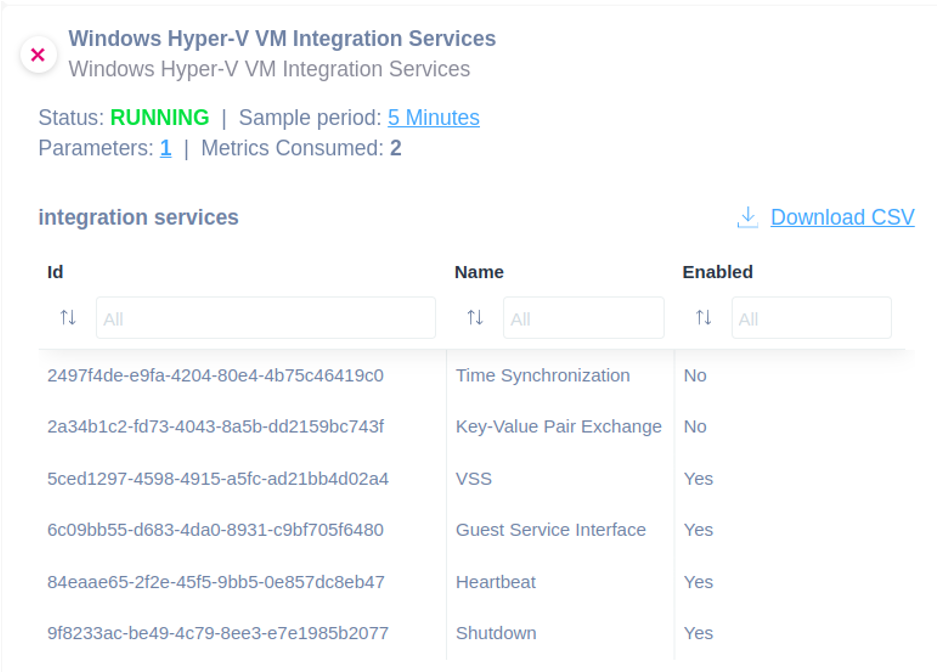
Monitor the following information about the services running on Hyper-V with this script:
- Service Name
- Enabled flag
The script uses the WinRM protocol and has been validated and tested on Windows Server 2019.
MacOS General Information
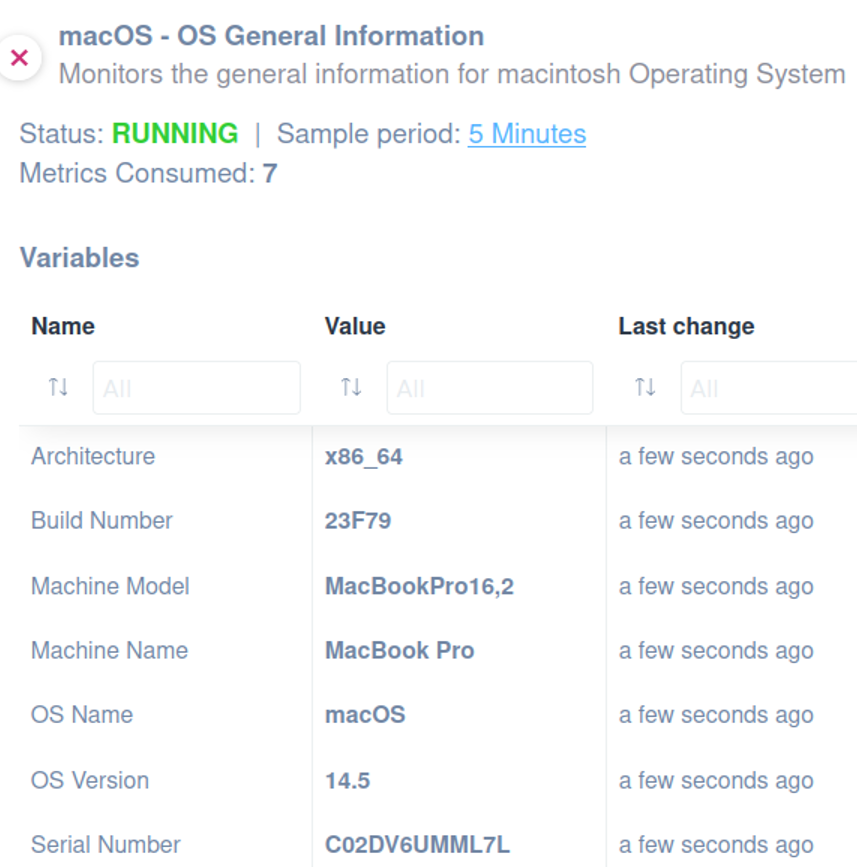
Monitor the following information by applying this script:
- OS Name
- OS Version
- Build Number
- Machine Model
- Machine Name
- Architecture
- Serial Number
This Domotz script uses the SSH communication protocol to execute commands on the macOS. It has been validated and tested on macOS Version 14.5.
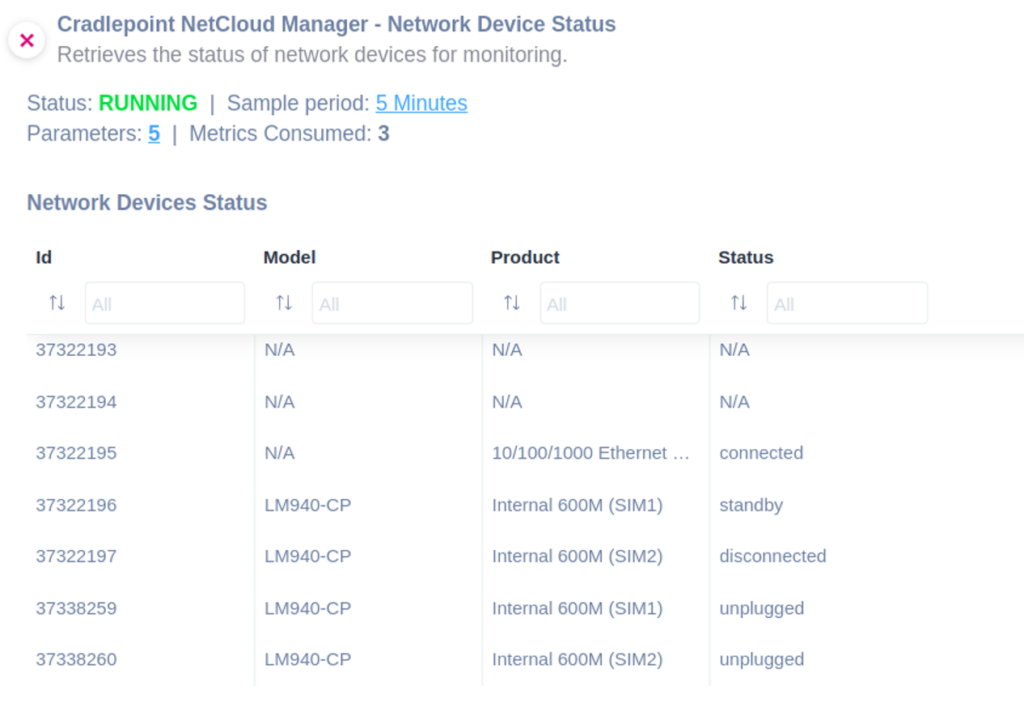
Cradlepoint NetCloud Network Device Status
You can use this script to monitor the status of a network device managed by Cradlepoint NetCloud Manager. You can monitor the following:
- Device model
- Device product
- Status
The script uses HTTPS protocol and has been validated and tested on Cradlepoint AER 2200.
Pre-Configured SNMP Template
Brother Printer Status
Use this SNMP template to monitor the status of a Brother Printer.

MIBs
- AVPro Edge Network Switches MIB
- The MIBs that you shared a screenshot of here
Fixes
- Fix the issue that was preventing the creation of Monitoring Dashboard Tables for certain Integration Scripts, including Dell Power Vault SAN (System General) script.
- Fix issues on Configuration Management for HP Switches and Dell OS Devices.
- Fix the issue on the Unifi Access Point. There is broken radio information due to missing the RAM data point.
- Fix the issue preventing the load of Device Types on the Devices List after bulk edits are performed.
- Fix issue throwing errors when deleting Offline Device.
- Some icons were not displayed properly on the new version of Chrome 126.x.
- Fix issue for UK customers with VAT not being able to update their payment method from Portal.
- Fix the issue that was preventing customers with all expired/deactivated Network Collectors from accessing the WebApp.
- Fix the issue on the LAN Configuration Change alert when the Primary and Secondary DNS servers swap orders.
- Fix an issue on the Device Detail Interfaces tab where the Reachable Devices counter was inconsistent and did not always display all the reachable devices from that port.
- Fix the RSSI badge on the Device Detail that is not being rendered with appropriate colors.
- Prevent the Booster Pack modal from being opened multiple times from the Collector Settings page.