
Domotz Zendesk Integration
The Domotz Zendesk integration enables you to instantly create and update Zendesk tickets when a specific event occurs on the networks or devices monitored through Domotz. Using the Domotz and Zendesk integration to provide faster support to your customers for network and device issues.
How to set-up the Domotz Zendesk Integration
You can connect your Zendesk Account into Domotz. Zendesk will become one of the Contact Channels available when creating a Shared Alert. This means that you can create or update a Zendesk ticket when a specific event occurs in Domotz.
You’ll need:
- Zendesk Domain Name
- Zendesk User Name
- Zendesk API Token (how to get it)
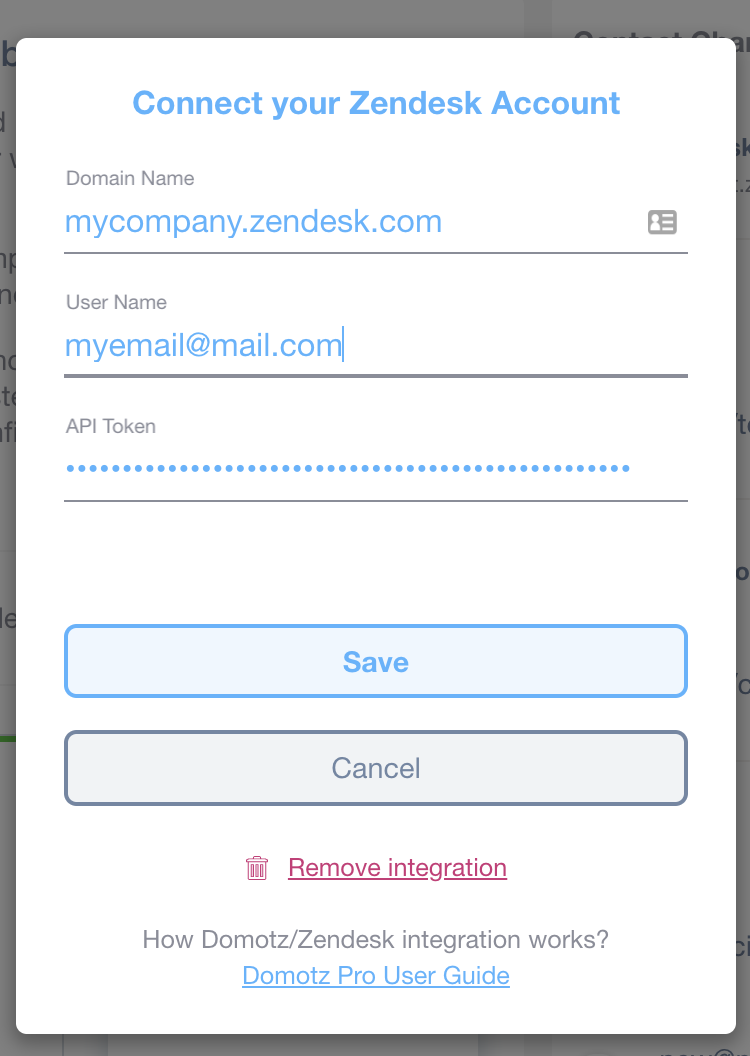
Connect Your Zendesk Account
1. Enter your Zendesk Domain Name in the provided field. Example: mycompany.zendesk.com.
2. Input your User Name, which is your email. Example: myemail@mail.com.
3. Provide your API Token in the designated field. It's masked for security.
4. Click the "Save" button to connect your account.
5. If needed, click "Cancel" to abort the process.
6. To disconnect, select "Remove integration" at the bottom.
7. For additional help, consult the "Domotz Pro User Guide" link.
After the connection with your Zendesk Account is complete you can decide to map your Domotz Agents onto Zendesk Organizations. In this way everytime a specific Agent generates an alert on the Zendesk contact channel you’ll recevie a ticket on Zendesk already assigned to a chosen Organization.
Please note that the Domotz Agent mapping is not mandatory. If no choice is done tickets will arrive anyway, yet with no Organization set.
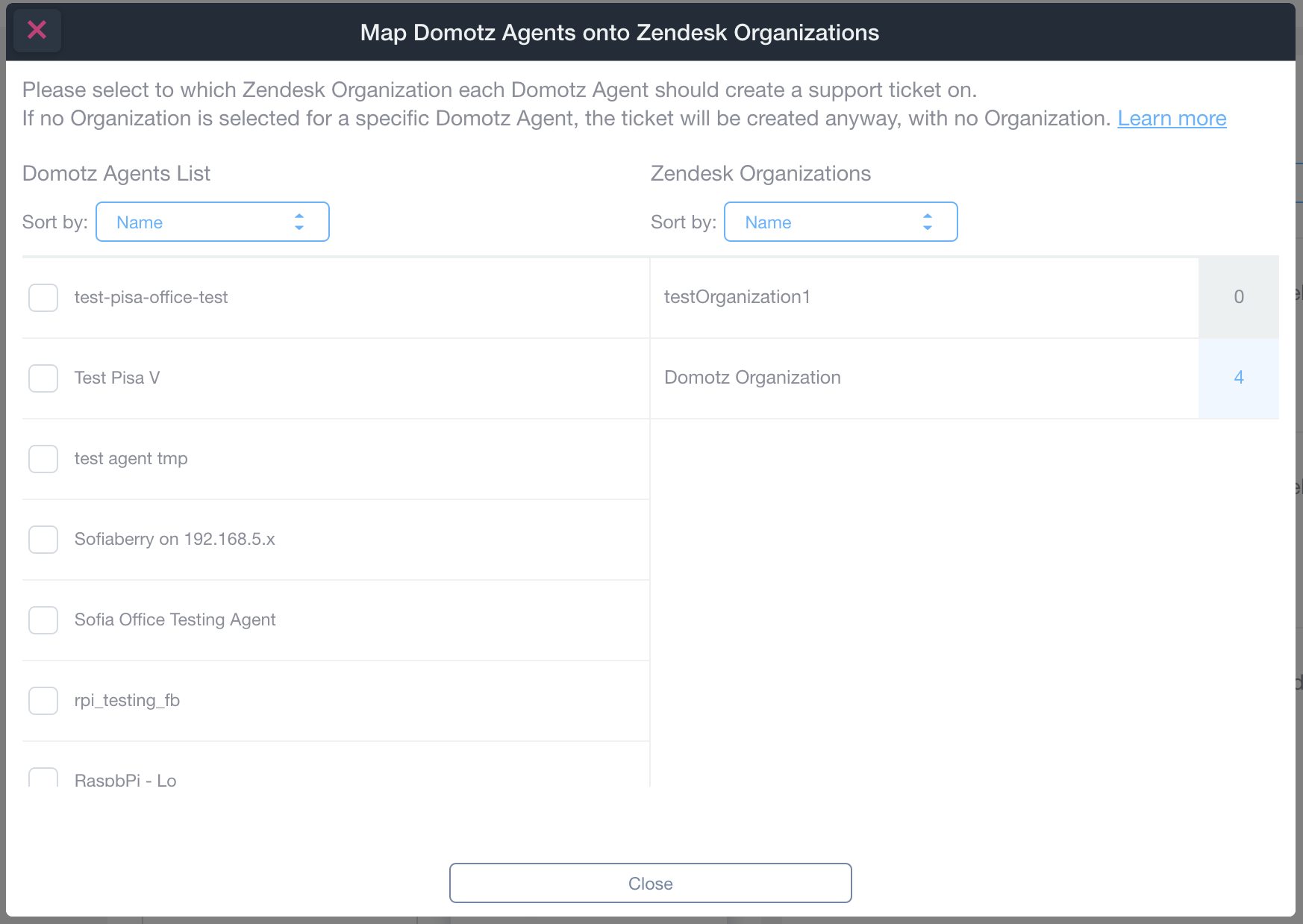
Mapping Domotz Agents to Zendesk Organizations
1. Use the "Sort by" dropdowns to organize the lists by Name.
2. On the left, select a Domotz Agent from the list. Options include "test-pisa-office-test," "Test Pisa V," "test agent tmp," among others.
3. On the right, map the selected Domotz Agent to a Zendesk Organization, such as "testOrganization1" or "Domotz Organization."
4. Numbers next to organizations indicate the count of associated agents.
5. Click "Close" once mapping is complete.
Tickets created on Zendesk will contain all the needed information. If a device will trigger an alert and an opened ticket for that device is already present in Zendesk, the new event will be appended to the same ticket.