
This section provides detailed insights on your Domotz Collector’s general information and settings and allows you to:
- Collector Discovery Overview
- View and edit the Collector Basic Information (Collector’s Name, Location, Time Zone, etc.)
- Configure the Collector Monitoring Settings such as:
- Monitoring Configuration
- Protocol Ports Customization
- Monitored Networks
- Physical and Virtual Networks
- Routed networks
- External Hosts
- Logical devices
- Default Credentials
- Manage pairing with external Documentation & Data Aggregation Platforms
- Other
- Monitoring Configuration
How to access the Collector section
From the ‘Inventory’ Dashboard select the Domotz Collector you would like to configure:
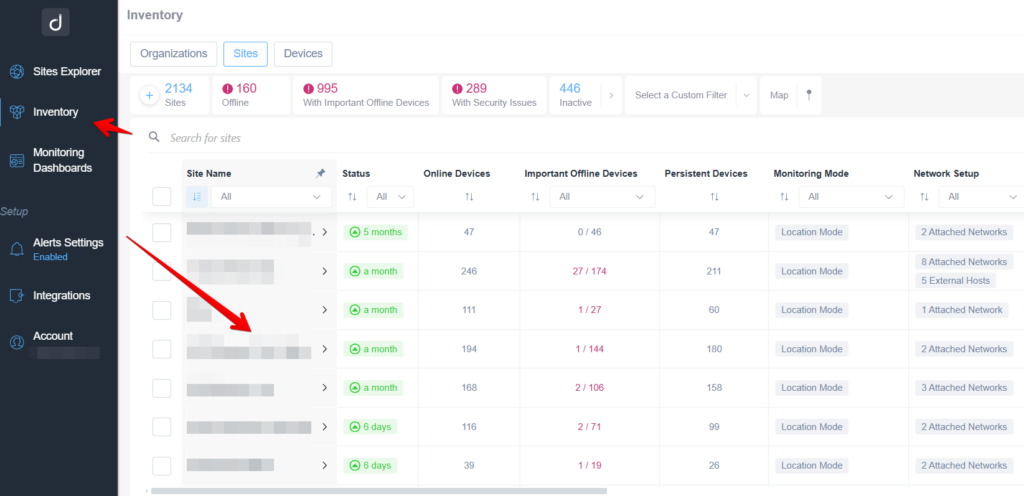
Navigating the Inventory Section in a Software Dashboard
1. Open the main menu on the left and select "Inventory" to view site information.
2. The top of the page shows totals: 2134 sites, 160 offline, 995 with important offline devices, 289 with security issues, and 446 inactive.
3. Use the "Search for sites" bar to find specific sites.
4. The table displays columns for "Site Name," "Status," "Online Devices," "Important Offline Devices," "Persistent Devices," "Monitoring Mode," and "Network Setup."
5. Click column headers to sort data; for example, sort by "Status" to prioritize sites with recent activity.
6. Review details like the number of online and offline devices and current monitoring modes such as "Location Mode."
Once in the Domotz Collector main Devices view, select the ‘Collector’ menu (the cogwheel on the top left) button:

Collector Discovery Dashboard Overview
1. Navigate to the "Collector" section in the Domotz app by clicking "Collector" in the top navigation bar.
2. In the left-hand menu, select "Discovery" under the "Explorer" category.
3. The dashboard shows "Collector Discovery" with details about device detection.
4. View the summary boxes at the top for:
- Total Discovered Devices: 95
- Subnets Scanned: 1
- VLANs Detected: 0
- SNMP Authentication: 100%
5. Under "Discovered Device Types," see a breakdown of Managed (31) vs. Unmanaged Devices (64).
6. Review the detailed bar charts for "Discovered Device Makes" showing specific brands and quantities of devices, such as Apple and Samsung. Managed and unmanaged devices are displayed separately for clear comparison.
Collector Discovery Overview
In this section, you can view an overview of the site discovery, including the total number of discovered devices, the number of subnets being scanned, and the number of detected VLANs. It also provides graphical statistics based on device types and vendors.
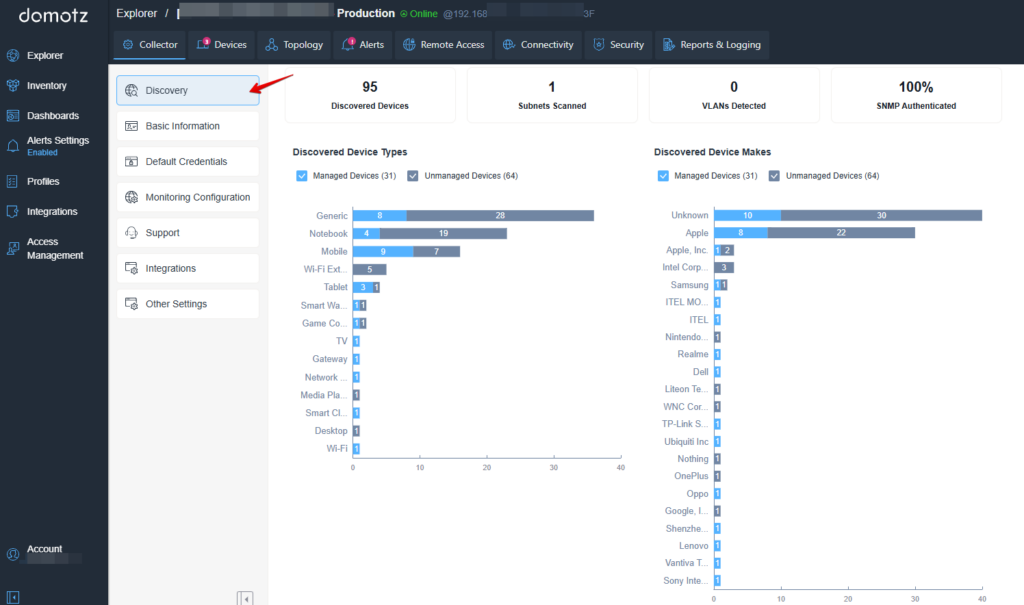
Device Discovery Dashboard
1. Access the Discovery section from the left-hand menu to view network devices.
2. At the top, summary stats show 95 devices discovered, 1 subnet scanned, 0 VLANs detected, and 100% SNMP authentication.
3. The main panel displays bar graphs categorizing devices by type and make.
4. Device types include categories like Generic, Notebook, and Mobile.
5. Device makes list brands such as Apple and Samsung, with a distinction between managed and unmanaged devices.
6. Use these graphs to assess and manage network devices effectively.
Basic Information
In the ‘Basic Information’ section you will be able to access/edit the following information:
- Collector Name
- Site Location
- Site Time Zone
- Customer Information
- Organization Name/ID
- Notes Field: you may enter your personal notes about this Collector in this section.

Basic Information Settings in Domotz
1. In the Domotz interface, select "Basic Information" from the left-hand menu under the "Collector" section. This section allows you to view and edit details related to a collector.
2. The right side displays fields for updating collector details:
- **Collector Name**: Enter or modify the name of the collector.
- **Location**: Specify the location of the collector.
- **Time Zone**: Set the appropriate time zone, displayed as "Rome, Europe" in this example.
- **Customer Info**: Option to add additional customer information.
- **Contract**: Option to add contract details.
- **Organization**: Include the organization's name and ID.
- **Tags**: Add relevant tags for categorization.
- **Note**: Provide notes about the collector.
3. Use the "Edit" option next to each field to make changes.
Default Credentials
Default Credentials – the current SNMP default authentication.

Accessing Default Credentials in Domotz
1. Navigate to the left sidebar menu and select "Default Credentials" under the "Collector" section.
2. On the "Default Credentials" page, find the "SNMP Authentication" settings, where you can adjust the "Version" and set the "Read" and "Read/Write" access to either "v2," "public," or "private."
Here, you can edit the used SNMP version (v1, v2 or v3), the read/write communities and you can apply these settings to all devices within the collector:

Edit the default SNMP authentication settings.
1. To set the SNMP version, select from the Version dropdown menu. Available options are "v2" and "v3."
2. For SNMP v2, input the "Community Read" and "Community Read/Write" values.
3. For SNMP v3, enter the "User" name. Choose the "Authentication Type" from the dropdown menu, options include "None" or others that appear when selected. If needed, fill in the "Password" once an authentication type is selected.
4. If applicable, select the "Data Encryption Type" and enter the "Data Encryption Key."
5. Check the box to "Apply this as Collector default and to all existing devices of the current Collector" if desired.
6. Click "Save" to apply the changes or "Cancel" to discard them.
Monitoring Configuration
In Domotz you have the ability to manually select the devices you would like to monitor and manage.
All available assets are displayed in the left column, and a search feature is provided for easy navigation. You can select individual devices or use the “Select All” option for bulk selection.
Once you’ve made your selection, simply click the arrow between the columns to add the assets to the Managed Devices list (Right column). To confirm the list of monitored assets, simply click the “Save Changes” button.
Devices can be moved back and forth using the arrow in the center. After saving, you also have the option to remove devices from the Monitored Assets list as needed.
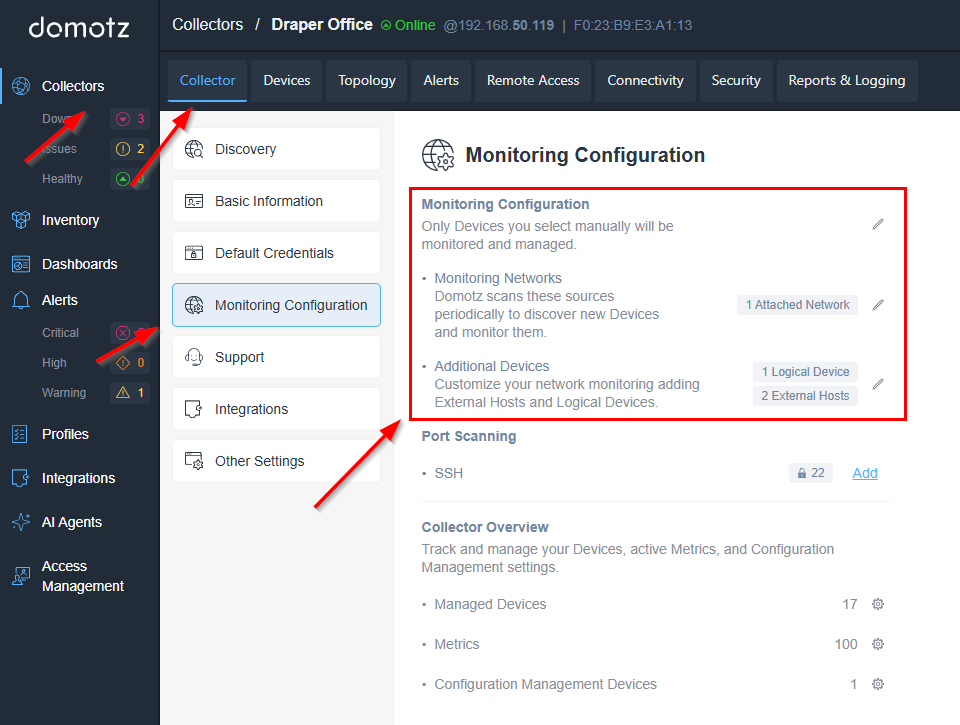
Domotz Monitoring Configuration Overview
1. In the side menu, select "Collectors" and ensure you are in the "Collector" tab at the top.
2. Under "Collectors," choose "Monitoring Configuration" from the list of options.
3. The "Monitoring Configuration" section allows you to manage device and network configurations.
- "Monitoring Networks" shows the networks Domotz monitors. Click on "1 Attached Network" to manage networks.
- "Additional Devices" lets you add external hosts and logical devices for monitoring. Options include "1 Logical Device" and "2 External Hosts."
4. View "Alerts" on the left to check the status of your systems. Categories include:
- "Critical"
- "High"
- "Warning"
5. The "Port Scanning" section shows SSH details, with a selection to add more configurations.
Follow these steps to correctly configure and monitor your network devices using Domotz.
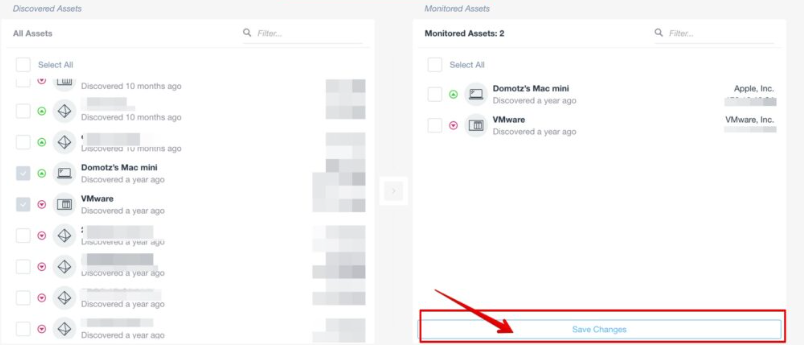
Managing and Saving Monitored Assets
1. On the left panel labeled "Discovered Assets," locate the list of all assets available. Use the checkboxes to select desired assets such as "Domotz's Mac mini" and "VMware."
2. After selecting assets, these will appear in the right panel labeled "Monitored Assets." Ensure the selected assets are correctly listed here.
3. To finalize and save your monitored assets, click the "Save Changes" button at the bottom of the "Monitored Assets" panel.
Following the scanning properties which can be fined-tuned:
- Physical and Virtual Networks (Also called “Attached Networks” which are scanned at Layer 2)
- Routed networks (Scanned at Layer 3)
- IP Address Range (Scanned at Layer 2)
- IP Address List (Scanned at Layer 2)
- External Hosts (Public hosts/ip – Scanned at Layer 3)
- Logical Devices – (also called Dummy Devices)
- Protocol Ports Customization – define an additional, non-standard SSH port to be scanned across all the devices of this Collector
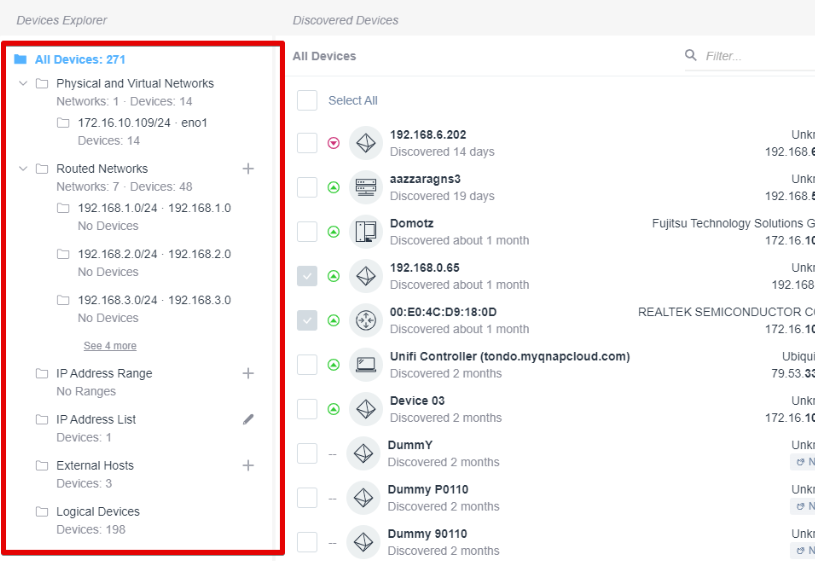
Device Management and Network Overview
1. **All Devices Section**: Displays a total of 271 devices. Subcategories include:
- Physical and Virtual Networks: 1 network with 14 devices under `eno1`.
- Routed Networks: 7 networks with 48 devices, showing specific subnets like `192.168.1.0/24`, `192.168.2.0/24`, and others with no devices.
- IP Address Range, IP Address List: Shows the ability to add or edit ranges or lists.
- External Hosts: Contains 3 devices.
- Logical Devices: Lists 198 devices.
2. **Discovered Devices List**: Shows individual devices with discovery details and last known connection, including:
- IP addresses like `192.168.6.202` and `192.168.0.65`.
- Device names such as `Domotz` and `Unifi Controller`.
- Additional details like source, time since discovery, and manufacturer for specific devices.
This view helps manage and monitor networked devices, providing detailed connection and discovery information.
Protocol Ports Customization
By default Domotz scans SSH on the standard port 22. If the devices of this Collector expose SSH on a different port, you can add it here.
In the Monitoring Configuration section, locate the Port Scanning area. Next to SSH – 22, enter the additional port you want Domotz to scan (e.g. 2222), then save your changes.

Monitoring Configuration Settings in Domotz
1. Navigate to the left sidebar and click on "Collector" to open its menu.
2. Under the Collector menu, select "Monitoring Configuration."
3. In the "Monitoring Configuration" section, you can manually select devices to monitor and manage.
4. To configure Monitoring Networks, click on "1 Attached Network" to view or modify attached networks.
5. For Additional Devices, you can add external hosts and logical devices. Options show "1 Logical Device" and "2 External Hosts."
6. Under "Port Scanning," you can enable or configure SSH. The default port is set to 22. To add or modify, click "Add."
7. The "Collector Overview" section displays devices and metrics, including 17 Managed Devices, 100 Metrics, and 1 Configuration Management Device.
A single custom port can be configured, and SSH is currently the only supported protocol. Port 22 remains always scanned: the custom port is added to it, it does not replace it. The same value can also be set through the Public API — see Device TCP/UDP Ports/Services discovery for the full list of scanned ports and the API example.
Support Management
From this section, you can enable access to your Collector for Domotz’ support team. You’ll have to click on the pen icon and enable it.
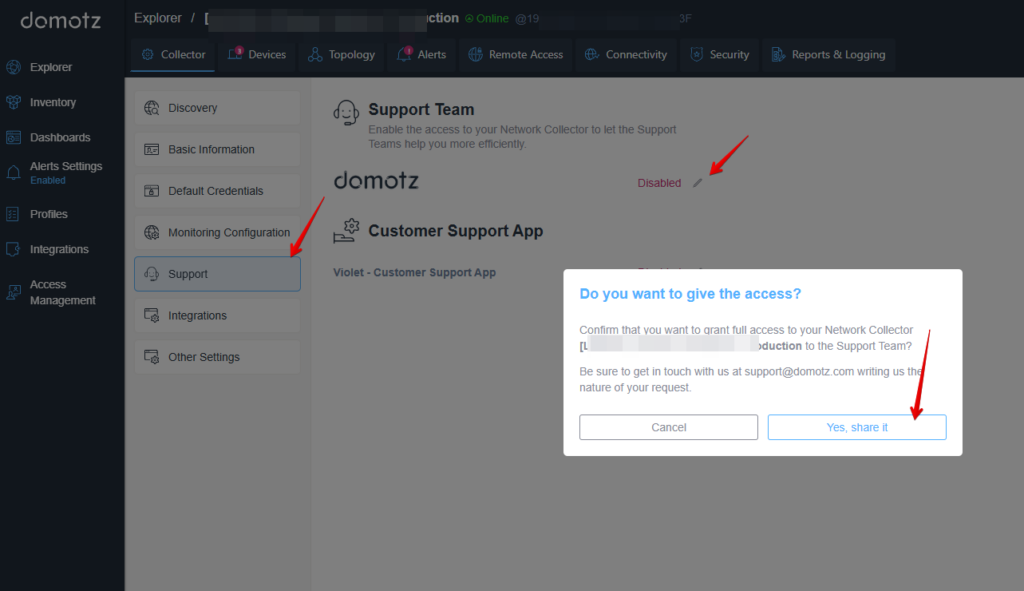
Granting Access to Customer Support in Domotz
1. In the side menu, select "Support" under the "Monitoring Configuration" section.
2. Notice that the status next to "Support Team" is labeled as "Disabled."
3. A dialog box appears asking, "Do you want to give the access?"
4. Confirm your action by clicking the "Yes, share it" button to grant full access to your Network Collector for support team assistance.
Manage Integrations for Ticketing, Documentation, and Data Systems
Ticketing System integrations and their settings along with editing options will be shown here.
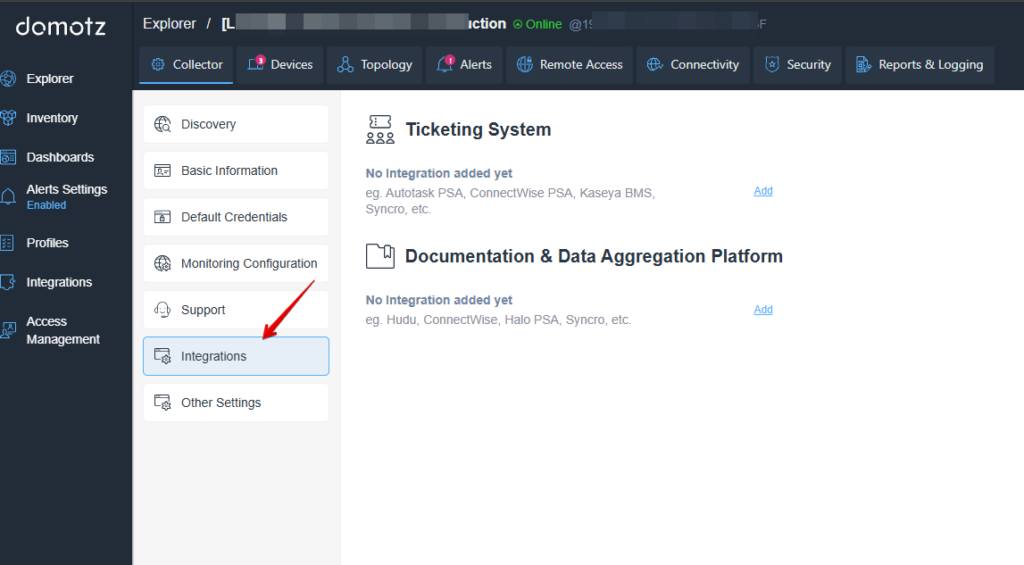
Navigating to Integrations in Domotz
1. On the left sidebar, locate and select "Integrations" under the "Collector" section. This will open the Integrations page.
2. In the main panel, you'll see sections for "Ticketing System" and "Documentation & Data Aggregation Platform."
3. Each section shows available platforms like Autotask PSA, ConnectWise PSA, and more, with an option labeled "Add" next to each. Click "Add" to integrate a system or platform of your choice.
Other Settings
In this section, additional collector settings are available.
If your collector is a Domotz Box, you have the option to disable its local web interface to enhance the security of your Domotz Agent. Disabling this feature prevents other users on the same local network from accessing the Domotz Box configuration. To do so, click on the pencil icon and disable the option.
You can also disable the RTD and Packet Loss measurement features for all managed devices globally from this section. By default, these features are enabled. To disable them, click on the pencil icon next to the respective setting and confirm the change.
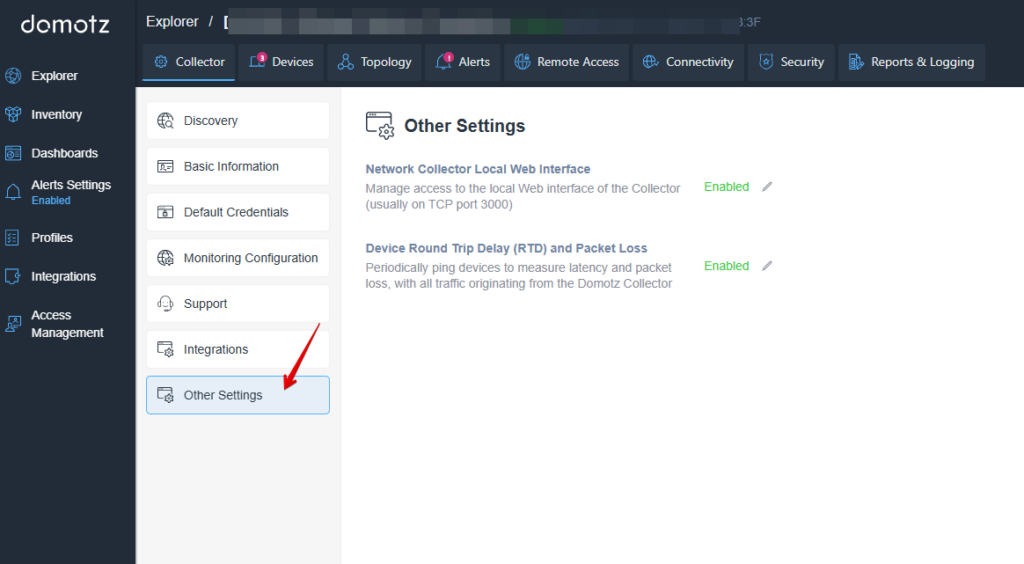
Navigating to Other Settings in Domotz.
1. In the left sidebar menu, locate and select "Other Settings" under the "Collector" section.
2. On the right panel, you will see options for "Network Collector Local Web Interface" and "Device Round Trip Delay (RTD) and Packet Loss."
3. Both options show their status as "Enabled," with an edit icon available for making changes.
Use the "Other Settings" section to manage access to the Collector and configure device ping and packet loss measurements.