
Introduction to Routed subnets
Thanks to Routed Subnet Scan, you can monitor Layer 3 / routed subnets (including VPN-connected networks).
With Routed Subnet Scan, you can discover and monitor, for example:
- Modems and routers located on different subnets
- Networks and devices that are reachable via routing (Layer 3) across subnets
- Multiple sites/buildings connected through a VPN (or other routed links)
How to Configure Routed Network Scan
In order to configure a routed network, once you access your Collector, please:

Adding a Routed Network in Domotz
1. Navigate to the "Devices" tab in the top menu.
2. In the left sidebar under "Network Configuration," click on "Routed Networks."
3. Click the plus icon next to "Routed Networks" to add a new routed network.
Once added, configure the network settings as appropriate within the displayed interface.
Secondly, use the “+” button toAdd a Routed Network:
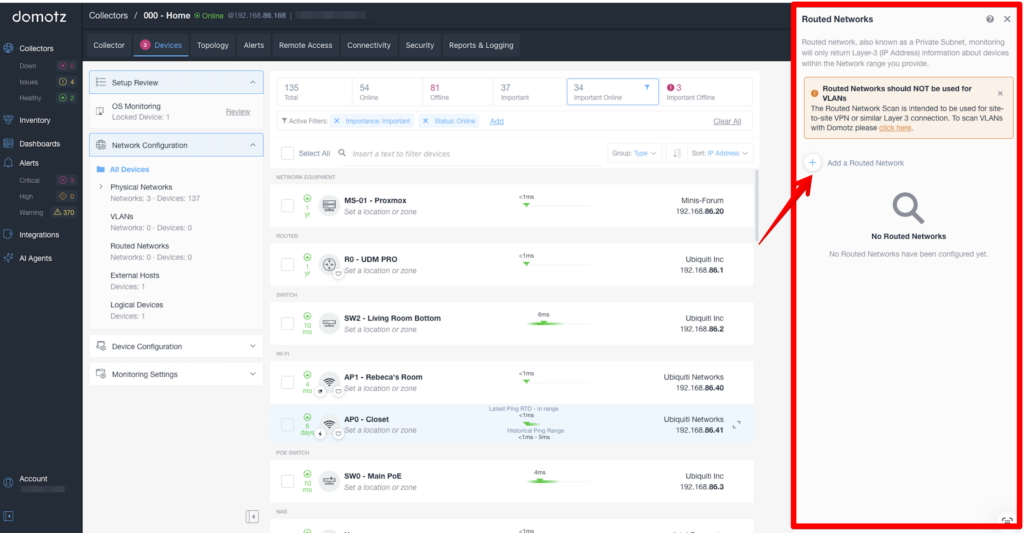
Managing Routed Networks in Domotz
1. On the left sidebar, select "Network Configuration" under "Devices" to view network management options.
2. In the main panel, observe the list of network devices such as network equipment, routers, and switches with options to set location or zone.
3. To the right, in the "Routed Networks" section, note that this feature is intended for site-to-site VPN or similar Layer 3 connections. It explicitly states that it should not be used for VLANs.
4. To add a new routed network, click “Add a Routed Network.” No routed networks appear initially if none are configured.
At this point, for each subnet, you must specify the following:
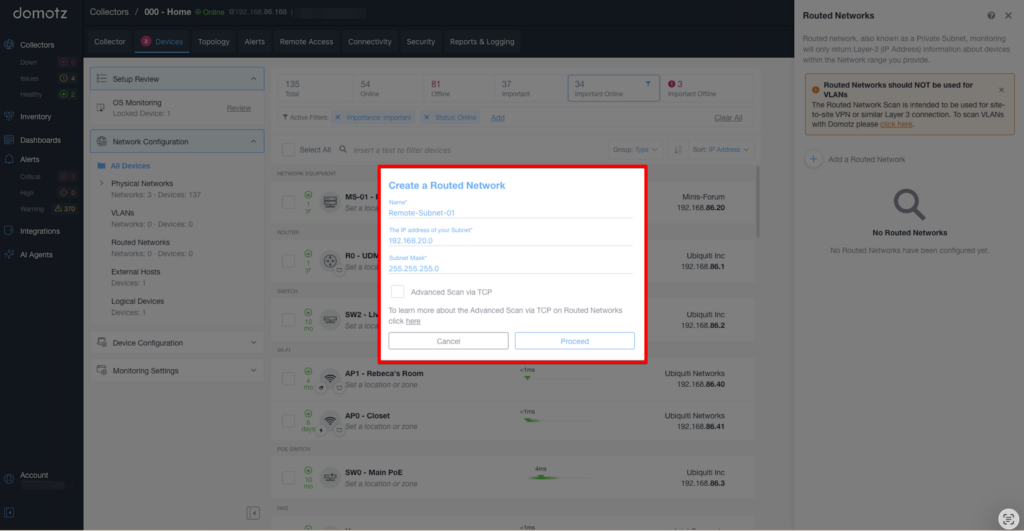
Creating a Routed Network in Domotz
1. In the Domotz dashboard, navigate to the "Devices" tab on the left side menu under "Network Configuration."
2. Select "Routed Networks" from the options.
3. Click "Add a Routed Network" to open the configuration window.
4. Enter the network name in the "Name" field, e.g., "Remote-Subnet-01."
5. Input the IP address of your subnet in the "IP Address of your Subnet" field, e.g., "192.168.86.200."
6. Specify the subnet mask in the "Subnet Mask" field, e.g., "255.255.255.0."
7. Optionally, select "Advanced Scan via TCP" for additional scanning functions.
8. Click "Proceed" to create the routed network or "Cancel" to abort the setup.
Once you select “Advanced Scan via TCP“, Domotz will perform discovery scans on the specified subnet using both TCP port-based scanning and ICMP (ping). If this option is not selected, only the ICMP mechanism will be used on that subnet.
As a matter of fact, in some cases, devices cannot be identified (and monitored) via simple ping (ICMP mechanism). In those circumstances, it is recommended to use the Advanced Scan via TCP.
Device monitoring includes those services:
- Network Status
- TCP services available
- SNMP sensors
- Remote connection
How to Delete a Routed Subnet
This will open the edit panel, select Delete Routed Networks, and the subnet will be removed from the Collector’s scanning settings.

Network Configuration Section in Domotz Interface.
1. Access the network configuration by selecting "Network Configuration" in the left sidebar menu.
2. Under this section, you can view "All Devices," "Physical Networks," "VLANs," "Routed Networks," "External Hosts," and "Logical Devices."
3. Click on each category to explore devices and networks associated with it.
4. Use the filters at the top to sort or search devices by importance, status, group, or IP address.
5. View device details including the name, status, and associated IP address in the right panel.
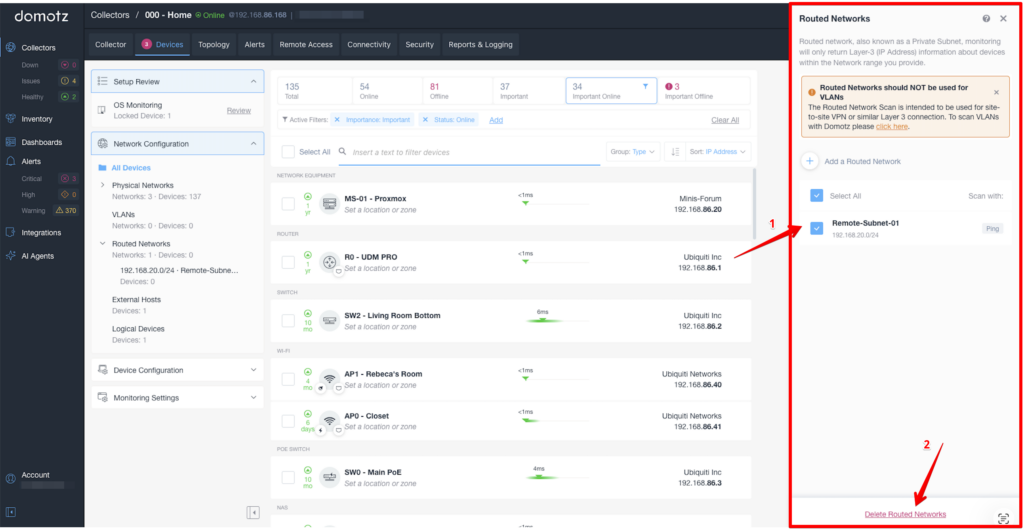
Deleting a Routed Network in Domotz
1. In the Domotz web interface, navigate to the "Devices" section. In "Network Configuration," select "Routed Networks." A list of routed networks is displayed.
2. To delete a routed network, check the box next to the network you wish to remove, for example, "Remote-Subnet-01."
3. Click "Delete Routed Networks" at the bottom of the panel to remove the selected network. Confirm any prompts to complete the deletion.
Additional information notes that routed networks should not be used for VLANs.
Read some examples of configuration on the usage of Routed Subnets (Routed Networks) vs the usage of VLANs (Attached Networks). Read more on our Monitoring Networks with Subnets and VLANs blog post.
In conclusion, if you need to know more about Routed Networks, please refer to our Onboarding guide.