

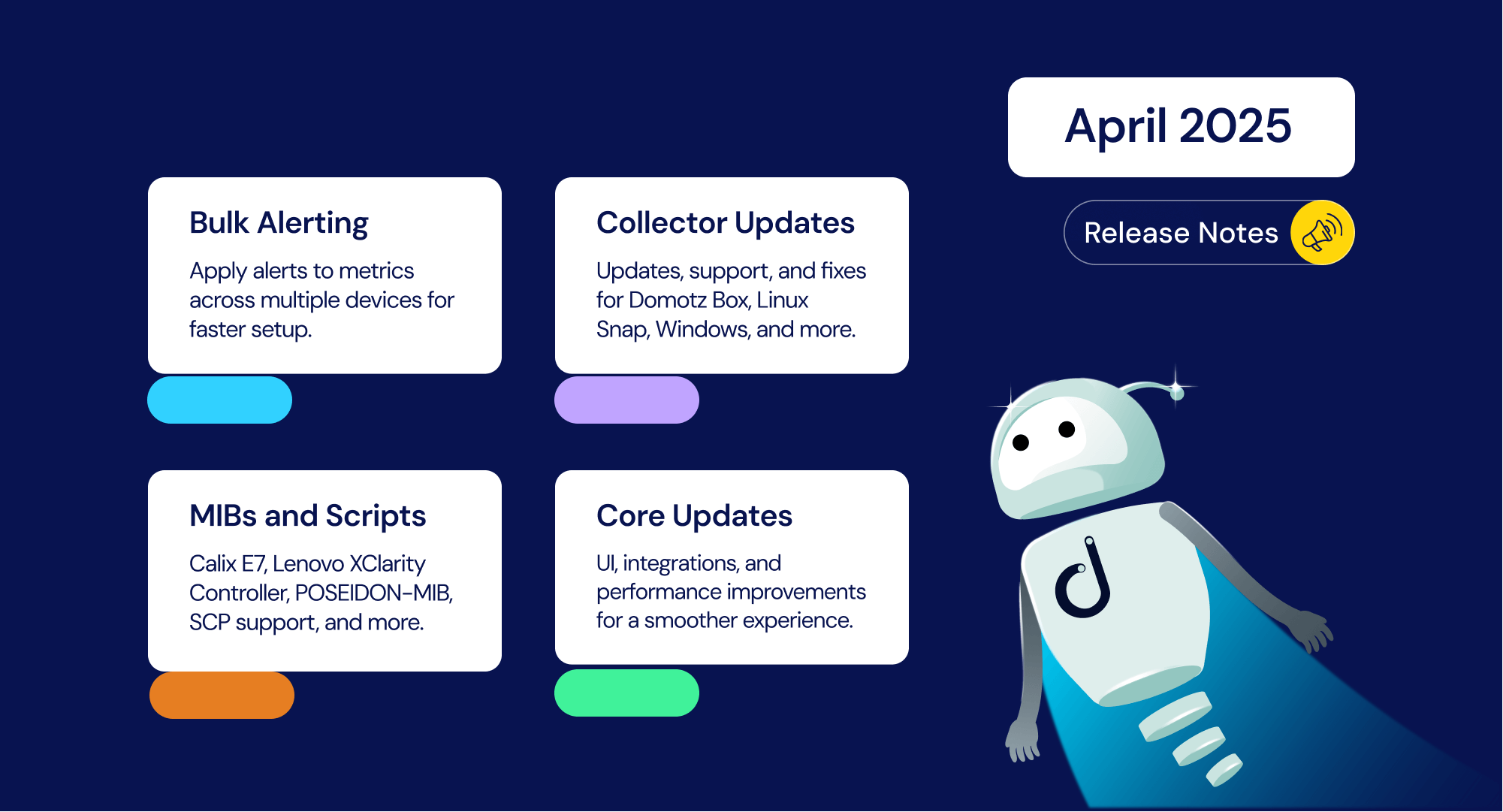



The April 2025 update introduces a powerful set of enhancements and fixes to Domotz. From new bulk alerting capabilities to an expanded script framework, new MIBs, and refined SNMP templates, this release is designed to improve automation, device visibility, and day-to-day platform performance.
In addition to updated Network Collector versions across multiple platforms, we’ve tackled several backend issues, improving monitoring accuracy, network discovery, and configuration management. These changes reflect our focus on platform stability and usability you expect when using Domotz.
If you have feedback or questions, please reach out to us at support@domotz.com. Now let’s dive into the latest updates.
New features and integrations
Bulk Metric Alert Configuration
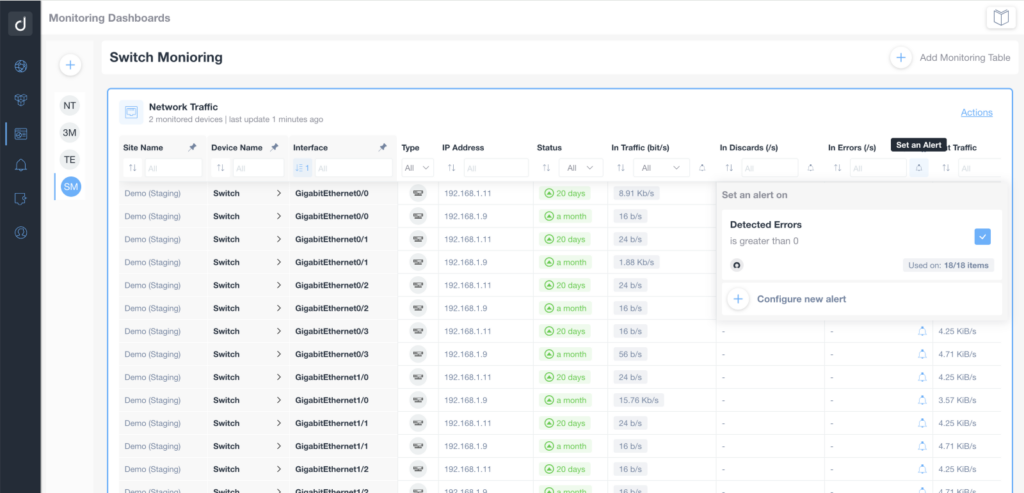
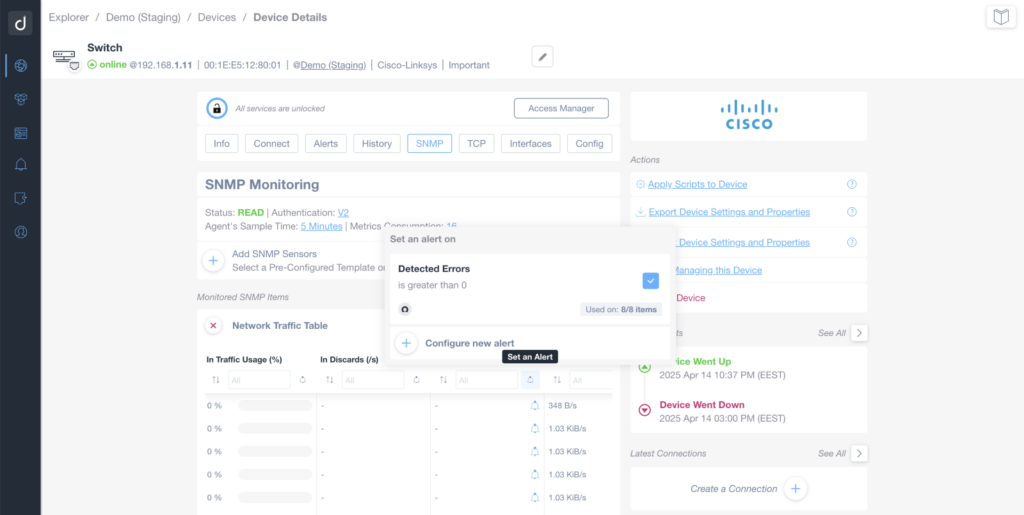
Users can now apply alerts to metrics in bulk directly from the Device Detail page and Monitoring Dashboards, including Network Troubleshooting Tables. This highly requested feature drastically reduces manual setup and ensures consistent alert coverage across multiple devices.
New MIBs
Support for additional MIBs enhances compatibility with a broader range of devices:
- Calix E7
- Lenovo XClarity Controller (BMC)
- POSEIDON-MIB
New Scripts and Framework Updates
- Domotz Box Restart – Added option for system restart directly via the interface.
- Script Framework Update – SCP protocol now supported for secure file transfers.
- SonicWall Firewall Configuration Backup – New script added to support custom ports.
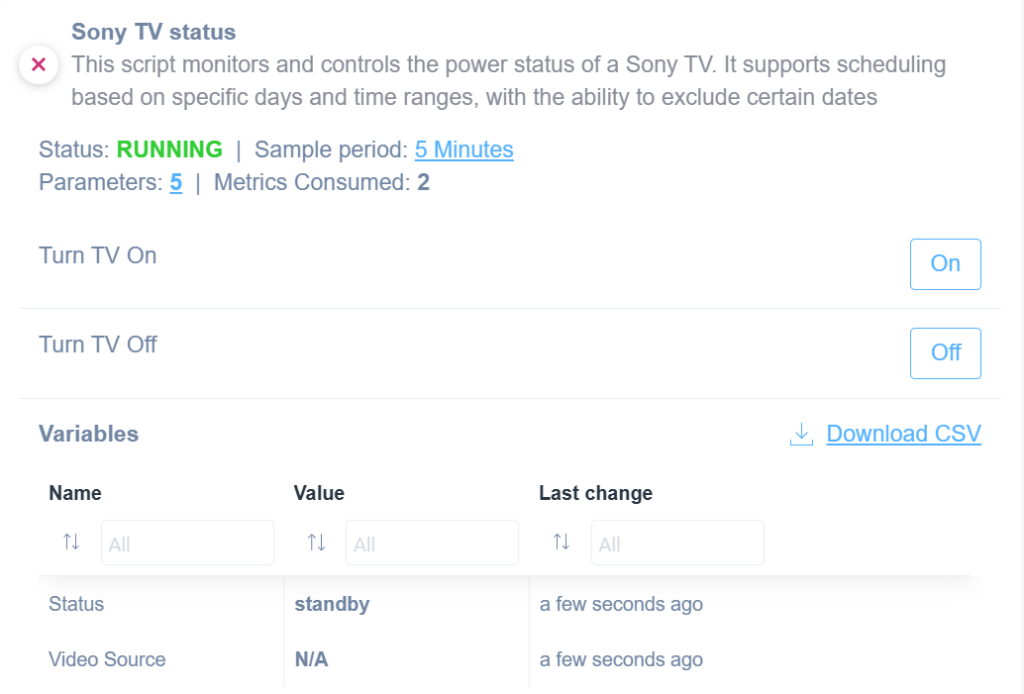
- Sony TV – New script added to monitor TV status:
- Windows WinRM – Added support for SSH protocol to Windows WinRM scripts
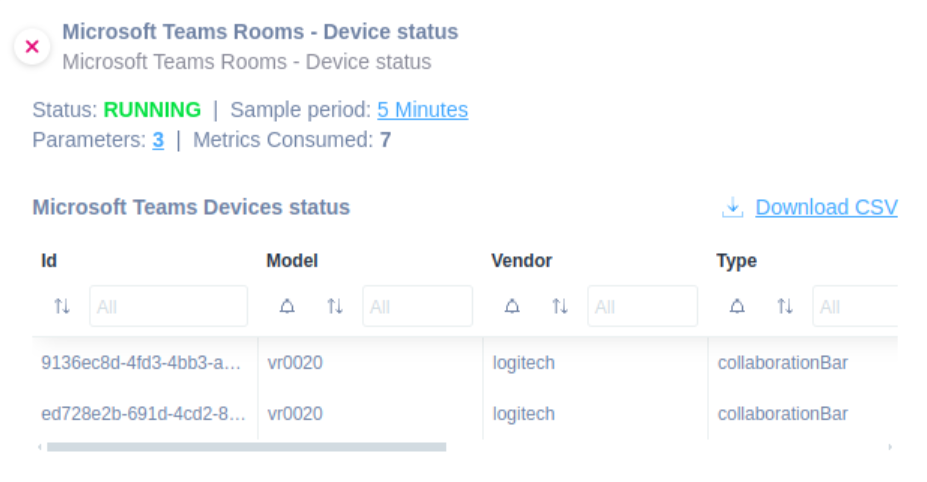
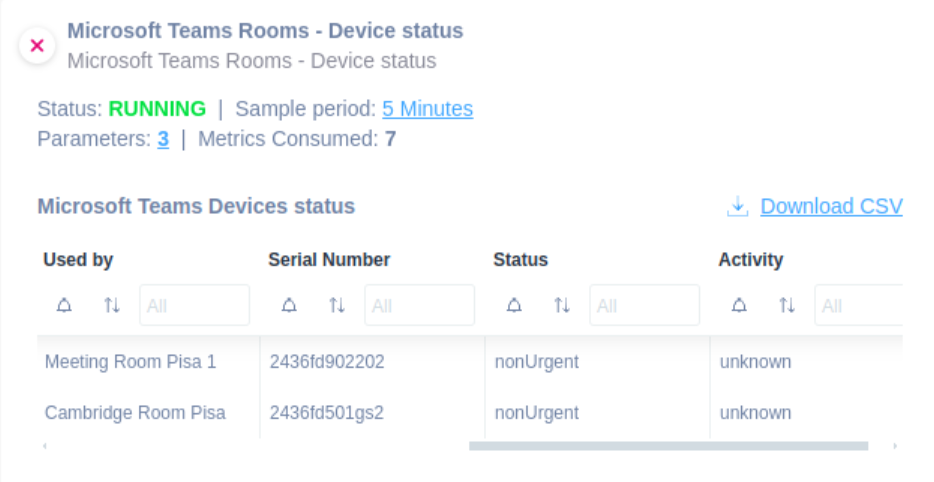
- Microsoft Teams Rooms – New script added to monitor device status:
Enhancements
SNMP Pre-Configured Templates
Added two new metrics to the Network Traffic SNMP template for capturing In/Out Traffic in bits per second.
Sites Explorer Updates
- Login time on the Sites Explorer view has been improved, particularly for larger accounts, by optimizing API call structure and restoring login to the last visited section.
- Device-based accounts now show the total number of managed devices directly in the Sites Explorer.
Collector Updates
Network Collector Versions
- 6.9.2 – Available for Domotz Box, Linux Snap, and Windows
- Fixed Live Ping accuracy on devices with packet size restrictions
- Resolved SNMP Pre-Configured Sensors data collection issue
- Fixed scan issues on large networks (/22 or larger)
- 6.8.7 – Linux Snap
- 6.9.0 – Domotz Box
- 6.6.3 – Synology, QNAP, Docker, Netgear
- 6.6.5 – Raspberry Pi, Domotz Box B11 and B01
- Fixed issues with Remote Connections and VPN on demand
Fixes
Monitoring and Device Management
- SNMP Sensors Monitoring – Fixed data collection issues in version 6.9.0
- Live Ping – Resolved issue returning 100% packet loss for certain devices
- Network Scanning – Improved scanning performance on large subnets
- Configuration Backup (Aruba JL6300M) – Fixed triggering false positive configuration misalignment events
- Configuration Management (Netgear M4300) – Now correctly recognized as supported
- Ubiquiti Switch – Fixed Telnet authentication detection
- Aten PDU – Outlets now display properly
- Wattbox PDU – Resolved unlocking issue (models: WB-800VPS-IPVM-18, WB-250-IPW-2)
Integrations and Automation
- IT Glue – Resolved sync issues for Domotz property values
- ConnectWise – Fixed Board field display for Open Tickets
- Teams Contact Channels – Prevented URL truncation beyond 255 characters
- Bulk Alert Config – Resolved filter ignoring filters applied in the Device Detail tab
UI and Usability
- Inventory Dashboard – Bulk edit now sets device importance correctly
- Collector Devices List – Fixed persistent text search across Collectors
- Popup Behavior – Resolved overlay issues (e.g., calendar popup, 2FA errors)
- Network Topology
- Fixed disappearing links due to stale connections
- Resolved freezing on large-scale maps with thousands of links and nodes
Explorer MFE Fixes
- Map Display – Now loads for users without Collectors (signup scenarios)
- Collector Search – Hardware address and account owner email search restored
- Bulk Selection – Fixed “Select All” behavior when dummy devices are present
- GUDE PDUs – Resolved integration issue with 20-port models
- Ubiquiti EdgeSwitch – Corrected Telnet locked status detection
- Device Sorting – Dummy devices now consistently appear at the bottom when sorting by IP